PAGE GUIDEWhat the page does and how to use it8 sections. Choose a role to highlight what matters to you.
Everyone
1What it is and why
What it is
A setup page where you set up asset manufacturers and the models that belong to them, and relate models to asset types.
What you do here
Use this page to create manufacturers and models so that they can be selected on assets and used for spare parts, alternative spare parts, and job type defaults.
Example
For example, you create the manufacturer Volvo so that you can set a higher service level for Volvo truck engines on the Asset service levels page.
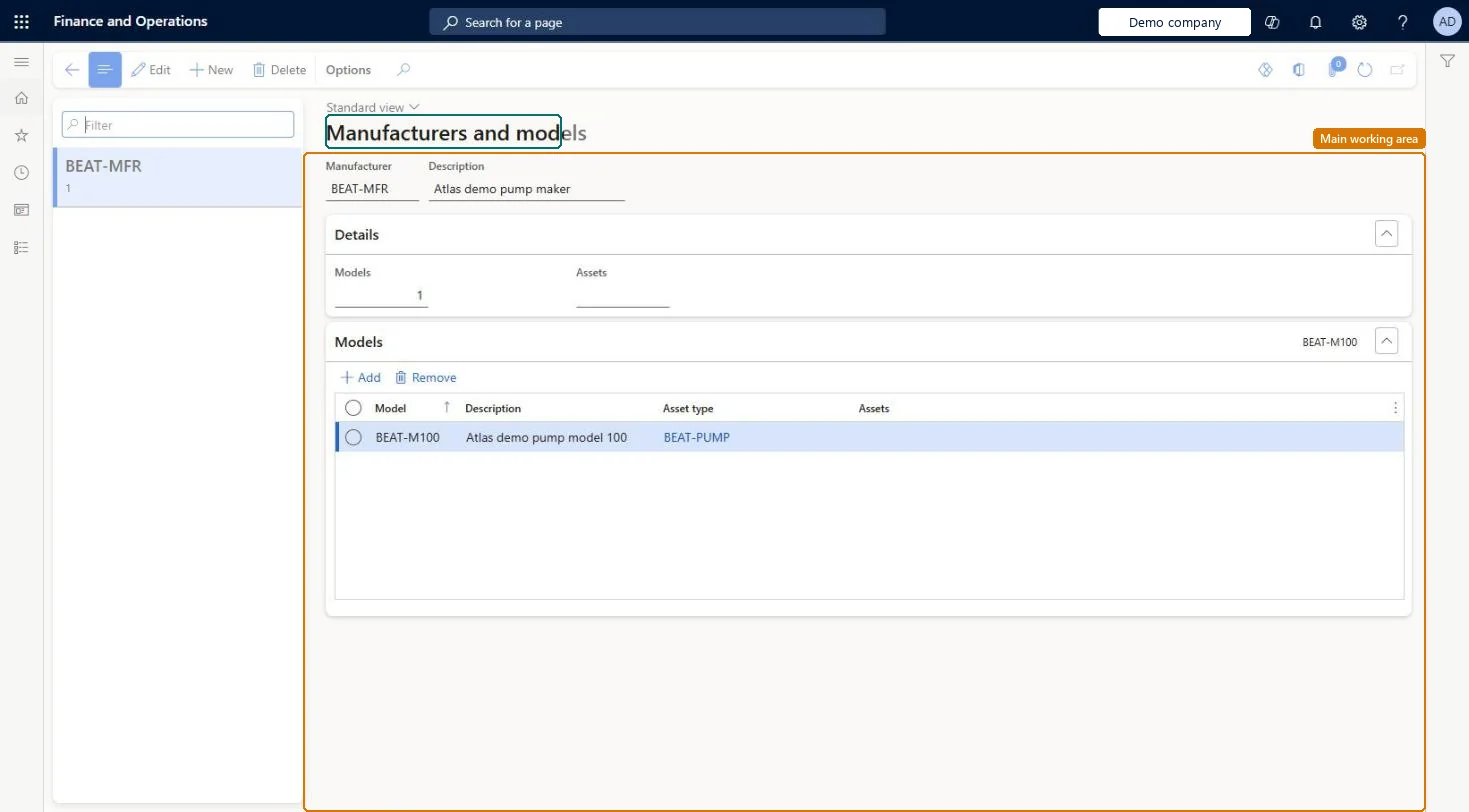
The page in Dynamics 365. page title tab to open what to set or check
About the examples: Examples and screenshots in this guide use BEAT, a demo company in a Dynamics 365 test environment. Use your own company's codes and values instead of copying them.
Setup steps on this page
Set up Manufacturers and models
Use this page to create manufacturers and models so that they can be selected on assets and used for spare parts, alternative spare parts, and job type defaults.
Steps from Microsoft
Go to Asset management > Setup > Assets > Manufacturers and models.
Select New.
In the Manufacturer field, enter a name, and in the Description field, enter a description.
On the Models FastTab, select Add.
In the Model field, enter a name, and in the Description field, enter a description.
In the Asset type field, select the asset type that the model is related to.
Relate models to asset types only where you want to restrict which manufacturer and model can be chosen for that asset typeOnce an asset type is related to at least one manufacturer model, only those combinations can be selected on All assets, Asset service levels, Job type defaults and Maintenance budget lines.
Relating some models to an asset type and not others. Only the related combinations are then offered, and users can't select the missing manufacturer models for that asset type.
Solution architect
5Design impact
Can it be undone
Reversible: Manufacturers, models and their asset type relations can be changed; they only control which combinations are offered. Check the Assets count before changing a model in use. Microsoft Learn
If you change it later
Once an asset type is related to at least one manufacturer model, only those combinations can be selected on pages such as All assets, Asset service levels, job type defaults, and maintenance budget lines. Microsoft Learn
Technical architect
6Technical
Menu item
EntAssetProductChecked in Dynamics 365
Form
EntAssetProductChecked in Dynamics 365
Table
EntAssetProductShown as “MANUFACTURERS” in Record infoKey field: ProductIDChecked in Dynamics 365
Data entities
EntAssetMaintenanceProductEntityAsset management manufacturers Checked in Dynamics 365
To set it up or change itMaintenance manager EntAssetMaintenanceManagerTo use itMaintenance clerk EntAssetMaintenanceClerkGive people one of these roles. On this system, 2 roles can open this page.Checked in Dynamics 365
Developer
7Developer
Open it by URL
https://<your-environment>/?mi=EntAssetProduct
Integrate with
EntAssetMaintenanceProductEntity data entity Checked in Dynamics 365