About the examples: Examples and screenshots in this guide use BEAT, a demo company in a Dynamics 365 test environment. Use your own company's codes and values instead of copying them.
Setup steps on this page
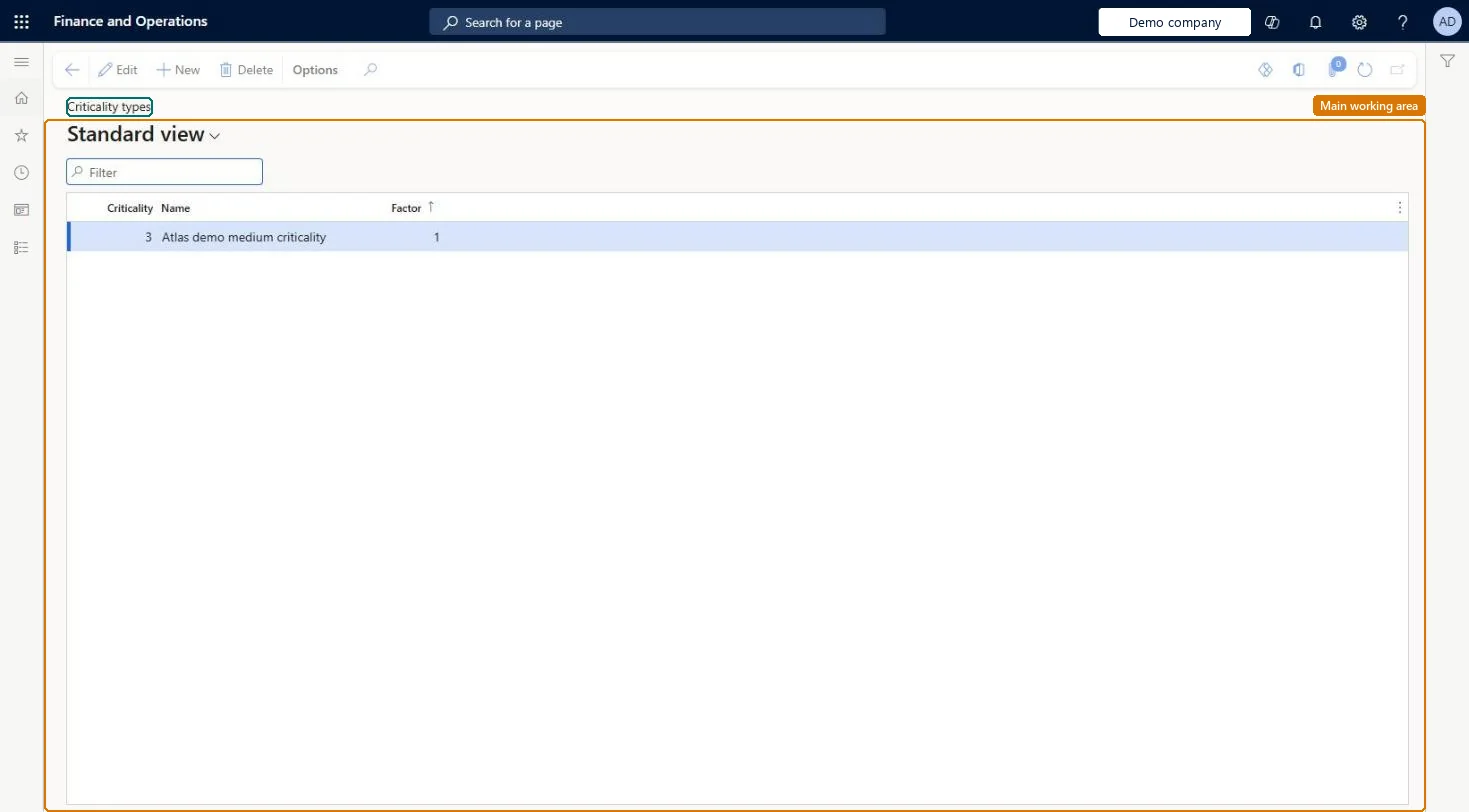
Set up Criticality types
Use this page to define the criticality values that work order scheduling uses to calculate work order criticality.
Steps from Microsoft
Go to Asset management > Setup > Assets > Criticality types.
Select New.
In the Criticality field, enter a number that indicates the criticality.
Give each criticality type a different Factor, with the highest factor on the most critical valueWhen several criticality records apply, the one with the highest factor is used, and a work order with several jobs takes the highest criticality by factor.
Leaving factors equal or ordered the wrong way, so the work order ends up with a lower criticality than its most critical job.
Solution architect
5Design impact
Can it be undone
Reversible: Names and factors can be changed. Work orders recalculate criticality only when a work order line is added or deleted. Microsoft Learn
If you change it later
When a work order has several jobs, the criticality with the highest factor is used on the work order, so the factor decides which value applies. Microsoft Learn
Technical architect
6Technical
Menu item
EntAssetCriticalityChecked in Dynamics 365
Form
EntAssetCriticalityChecked in Dynamics 365
Table
EntAssetCriticalityShown as “CRITICALITY TYPES” in Record infoKey field: NameChecked in Dynamics 365
Data entities
EntAssetMaintenanceCriticalityEntityAsset management criticality types Checked in Dynamics 365
To set it up or change itMaintenance manager EntAssetMaintenanceManagerTo use itMaintenance clerk EntAssetMaintenanceClerkGive people one of these roles. On this system, 2 roles can open this page.Checked in Dynamics 365