PAGE GUIDEWhat the page does and how to use it6 sections. Choose a role to highlight what matters to you.
Everyone
1What it is and why
What it is
An inquiry page that compares actual costs with budget costs for functional locations, and can include sub locations in the calculation.
What you do here
Use this page to calculate costs for a time range and see original budget, committed, open committed, and actual costs for functional locations.
Example
For example, a maintenance manager selects several locations on the All functional locations page and selects Cost control to compare their budget and actual costs.
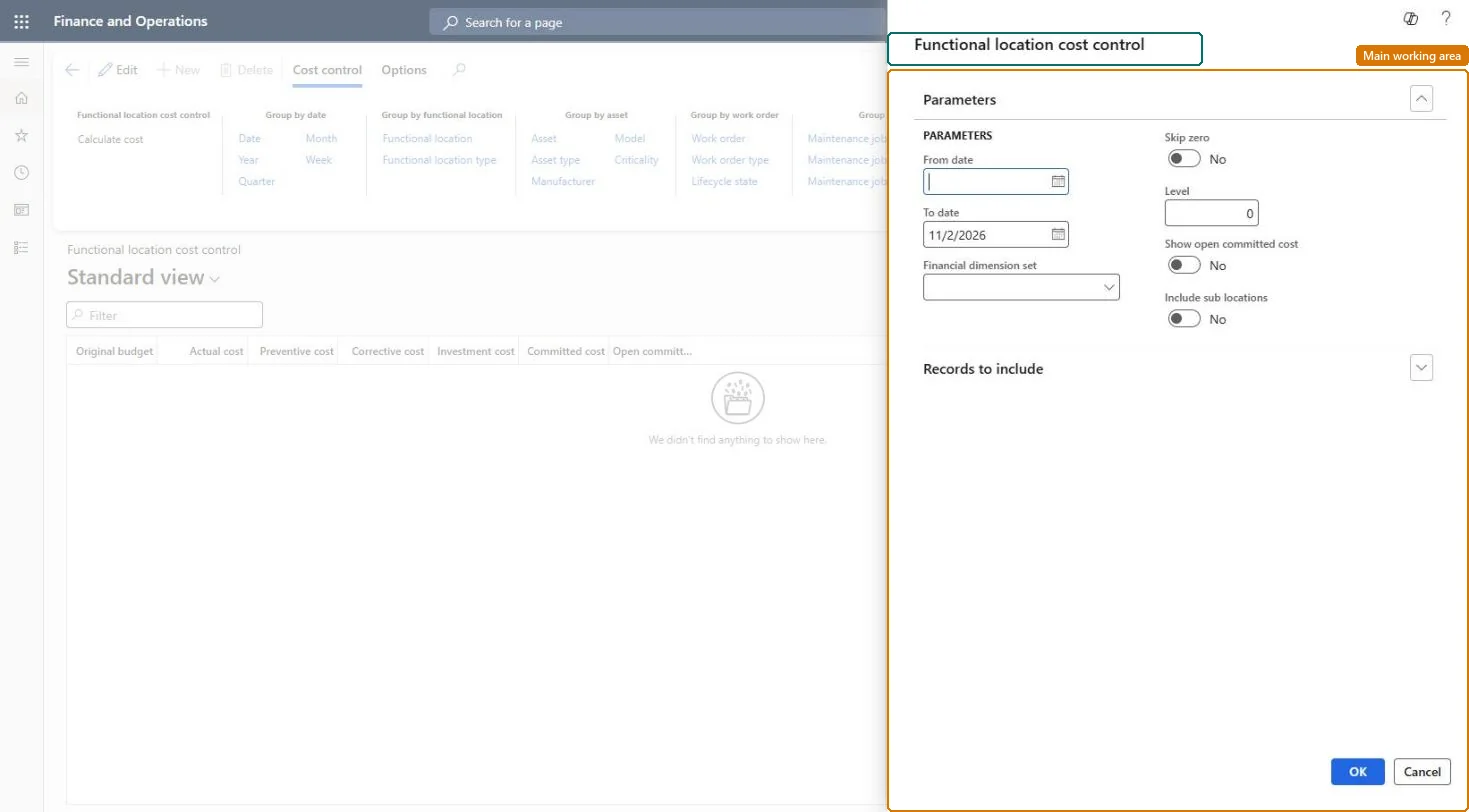
The page in Dynamics 365. page title tab to open what to set or check
About the examples: Examples and screenshots in this guide use BEAT, a demo company in a Dynamics 365 test environment. Use your own company's codes and values instead of copying them.
Steps from Microsoft
Go to Asset management > Inquiries > Assets > Functional location cost control.
In the Functional location cost control dialog, select the time range to calculate.
If required, select a financial dimension set.
Set Skip zero to Yes if you don't want to show results with a cost of zero.
In the Level field, enter how detailed the lines should be for functional locations.
On the Records to include FastTab, select specific functional locations if you want to limit the search.
Select OK.
Use the Group by buttons to show the detail level you need.
How detailed the lines are for functional locations; 0 shows every level.Microsoft Learn
Technical architect
4Technical
Menu item
EntAssetCostControl_FunctionalLocationChecked in Dynamics 365
Form
DialogChecked in Dynamics 365
Roles to set it up and use it
To set it up or change itMaintenance manager EntAssetMaintenanceManagerMaintenance clerk EntAssetMaintenanceClerkMaintenance worker EntAssetMaintenanceWorkerGive people one of these roles. On this system, 3 roles can open this page.Checked in Dynamics 365