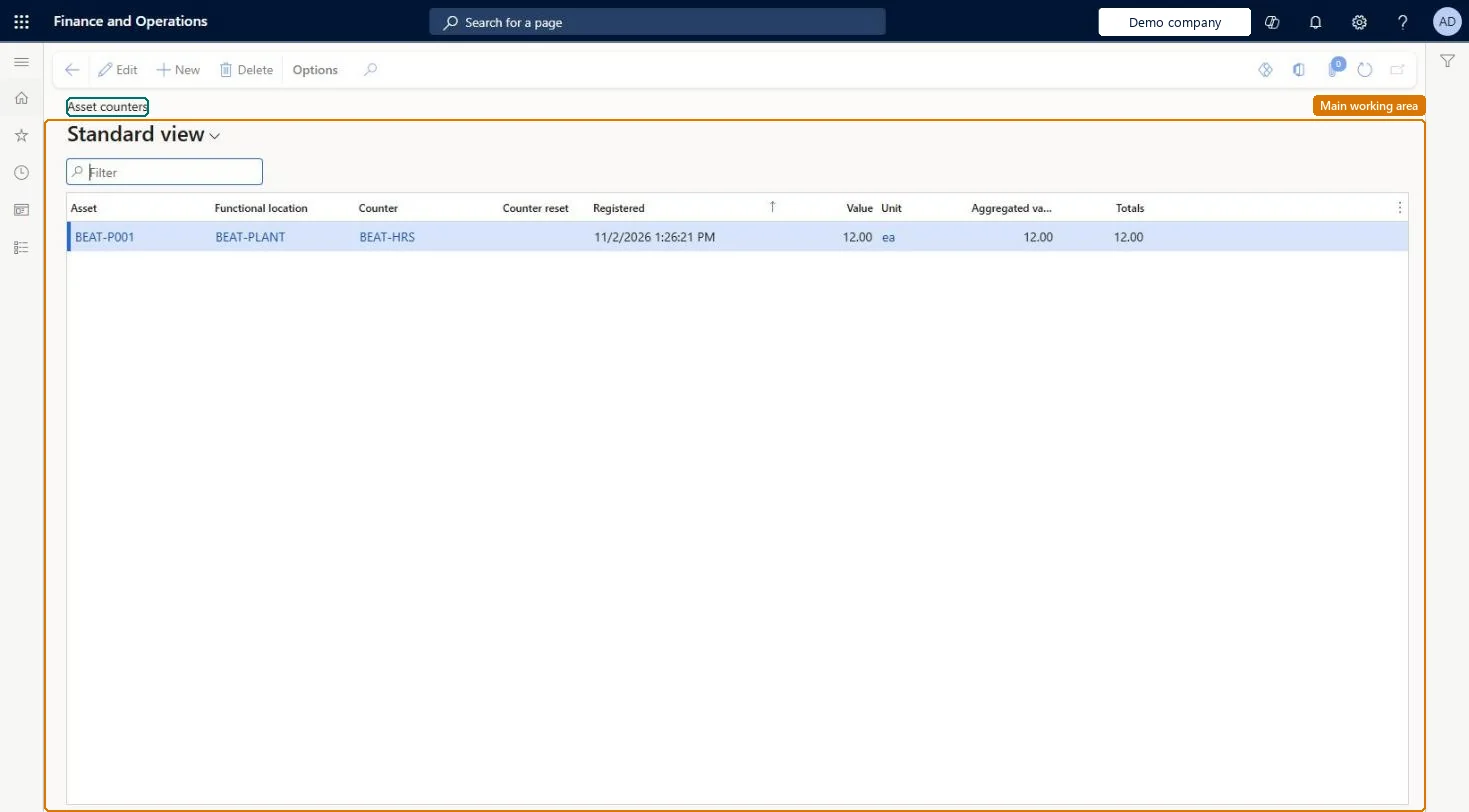
An inquiry page that lists asset counter registrations, such as operating hours or quantity produced, and where you can register counter readings for several assets.
PAGE GUIDEWhat the page does and how to use it7 sections. Choose a role to highlight what matters to you.
Everyone
1What it is and why
What it is
An inquiry page that lists asset counter registrations, such as operating hours or quantity produced, and where you can register counter readings for several assets.
What you do here
Use this page to record counter readings for several assets at the same time and to review earlier registrations.
Example
For example, a technician enters the latest hour-meter readings for several trucks in one session.
The page in Dynamics 365. page title tab to open what to set or check
About the examples: Examples and screenshots in this guide use BEAT, a demo company in a Dynamics 365 test environment. Use your own company's codes and values instead of copying them.
Steps from Microsoft
Go to Asset management > Inquiries > Assets > Asset counters.
Select New.
In the Asset field, select the asset.
In the Counter field, select the counter.
In the Registered field, select the date and time of the reading.
Enter the value since the last reading in the Value field, or the total in the Aggregated value field.
To set it up or change itMaintenance manager EntAssetMaintenanceManagerMaintenance clerk EntAssetMaintenanceClerkTo use itMaintenance worker EntAssetMaintenanceWorkerGive people one of these roles. On this system, 3 roles can open this page.Checked in Dynamics 365
Developer
6Developer
Open it by URL
https://<your-environment>/?mi=EntAssetCounter
Integrate with
EntAssetMaintenanceAssetCounterRegistrationEntity data entity Checked in Dynamics 365