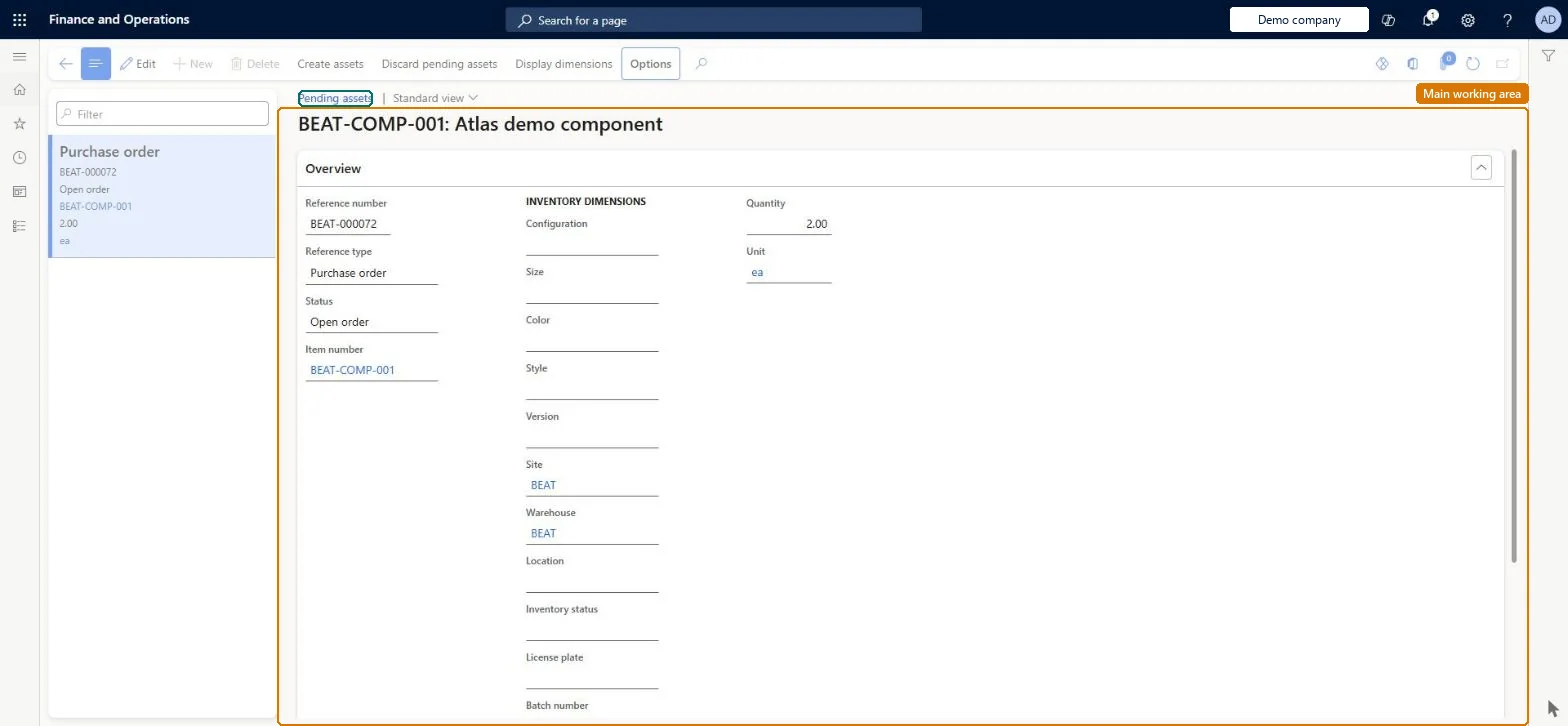
About the examples: Examples and screenshots in this guide use BEAT, a demo company in a Dynamics 365 test environment. Use your own company's codes and values instead of copying them.
Steps from Microsoft
Go to Asset management > Assets > Pending assets.
Filter the list by purchase order status to choose the stage at which assets are created.
Select the check box in the Mark column for each purchase order line to create an asset from.
Select Create assets.
Open the new asset on the All assets page and select Edit to add more information.
Hard to reverse: Create assets copies the purchase order line data once: product dimensions go to asset attributes and serial numbers to the asset. Changes made to the purchase order afterwards are not copied to the asset, so they must be fixed on the asset by hand. Discard pending assets removes only the pending record, not the purchase order. Microsoft Learn
If you change it later
Discarding a line removes only the pending record, not the purchase order. Changes made to a purchase order after the asset is created are not copied to the asset. Microsoft Learn
Technical architect
5Technical
Menu item
EntAssetPendingAssetsChecked in Dynamics 365
Form
EntAssetPendingAssetsChecked in Dynamics 365
Table
EntAssetTmpObjectItemShown as “ASSET ITEMS” in Record infoChecked in Dynamics 365
To set it up or change itMaintenance manager EntAssetMaintenanceManagerMaintenance clerk EntAssetMaintenanceClerkTo use itMaintenance worker EntAssetMaintenanceWorkerGive people one of these roles. On this system, 3 roles can open this page.Checked in Dynamics 365
Actions on the page
(Action Pane without tabs): Create assets, Discard pending assets, Display dimensionsChecked in Dynamics 365