Accounts receivable clerk, Accounts receivable manager, Auditor and 5 more roles
Business process
Define customer payment processes in Dynamics 365 Finance
Menu item
CustTradingPartnerCode
Main table
CustTradingPartnerCode
Data entity
CustTradingPartnerCodeEntity
Setup steps
1 on this page
Show what matters for
PAGE GUIDEWhat the page does and how to use it8 sections. Choose a role to highlight what matters to you.
Everyone
1What it is and why
What it is
A public sector setup page for trading partner codes, which identify the government agencies an organization does business with.
What you do here
Use it to create the trading partner codes established by the U.S. Department of the Treasury and then assign them to agency customer accounts for GFRS and FACTS I reporting.
Example
An agency that does business with the Federal Trade Commission creates trading partner code 29 and enters it on the FTC customer record.
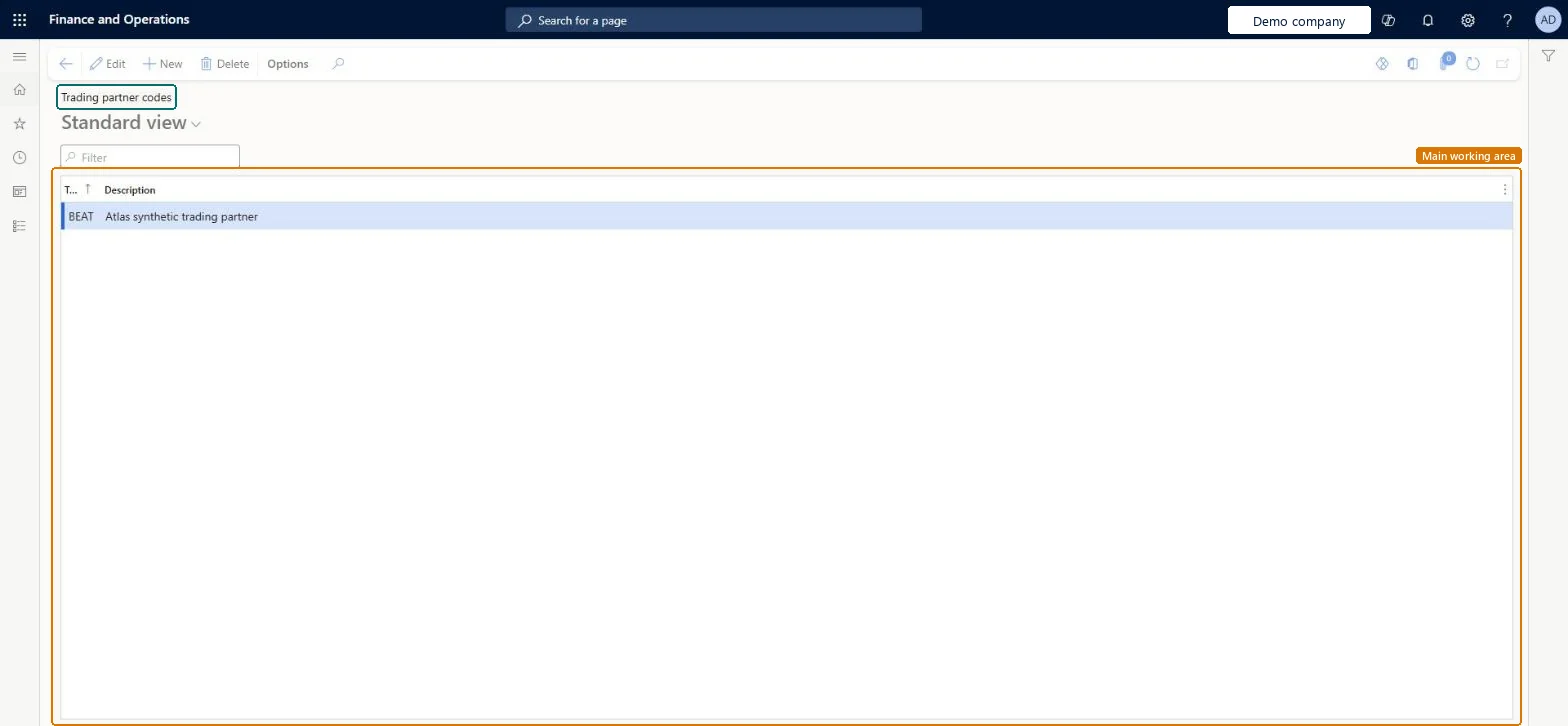
The page in Dynamics 365. page title tab to open what to set or check
About the examples: Examples and screenshots in this guide use BEAT, a demo company in a Dynamics 365 test environment. Use your own company's codes and values instead of copying them.
Step by step, with screenshots
Set up Trading partner codes1 screen
Maintains the US Treasury-defined codes that identify government agency counterparts, which are assigned to customer records for federal reporting.
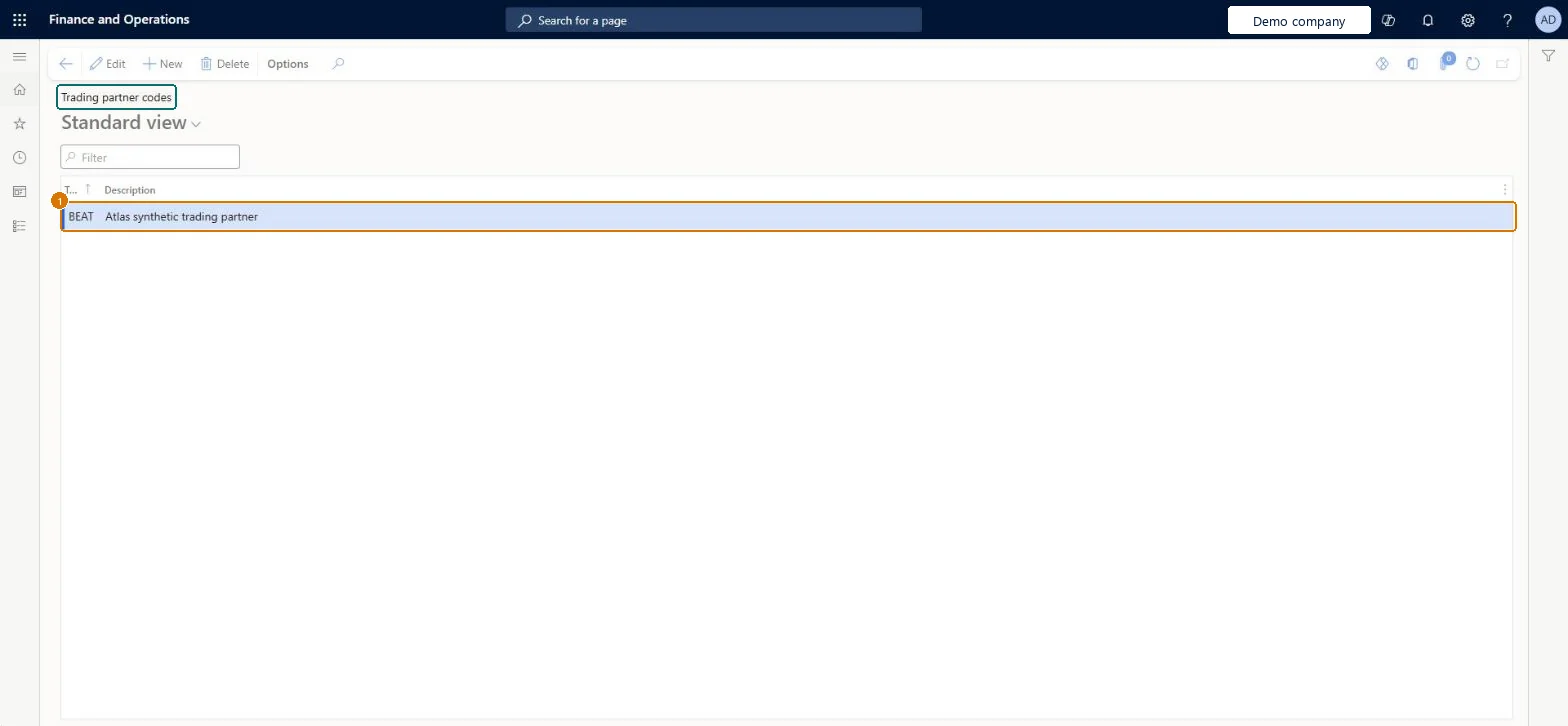
Screen 1
Create the trading partner code
Go to Accounts receivable > Setup > Trading partner codes
Select New
Enter the code BEAT and its description
Description
Trading partner
Show the full screen page title tab to open what to set or check
Steps from Microsoft
Go to Accounts receivable > Setup > Trading partner codes.
Select New.
In the Trading partner code field, enter the code set by the United States Department of the Treasury.
In the Description field, enter the name of the agency that uses the code.
Select Save.
Open the agency's customer record, and in the Trading partner code field on the Miscellaneous details section, select the code.
Use the trading partner codes defined by the U.S. Department of the Treasury, with the agency name as the Description, and assign each one to the agency's customer record.The codes identify the government agencies you do business with for federal reporting, and they're defined by the Treasury, not by your organization.
Creating the codes but not assigning them on the Miscellaneous details FastTab of the agency customer. The customer record must exist before you can assign a code.
Reversible: Trading partner codes are reference values; the code on an agency customer can be changed at any time on the Miscellaneous details FastTab. Microsoft Learn
Technical architect
6Technical
Menu item
CustTradingPartnerCodeChecked in Dynamics 365
Form
CustTradingPartnerCodeChecked in Dynamics 365
Table
CustTradingPartnerCodeShown as “Trading partner code” in Record infoKey field: TradingPartnerCodeChecked in Dynamics 365
Data entities
CustTradingPartnerCodeEntityTrading partner code Checked in Dynamics 365
Who can open it
PrivilegesDelete trading partner codes CustTradingPartnerCodeDeleteView trading partner codes CustTradingPartnerCodeViewDutiesEnable customer process CustCustomerProcessEnableInquire into customer reference data CustCustomerReferenceDataInquire8 security rolesAuditor AuditPolicyManagerCollections agent CollectionLetterCollectionsAgentCollections manager CollectionLetterCollectionsManagerChief financial officer CompanyChiefFinancialOfficerAccounts receivable clerk CustInvoiceAccountsReceivableClerkAccounts receivable manager CustInvoiceAccountsReceivableManagerAccounting manager LedgerAccountingManagerSales manager TradeSalesManagerChecked in Dynamics 365
Roles to set it up and use it
To set it up or change itAccounts receivable manager CustInvoiceAccountsReceivableManagerCollections manager CollectionLetterCollectionsManagerSales manager TradeSalesManagerTo use itAccounts receivable clerk CustInvoiceAccountsReceivableClerkAccounting manager LedgerAccountingManagerCollections agent CollectionLetterCollectionsAgentAuditor AuditPolicyManagerChief financial officer CompanyChiefFinancialOfficerGive people one of these roles. On this system, 8 roles can open this page.Checked in Dynamics 365
Checked in a working Dynamics 365 system, version 10.0.49: the menu item, form, table and security, the page, the demo records and the values in the screenshots.