BeyondERP.Newsletter
Menu

Job page · Accounts receivable

Create prenotes

A periodic job that creates prenotes, which are zero-dollar transactions sent to the bank through the Automated Clearing House (ACH) network.

Business process
Process customer payments
Menu item
Action:PrenoteAR
Show what matters for
PAGE GUIDEWhat the page does and how to use it7 sections. Choose a role to highlight what matters to you.
Everyone

1What it is and why

What it isA periodic job that creates prenotes, which are zero-dollar transactions sent to the bank through the Automated Clearing House (ACH) network.
What you do hereUse this periodic task to create customer account prenotes so that the bank can check account data, such as routing numbers and account numbers.
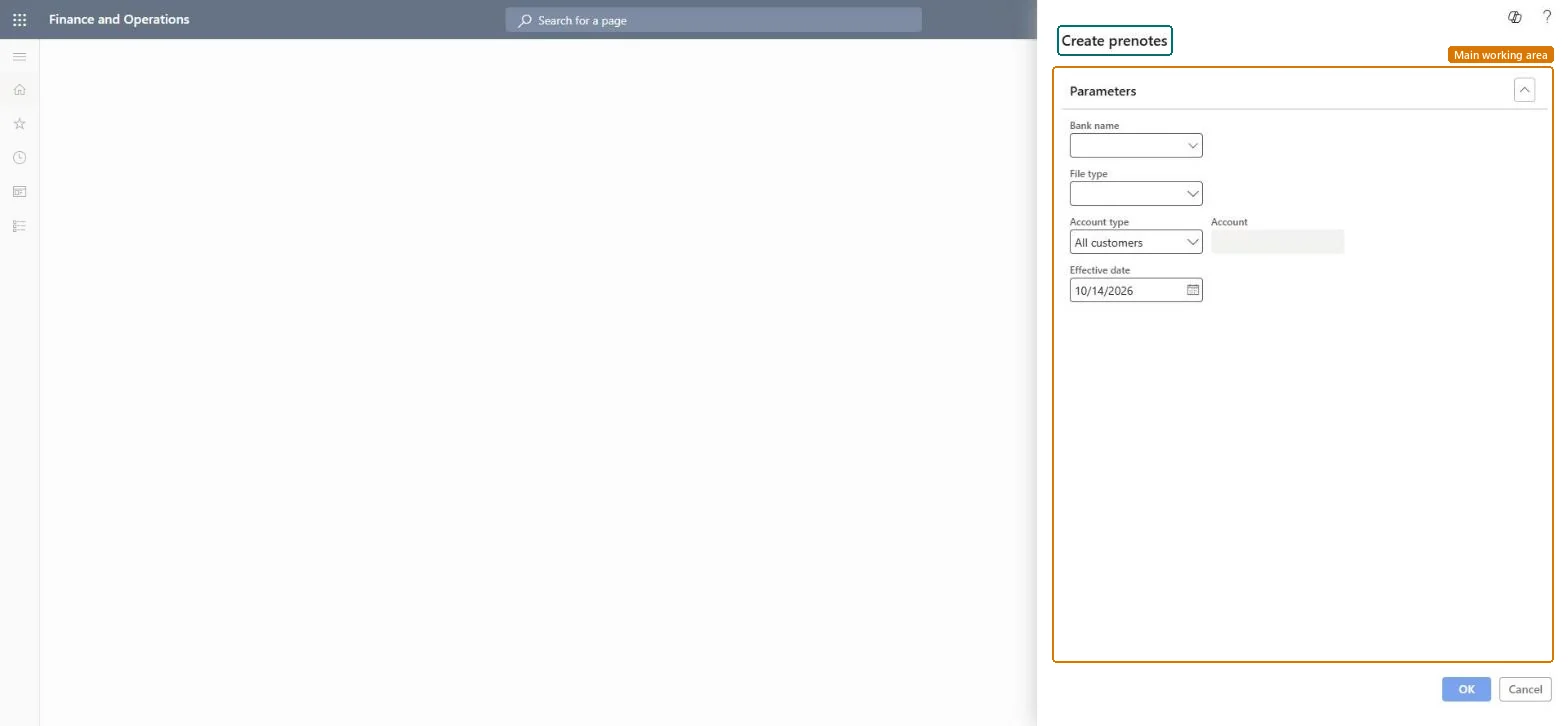
Create prenotes page in Dynamics 365
The page in Dynamics 365. page title tab to open what to set or check
Functional consultant · Solution architect

2Where it fits

Business processManage accounts receivable › Process customer payments
Menu pathAccounts receivable › Periodic tasks › Create prenotes
Set up firstBank accounts: Prenote required Microsoft Learn Cash and bank management parameters: prenote number sequence Microsoft Learn
Used next byCustomer bank accounts (prenote status) Microsoft Learn
End user · Functional consultant

3How to do it

About the examples: Examples and screenshots in this guide use BEAT, a demo company in a Dynamics 365 test environment. Use your own company's codes and values instead of copying them.

When to run it

When to run itWhen a customer bank account is set up or changed and must be checked by the bank before ACH payments are collected.
How oftenOn demand, each time new or changed customer bank accounts need a prenote.
What the output showsA prenote file with zero-dollar transactions for the selected customers, saved under the file name you chose. If the bank rejects a prenote, the routing or account number on the customer bank account is usually wrong.

Source: Microsoft Learn

Steps from Microsoft

  1. Go to Accounts receivable > Periodic tasks > Create prenotes.
  2. In Bank name, select your organization's bank that will send the prenotes through the ACH network.
  3. In File name, choose where to save the prenote file, and select the file export type: CCD, CTX or PPD.
  4. In Account type, choose all customers, or one customer and then pick it in Account.
  5. Run the process and send the file to the bank, then wait for the bank's response before you collect electronic payments from new accounts.

Source: Microsoft Learn

Fields on the page

FieldWhat it means
Account typeWhether prenotes are created for all customers or for one customer.Microsoft Learn
AccountThe customer to create a prenote for, when only one customer is selected.Microsoft Learn

Test checklist

  1. The prenote file exists in the chosen location with one line per selected customer.
  2. All amounts in the file are zero.
  3. The bank confirms the prenotes before payments are collected.

Source: Microsoft Learn

Solution architect

4Design impact

Can it be undoneNo: A prenote file that was sent to the bank can't be recalled; a corrected bank account needs a new prenote. Microsoft Learn
If you change it laterIf a customer's bank account changes after a prenote was created, a new prenote is needed for the new account. Microsoft Learn
Technical architect

5Technical

Menu itemAction:PrenoteAR Checked in Dynamics 365
FormDialog Checked in Dynamics 365
Roles to set it up and use itTo use itAccountant LedgerAccountantTreasurer PaymTreasurerGive people one of these roles. On this system, 2 roles can run this page.Checked in Dynamics 365
Developer

6Developer

Open it by URLhttps://<your-environment>/?mi=Action:PrenoteAR
Everyone

7Sources