BeyondERP.Newsletter
Menu

Job page · Accounts payable

Process one-time vendors and invoices

A public sector periodic task that processes the imported one-time vendor and invoice file and generates the invoices.

Business process
Process supplier invoices
Menu item
Action:VendOneTimeVendorProcess_PSN
Show what matters for
PAGE GUIDEWhat the page does and how to use it7 sections. Choose a role to highlight what matters to you.
Everyone

1What it is and why

What it isA public sector periodic task that processes the imported one-time vendor and invoice file and generates the invoices.
What you do hereIt is used as the second step after the import, to turn the staged one-time vendor and invoice data into vendor records and invoices.
ExampleAfter importing a file of payees for jury duty, registration payments and refunds, you process it to generate the invoices for those one-time vendors.
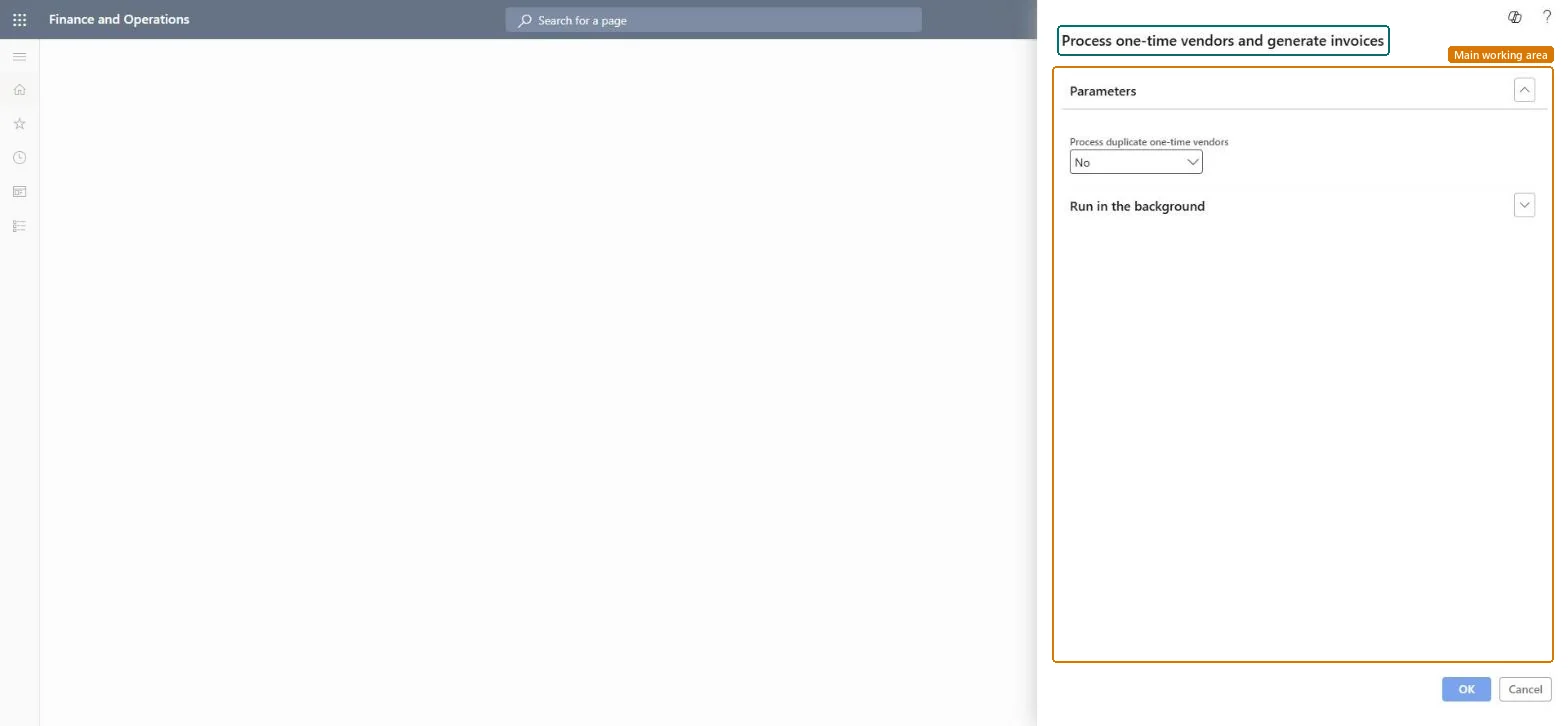
Process one-time vendors and invoices page in Dynamics 365
The page in Dynamics 365. page title tab to open what to set or check
Functional consultant · Solution architect

2Where it fits

Business processManage accounts payable › Process supplier invoices
Menu pathAccounts payable › Periodic tasks › Process one-time vendors and invoices
Set up firstImport one-time vendors and invoices Microsoft Learn
Used next byVendor payment journal Microsoft Learn
End user · Functional consultant

3How to do it

About the examples: Examples and screenshots in this guide use BEAT, a demo company in a Dynamics 365 test environment. Use your own company's codes and values instead of copying them.

When to run it

When to run itRight after the import step, once the file has imported without errors.
How oftenOnce per imported file.
What the output showsNew one-time vendor records and their invoices. A vendor without invoices was a duplicate you chose not to process.

Source: Microsoft Learn

Steps from Microsoft

  1. Go to Accounts payable > Periodic tasks > Process one-time vendors and invoices.
  2. Run it after Import one-time vendors and invoices has staged the file.
  3. Review the duplicate vendor names or federal tax IDs that are found, and decide whether to process them. If you skip a duplicate vendor, its invoices aren't processed either.
  4. Select OK to create the vendors and invoices.
  5. Create any skipped invoices by hand from the CSV file, then review the new draft invoices.

Source: Microsoft Learn

Test checklist

  1. Each vendor in the file exists once.
  2. Invoices exist for all processed vendors.
  3. Skipped duplicates were handled by hand.

Source: Microsoft Learn

Solution architect

4Design impact

Can it be undoneNo: Vendors and invoices created by the run stay; remove or correct them one by one. Review duplicates carefully before you select OK. Microsoft Learn
If you change it laterCreates vendor records and invoices from the staged data. Skipping a duplicate vendor also skips its invoices. Microsoft Learn
Technical architect

5Technical

Menu itemAction:VendOneTimeVendorProcess_PSN Checked in Dynamics 365
FormSysOperationTemplateForm Checked in Dynamics 365
Roles to set it up and use itTo use itAccounts payable manager VendInvoiceAccountsPayableManagerAccounts payable clerk VendInvoiceAccountsPayableClerkRental manager RentalManagerRental coordinator agent RentalCoordinatorAgentLanded cost agent ITMAgentGive people one of these roles. On this system, 7 roles can run this page.Checked in Dynamics 365
Developer

6Developer

Open it by URLhttps://<your-environment>/?mi=Action:VendOneTimeVendorProcess_PSN
Everyone

7Sources