About the examples: Examples and screenshots in this guide use BEAT, a demo company in a Dynamics 365 test environment. Use your own company's codes and values instead of copying them.
Step by step, with screenshots
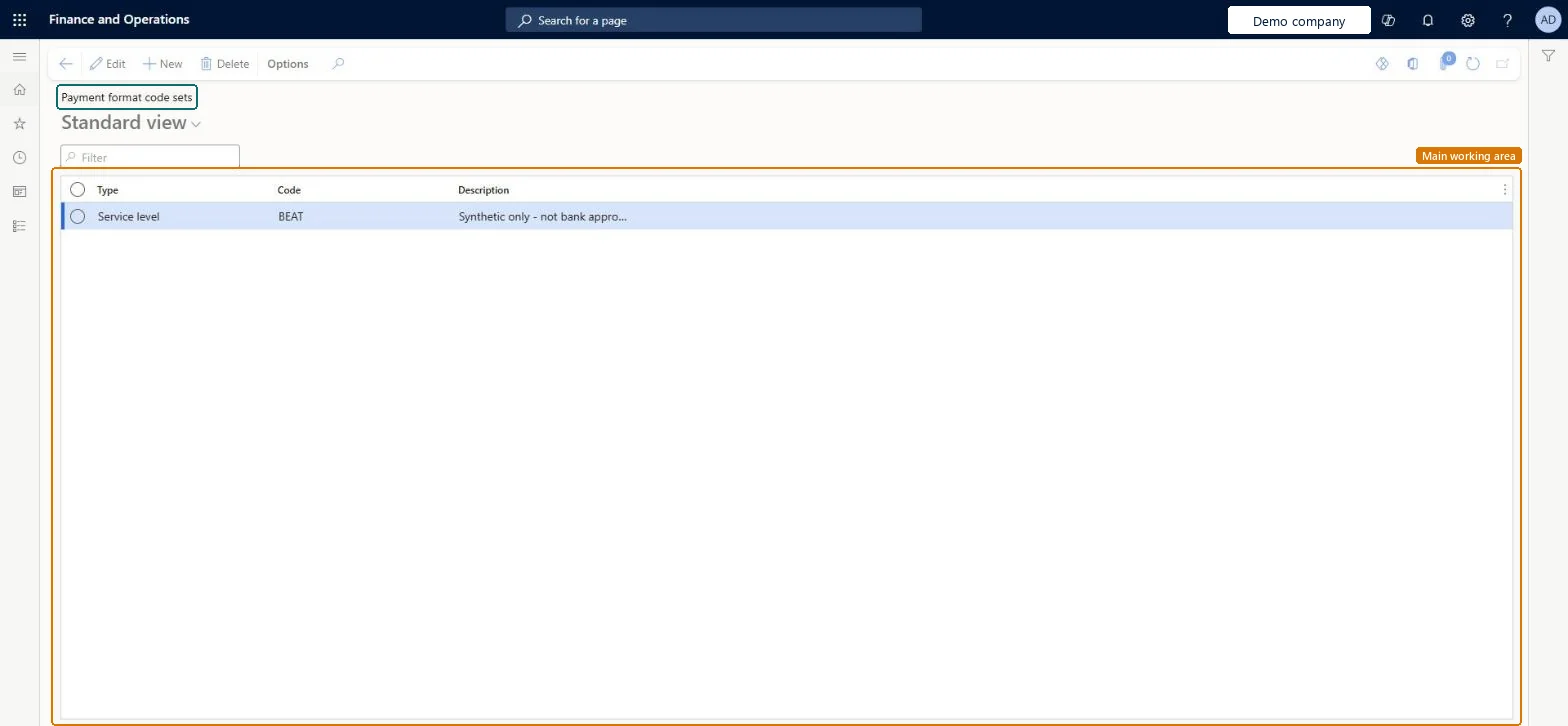
Set up Payment format code sets1 screen
Maintains the code sets (service level, category purpose, charge bearer, local instrument) used to tag ISO 20022 payment transactions during payment processing.
Screen 1
Create the payment format code
Go to Accounts payable > Payment setup > Payment format code sets
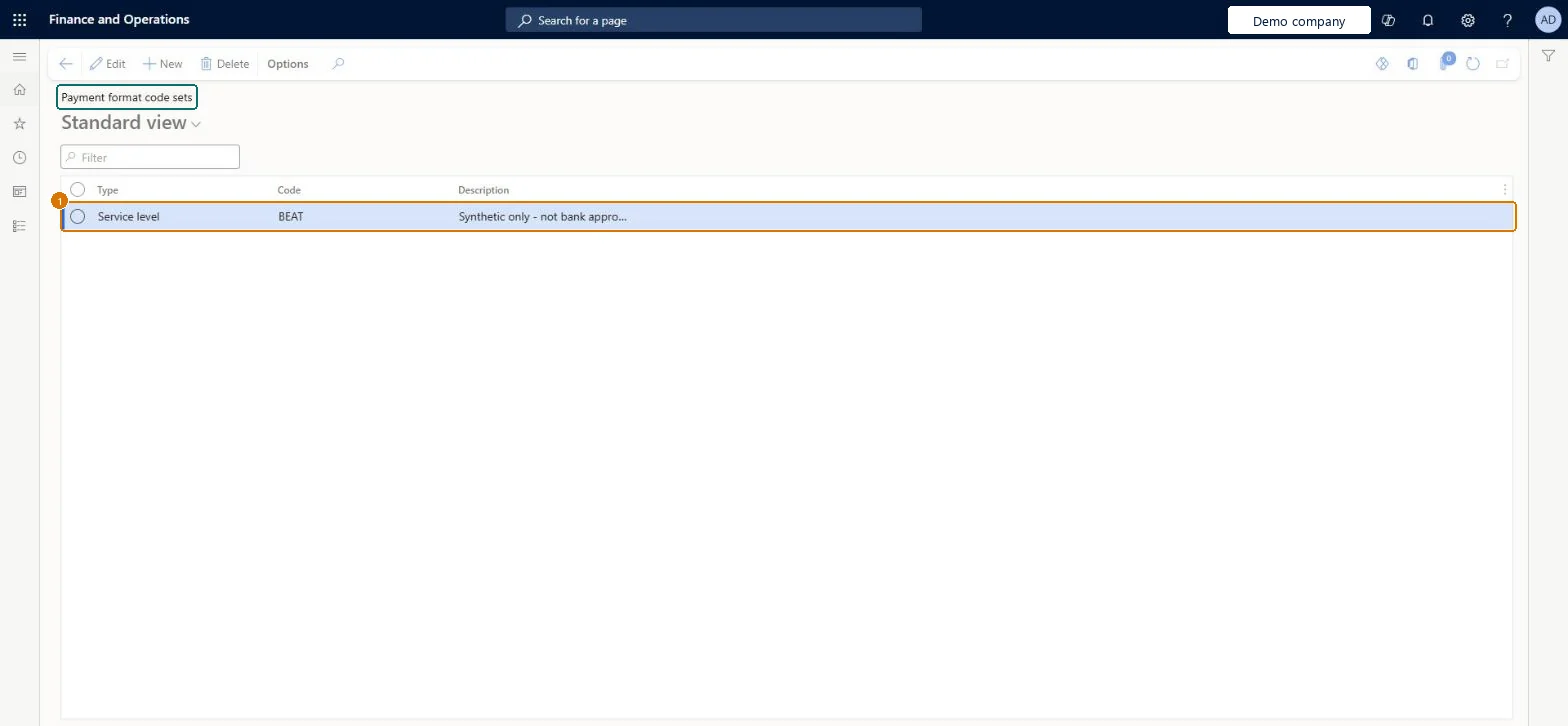
Select New
Choose Service level
Enter the Code and Description
1Code
BEAT
Description
Not bank approved
Show the full screen page title tab to open what to set or check
How to use it
Go to Accounts payable > Payment setup > Payment format code sets.
Select New to add a row.
Choose the Type and enter the Code and the Description.
Select a row and select Edit to change it, or select Delete to remove it.
Source: Checked in Dynamics 365
Fields on the page
Field
What it means
Example
Table column
Code
The code that identifies the payment format code set.Checked in Dynamics 365
Code
Description
A short description of the payment format code set.Checked in Dynamics 365
Not bank approved
Description
Test checklist
Create service level SLEV and set it on an ISO 20022 method of payment.
Create a payment journal with no header codes and add a line; check SLEV is on the line.
Set a different code on a journal header and add a line; check the header value is used.
Generate the payment file and check the tag is in the XML.
The codes your bank's ISO 20022 format requires (for example Service level SLEV), with defaults on the method of payment and overrides on the payment journal header only when neededNew payment journal lines take payment codes from the journal header first and otherwise from the method of payment.
Changing codes on the method of payment while the journal header already has values: header values win on new lines.
Reversible: Codes can be changed at any time; they default onto new payment journal lines only. Microsoft Learn
If you change it later
New payment journal lines take payment codes from the journal header first; if none are set there, they come from the method of payment. Microsoft Learn
Technical architect
6Technical
Menu item
PaymentFormatCodeSets_WChecked in Dynamics 365
Form
PaymentFormatCodeSets_WChecked in Dynamics 365
Table
PaymentFormatCodeSets_WShown as “Payment format code sets” in Record infoKey field: CodeChecked in Dynamics 365
PrivilegesMaintain vendor methods of payment VendPaymModeMaintainView vendor methods of payment VendPaymModeViewDutiesMaintain vendor payments PaymVendorPaymentsMaintainInquire into invoice and payment policies VendInvoiceInvoicePaymentPoliciesInquirEnable invoice and payment process VendInvoiceInvoicePaymentProcessEnable5 security rolesAuditor AuditPolicyManagerAccounting manager LedgerAccountingManagerAccounting supervisor LedgerAccountingSupervisorAccounts payable payments clerk PaymAccountsPayablePaymentsClerkAccounts payable manager VendInvoiceAccountsPayableManagerChecked in Dynamics 365
Roles to set it up and use it
To set it up or change itAccounts payable manager VendInvoiceAccountsPayableManagerAccounting supervisor LedgerAccountingSupervisorTo use itAccounting manager LedgerAccountingManagerAccounts payable payments clerk PaymAccountsPayablePaymentsClerkAuditor AuditPolicyManagerGive people one of these roles. On this system, 5 roles can open this page.Checked in Dynamics 365
Checked in a working Dynamics 365 system, version 10.0.49: the menu item, form, table and security, the page, the demo records and the values in the screenshots.