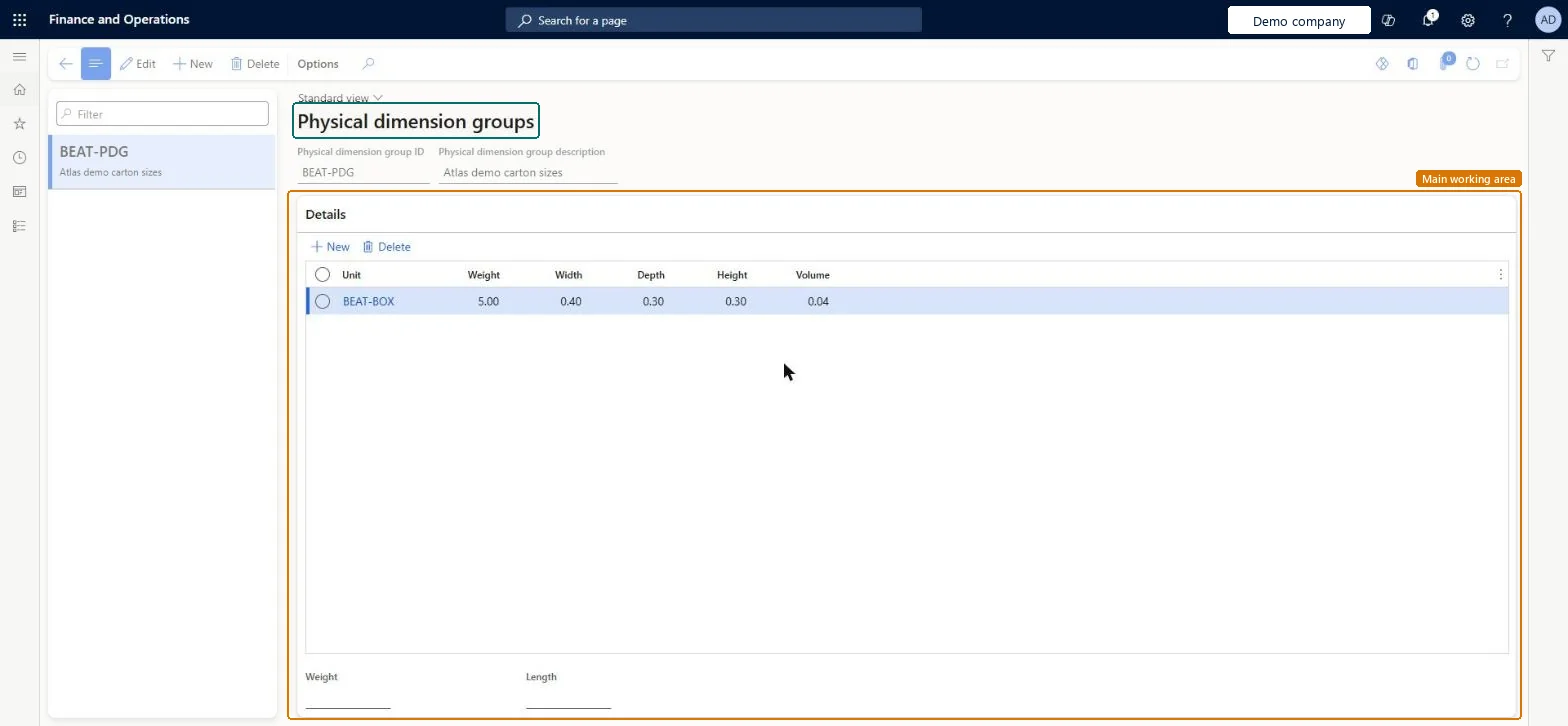
About the examples: Examples and screenshots in this guide use BEAT, a demo company in a Dynamics 365 test environment. Use your own company's codes and values instead of copying them.
Setup steps on this page
Set up Physical dimension groups
Use this page to set up named groups of physical measurements that describe the size and weight of an item in each unit.
How to use it
Go to Warehouse management > Setup > Inventory > Physical dimension groups.
Select New on the Action Pane to create a group.
Enter the Physical dimension group ID and the Physical dimension group description.
In the Details section, select New to add a line, then enter the Unit and its Weight, Width, Depth and Height.
To change an existing group, select it in the list on the left and select Edit.
PrivilegesMaintain physical dimension groups WHSPhysDimGroupMaintainView physical dimension groups WHSPhysDimGroupViewDutiesInquire into warehouse planning master data WHSWarehousePlanningMasterInquireRecord warehouse planning masters WHSWarehousePlanningMasterMaintainInquire into warehouse operation master WMSWarehouseOperationMasterInquireMaintain warehouse operation master WMSWarehouseOperationMasterMaintain6 security rolesField Service Integration User FieldServiceIntegrationUserProduction supervisor ProdProductionSupervisorProcess engineer RouteProcessEngineerProcess engineering manager RouteProcessEngineeringManagerWarehouse planner WHSWarehousePlannerWarehouse manager WMSWarehouseManagerChecked in Dynamics 365
Roles to set it up and use it
To set it up or change itWarehouse manager WMSWarehouseManagerWarehouse planner WHSWarehousePlannerProcess engineer RouteProcessEngineerTo use itProduction supervisor ProdProductionSupervisorProcess engineering manager RouteProcessEngineeringManagerField Service Integration User FieldServiceIntegrationUserGive people one of these roles. On this system, 6 roles can open this page.Checked in Dynamics 365
WHSPhysicalDimensionGroupEntity (Physical dimension groups): loaded for each company, in Microsoft's default template 400 - Warehouse management.Load order: Microsoft's default template 400 - Warehouse management loads Physical dimension groups at execution unit 1, level 30, sequence 10. Lower levels load first, and entities at the same level load in sequence order.Load first: the default templates at lower levels (System setup to General ledger)Microsoft Learn