BeyondERP.Newsletter
Menu

Setup step on the Non-work time page · Leave and absence

Set up Non-work time

Use this page to add or change nonwork times separately from a working time calendar, each with a name and time range.

Used by
Human resource assistant, Human resource manager, Payroll administrator and 1 more role
Business process
Develop leave and absence policies
Menu item
HcmWorkCalendarNonWorkingActivity
Main table
HcmWorkCalendarNonWorkin
Setup steps
1 on this page
Show what matters for
SETUP GUIDEHow to set it up7 sections. Choose a role to highlight what matters to you.
Everyone

1What it is and why

What it isA setup page for nonwork time, such as lunches or breaks, that working time calendars use.
What you do hereUse this page to add or change nonwork times separately from a working time calendar, each with a name and time range.
ExampleFor example, set up a lunch break as nonwork time with its time range.
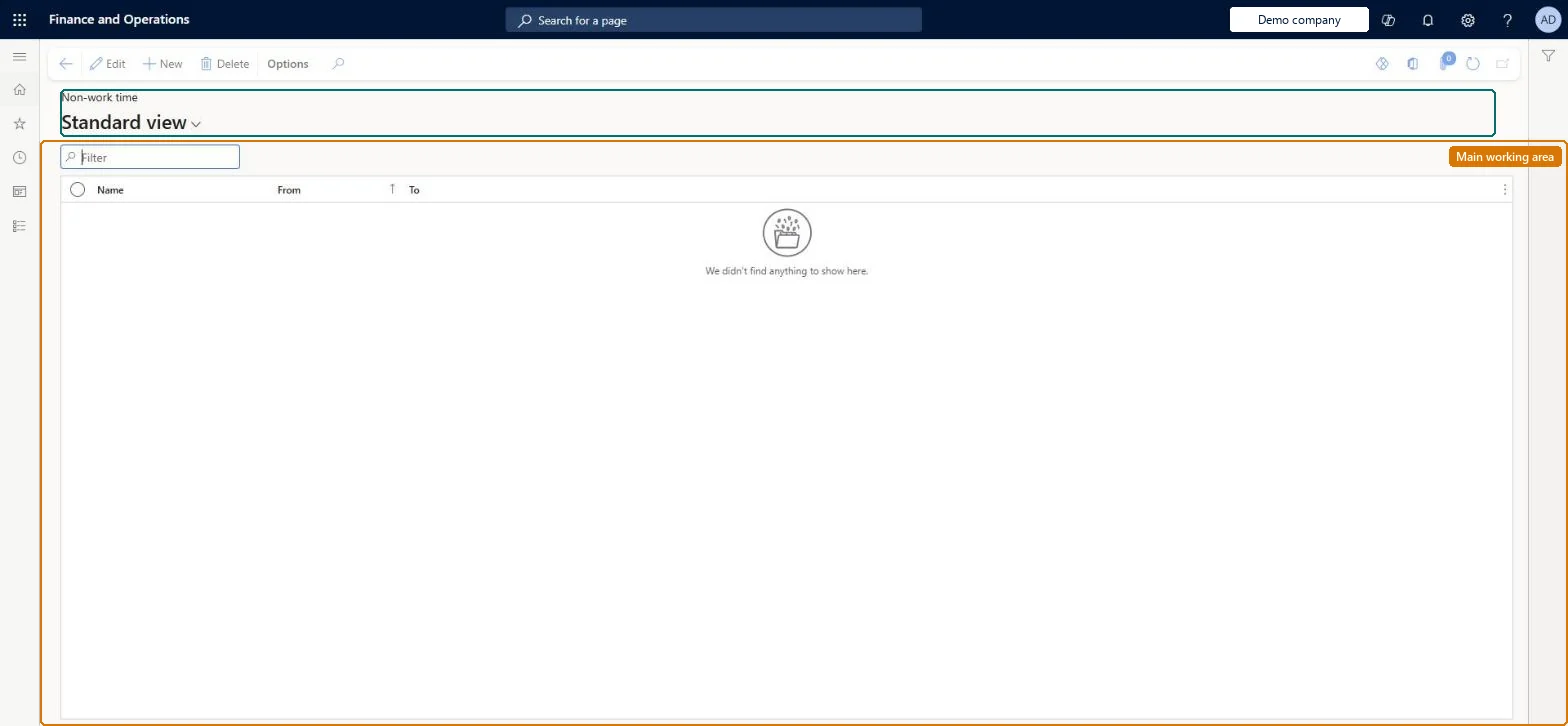
Non-work time page in Dynamics 365
The page in Dynamics 365. page title tab to open what to set or check
Functional consultant · Solution architect

2Where it fits

Business processManage time and attendance › Develop leave and absence policies
Menu pathLeave and absence › Setup › Calendars › Non-work time
Used next byCalendars Microsoft Learn
In this process Set up Holidays and closures
End user · Functional consultant

3How to do it

About the examples: Examples and screenshots in this guide use BEAT, a demo company in a Dynamics 365 test environment. Use your own company's codes and values instead of copying them.

Setup steps on this page

Set up Non-work time

Use this page to add or change nonwork times separately from a working time calendar, each with a name and time range.

Steps from Microsoft

  1. Go to Leave and absence > Setup > Calendars > Non-work time.
  2. Select New.
  3. Enter a name and time range for the nonwork time.
  4. Select Save.

Source: Microsoft Learn

Test checklist

  1. Create a nonwork time named Lunch with a one-hour time range.
  2. Add it under Nonwork time on a working time calendar and generate days.
  3. Check the generated days show the lunch hour as nonwork time.

Source: Microsoft Learn

Solution architect

4Design impact

Can it be undoneReversible: Nonwork times can be added or changed separately from the calendar at any time.
Technical architect

5Technical

Menu itemHcmWorkCalendarNonWorkingActivity Checked in Dynamics 365
FormHcmWorkCalendarNonWorkingActivity Checked in Dynamics 365
TableHcmWorkCalendarNonWorkinShown as “NON-WORK TIME” in Record infoKey field: NameChecked in Dynamics 365
Who can open itPrivilegesView work calendar non-work times HcmWorkCalendarNonWorkingActivityInquireMaintain work calendar non-work times HcmWorkCalendarNonWorkingActivityMaintainDutiesView work calendars HcmWorkCalendarSetupInquireMaintain work calendars HcmWorkCalendarSetupMaintain
4 security rolesHuman resource assistant HcmHumanResourceAssistantHuman resource manager HcmHumanResourceManagerPayroll administrator HcmPayrollAdministratorPayroll manager HcmPayrollManager
Checked in Dynamics 365
Roles to set it up and use itTo set it up or change itHuman resource assistant HcmHumanResourceAssistantPayroll administrator HcmPayrollAdministratorTo use itHuman resource manager HcmHumanResourceManagerPayroll manager HcmPayrollManagerGive people one of these roles. On this system, 4 roles can open this page.Checked in Dynamics 365
Developer

6Developer

Open it by URLhttps://<your-environment>/?mi=HcmWorkCalendarNonWorkingActivity
Everyone

7Sources

To cite this step: LA-SETUP-070, Set up Non-work time. Beyond ERP Atlas Hub, 2026-11-11. https://www.beyonderp.cloud/atlas/step/LA-SETUP-070