About the examples: Examples and screenshots in this guide use BEAT, a demo company in a Dynamics 365 test environment. Use your own company's codes and values instead of copying them.
How to use it
Go to Warehouse management > Work > Work details.
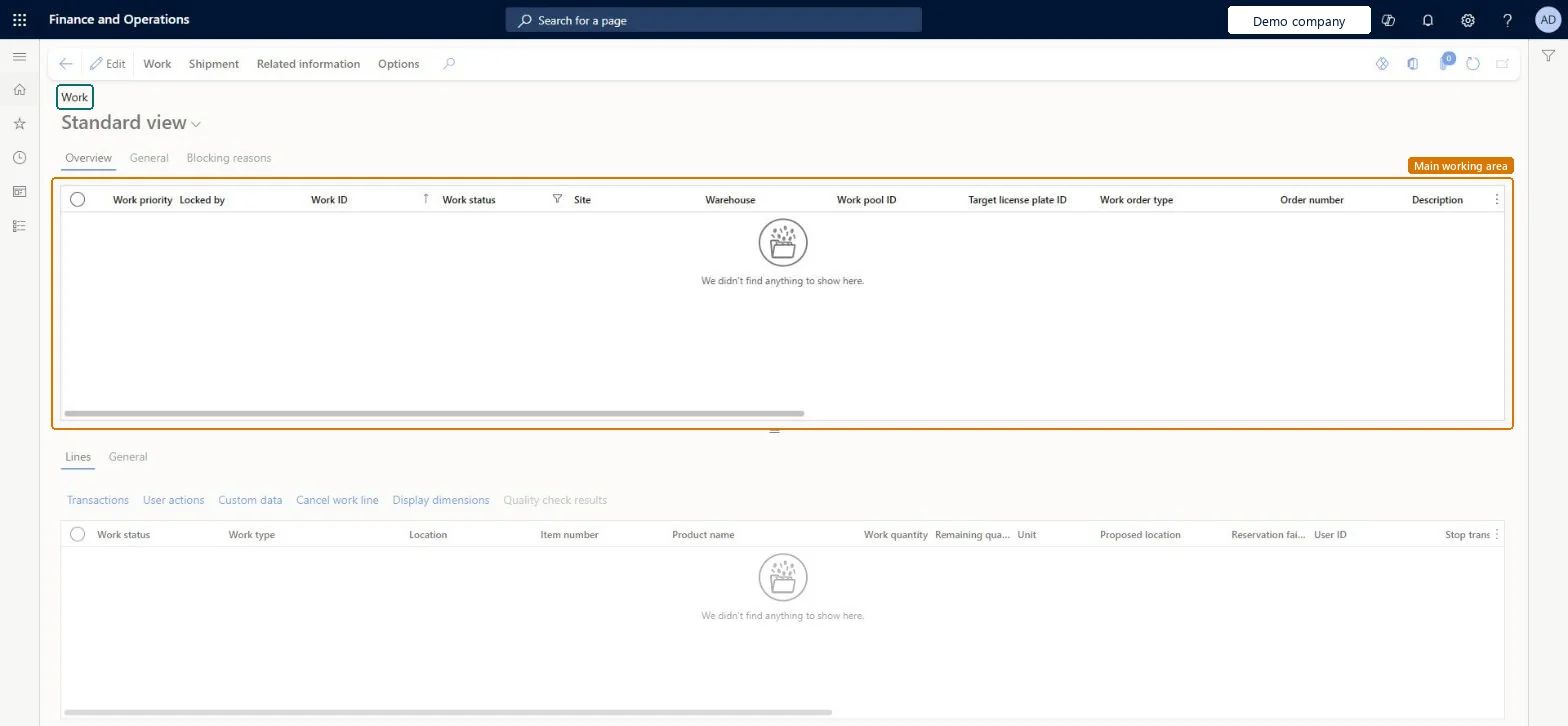
Review the work in the upper grid, which shows the work priority, locked by, work ID, work status, site, warehouse, work pool ID, target license plate ID, work order type and order number.
Use the General and Blocking reasons tabs to see more about the selected work.
On the Lines tab, review the work type, location, item number, work quantity, remaining quantity, unit and proposed location of each line.
Use Transactions, User actions, Custom data, Cancel work line or Display dimensions above the lines grid when you need them.
Source: Checked in Dynamics 365
Common errors and fixes
Message
What to do
Work %1 cannot be cancelled because it is blocked by reason type %2. The work must be unblocked before it can be cancelled.
Open the Blocking reasons tab. For Undefined reason, select Unblock work. For Processing wave, open the wave and select Cleanup wave data. Then cancel again. Microsoft Learn
The last closed work line must be a put.
The regular Cancel needs the last closed line to be a put. Use Periodic tasks > Clean up > Cancel work for this work ID instead. Microsoft Learn
Test checklist
Open a sales work ID with several lines and check the lines show status, work type, location, item and quantity.
Select Split work, split the lines into two work IDs and check both can be processed by different workers.
Open the Blocking reasons tab on a blocked work ID and check the reason, user and date are shown.
For cycle counting work with a difference, check Work status is Pending review.
Hard to reverse: Same actions as All work: blocking and splitting are reversible (Cancel work split session returns the work), canceling isn't. Split work is available only for Open or In progress work of the Sales orders, Raw material picking or Transfer issue type, without a container or cluster. Microsoft Learn
Technical architect
5Technical
Menu item
WHSWorkTableChecked in Dynamics 365
Form
WHSWorkTableChecked in Dynamics 365
Table
WHSWorkTableShown as “WORK” in Record infoKey field: WorkIdChecked in Dynamics 365
PrivilegesMaintain work tables WHSWorkTableMaintainView work tables WHSWorkTableViewDutiesInquire into quality control master InventQualityControlMasterInquireInquire into quality control progress InventQualityControlProgressInquireMaintain quality inspection InventQualityInspectionMaintainInquire into production orders ProdProductionOrderProgressInquireMaintain load planning WHSLoadPlanningMaintainMaintain warehouse planning WHSWarehousePlanningMaintainInquire into warehouse planning status WHSWarehousePlanningStatusInquire16 security rolesMaterials manager InventMaterialsManagerQuality control clerk InventQualityControlClerkQuality control manager InventQualityControlManagerReceiving clerk InventReceivingClerkShipping clerk InventShippingClerkShop supervisor JmgShopSupervisorProduction manager ProdProductionManagerProduction supervisor ProdProductionSupervisorProject manager ProjProjectManagerProduction planner ReqProductionPlannerTransportation coordinator TMSTransportationCoordinatorBuying agent TradeBuyingAgentPurchasing manager TradePurchasingManagerWarehouse planner WHSWarehousePlannerWarehouse manager WMSWarehouseManagerWarehouse worker WMSWarehouseWorkerChecked in Dynamics 365
Roles to set it up and use it
To set it up or change itWarehouse planner WHSWarehousePlannerTo use itWarehouse manager WMSWarehouseManagerProduction supervisor ProdProductionSupervisorWarehouse worker WMSWarehouseWorkerShipping clerk InventShippingClerkReceiving clerk InventReceivingClerkGive people one of these roles. On this system, 16 roles can open this page.Checked in Dynamics 365
Actions on the page
Work: Work, PrintShipment: ShipmentRelated information: Related informationChecked in Dynamics 365