Receiving clerk, Shipping clerk, Warehouse planner and 2 more roles
Business process
Process inventory movements
Menu item
WHSWorkTableListPageInProcessInventMov
Main table
WHSWorkTable
Data entity
WHSWarehouseWorkHeaderEntity
Show what matters for
PAGE GUIDEWhat the page does and how to use it7 sections. Choose a role to highlight what matters to you.
Everyone
1What it is and why
What it is
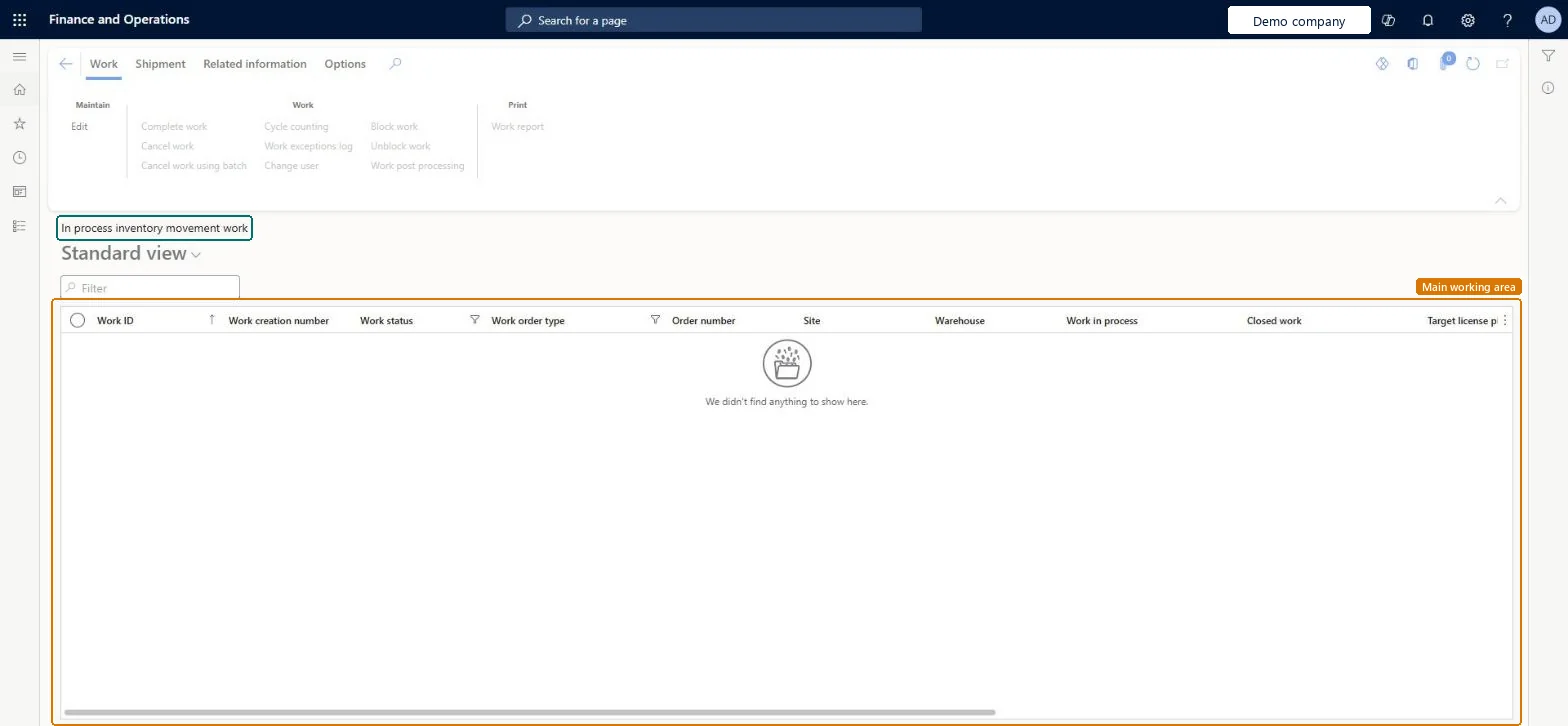
A list page that shows the inventory movement work that is in process, with columns such as Work ID, Work status, Work order type, Site and Warehouse.
What you do here
Use this page to follow inventory movement work that is in process and to act on a selected record with the Action Pane buttons, such as Complete work, Cancel work, Change user, Block work and Work report.
The page in Dynamics 365. page title tab to open what to set or check
Warehouse management › Work › Warehouse › In process inventory movement work
End user · Functional consultant
3How to do it
About the examples: Examples and screenshots in this guide use BEAT, a demo company in a Dynamics 365 test environment. Use your own company's codes and values instead of copying them.
How to use it
Go to Warehouse management > Work > Warehouse > In process inventory movement work.
Type in the Filter box, or use the filters on the Work status and Work order type columns, to narrow the list.
Select a work record.
Use the buttons on the Work tab of the Action Pane, such as Complete work, Cancel work, Change user, Block work or Unblock work, to act on the selected work.
Source: Checked in Dynamics 365
Common errors and fixes
Message
What to do
You cannot cancel work that is on a user.
The work is locked by a worker (Work status In progress, Locked by set). Ask the worker to finish or release it, or use Warehouse management > Periodic tasks > Clean up > Cancel work with the work ID. Microsoft Learn
You cannot cancel work %1 because it has a status of %2.
The work header isn't Open or In progress. Use Warehouse management > Periodic tasks > Clean up > Cancel work with the work ID. Microsoft Learn
Test checklist
Start a movement on the Warehouse Management mobile app and stop before the put, so the work shows here as in process.
Try Cancel work while the worker still holds it and check that the cancel is refused because the work is on a user.
Release the work from the worker, cancel it, and check the on-hand by location for the user location and license plate.
Move any stock left in the user location back to a storage location and confirm the on-hand matches the physical stock.
Hard to reverse: Cancelling work doesn't complete the physical put. After a cancel, check the on-hand, user location and license plate against where the goods really are, then use a movement (or a quantity adjustment only if the recorded quantity is wrong) to put the record right. Microsoft Learn
Technical architect
5Technical
Menu item
WHSWorkTableListPageInProcessInventMovChecked in Dynamics 365
Form
WHSWorkTableListPageChecked in Dynamics 365
Table
WHSWorkTableShown as “WORK” in Record infoKey field: WorkIdChecked in Dynamics 365
PrivilegesMaintain open replenishment work by using a list page WHSWorkTableListPageMaintainView work tables using a list page WHSWorkTableListPageViewDutiesMaintain warehouse planning WHSWarehousePlanningMaintainInquire into warehouse planning status WHSWarehousePlanningStatusInquire5 security rolesReceiving clerk InventReceivingClerkShipping clerk InventShippingClerkWarehouse planner WHSWarehousePlannerWarehouse manager WMSWarehouseManagerWarehouse worker WMSWarehouseWorkerChecked in Dynamics 365
Roles to set it up and use it
To set it up or change itWarehouse planner WHSWarehousePlannerTo use itWarehouse manager WMSWarehouseManagerWarehouse worker WMSWarehouseWorkerShipping clerk InventShippingClerkReceiving clerk InventReceivingClerkGive people one of these roles. On this system, 5 roles can open this page.Checked in Dynamics 365
Actions on the page
Work: Maintain, Work, PrintShipment: ShipmentRelated information: Related informationChecked in Dynamics 365