Warehouse management › Work › Planned work details
End user · Functional consultant
3How to do it
About the examples: Examples and screenshots in this guide use BEAT, a demo company in a Dynamics 365 test environment. Use your own company's codes and values instead of copying them.
How to use it
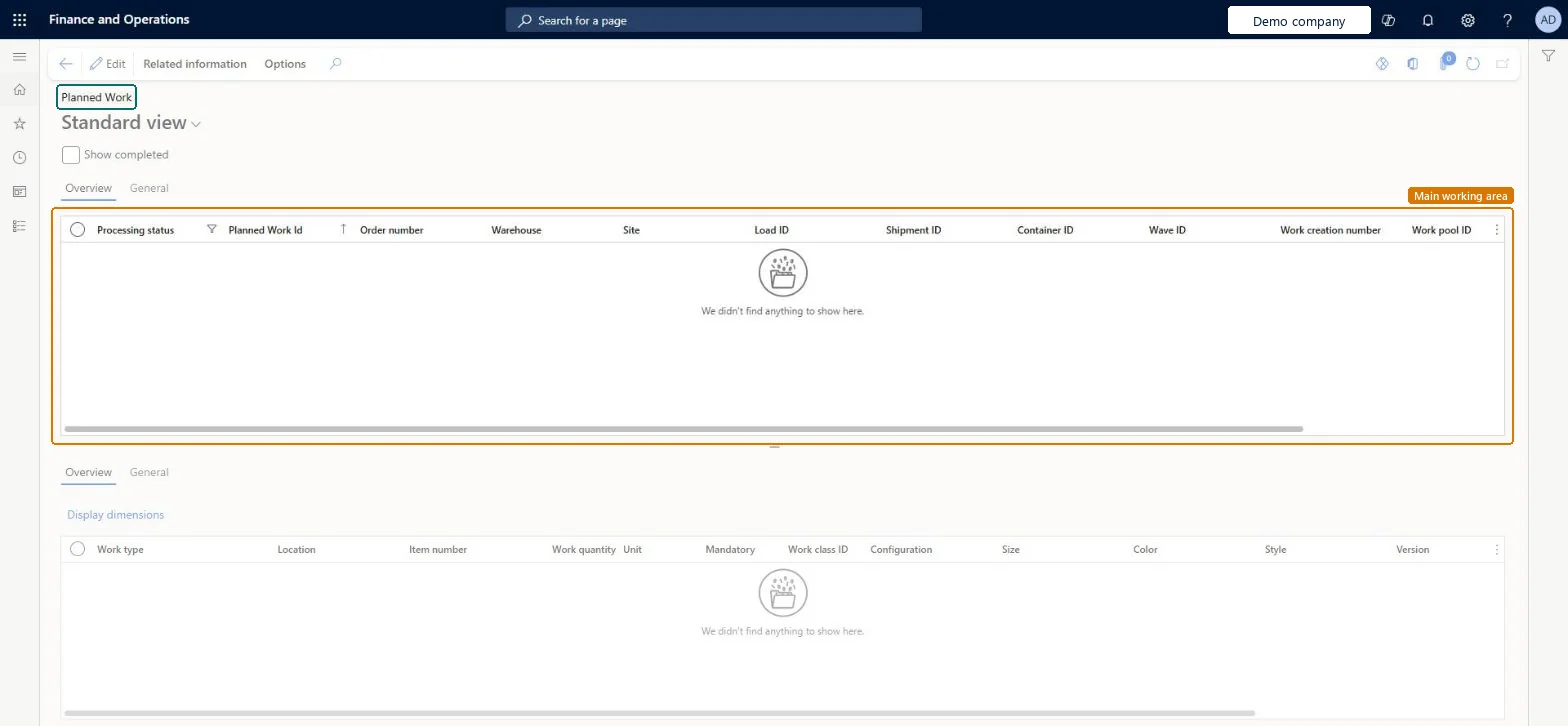
Go to Warehouse management > Work > Planned work details.
Select Show completed to include planned work that is already complete.
Select a planned work record in the upper grid to see its lines in the lower grid.
Select Display dimensions to show or hide dimension columns in the lines grid.
Use the Overview and General tabs to switch between sets of columns.
Source: Checked in Dynamics 365
Test checklist
Process a shipment wave and open this page; check planned work headers and lines show the order, load, shipment and wave.
Check Process status moves from Queued to Completed and the actual work appears on All work.
For a failed wave, check Process status is Failed and open Wave batch job details from the wave to read the batch log.
Reversible: This page reports the planned work created during wave processing and changes nothing itself. Process status Queued means waiting, Completed means work was created, Failed means wave processing failed; any actual work created for a failed run stays Cancelled. Microsoft Learn
Technical architect
5Technical
Menu item
WHSPlannedWorkOrderChecked in Dynamics 365
Form
WHSPlannedWorkOrderChecked in Dynamics 365
Table
WHSPlannedWorkOrderShown as “PLANNED WORK ORDER” in Record infoKey field: PlannedWorkOrderIdChecked in Dynamics 365
Who can open it
PrivilegesView planned work WHSPlannedWorkViewDutiesView warehouse execution on workload WarehouseExecutionOnWorkloadViewInquire into warehouse planning status WHSWarehousePlanningStatusInquire6 security rolesReceiving clerk InventReceivingClerkShipping clerk InventShippingClerkWarehouse planner WHSWarehousePlannerWarehouse manager WMSWarehouseManagerWarehouse manager on workload WMSWarehouseManagerOnWorkloadWarehouse worker WMSWarehouseWorkerChecked in Dynamics 365
Roles to set it up and use it
To use itWarehouse planner WHSWarehousePlannerWarehouse manager WMSWarehouseManagerWarehouse worker WMSWarehouseWorkerShipping clerk InventShippingClerkReceiving clerk InventReceivingClerkGive people one of these roles. On this system, 6 roles can open this page.Checked in Dynamics 365
Actions on the page
Related information: Related informationChecked in Dynamics 365