Warehouse management › Work › Outbound › Shipping pick list
End user · Functional consultant
3How to do it
About the examples: Examples and screenshots in this guide use BEAT, a demo company in a Dynamics 365 test environment. Use your own company's codes and values instead of copying them.
When to run it
When to run it
After a wave has been processed and shipping work exists, when pickers need a paper pick list.
How often
On demand, per wave or load that is picked from a printed list.
What the output shows
A pick list for the selected shipping work with the items, quantities and locations to pick. A line without a location usually means the wave could not allocate stock at the location the directive proposed.
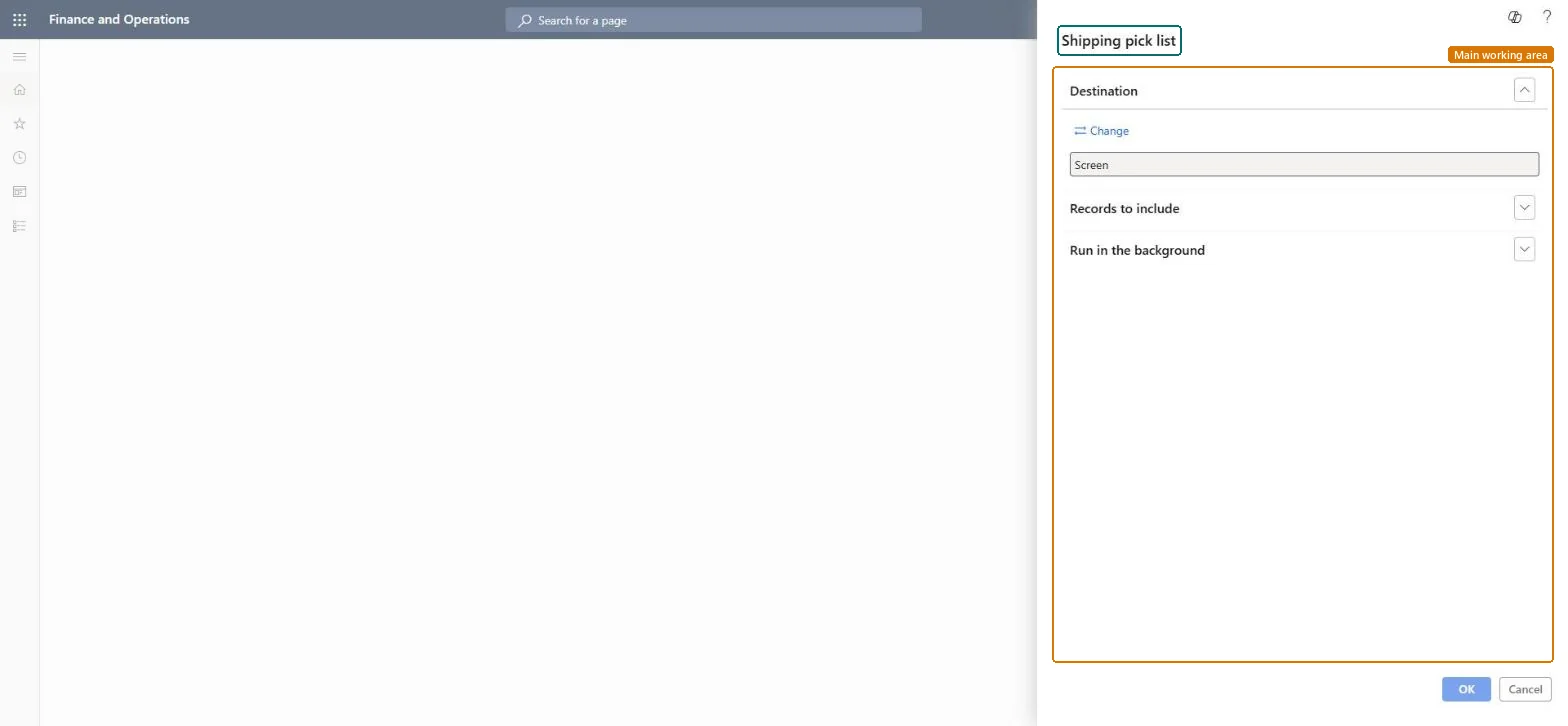
Go to Warehouse management > Work > Outbound > Shipping pick list.
Select the shipping work to print in the query, for example the work of one wave or one load.
Print it to the printer at the picking area, or keep Screen to review the pick lines first.
Use the list for pickers who work on paper; compare picked quantities with the work lines on All work after picking. The same report is also under Inquiries and reports > Pick list reports.
Nothing to undo: Printing the pick list changes no work or inventory. Microsoft Learn
Technical architect
5Technical
Menu item
output:WHSPickListShippingChecked in Dynamics 365
Form
SysOperationTemplateFormChecked in Dynamics 365
Roles to set it up and use it
To use itWarehouse worker WMSWarehouseWorkerShipping clerk InventShippingClerkGive people one of these roles. On this system, 2 roles can run this page.Checked in Dynamics 365