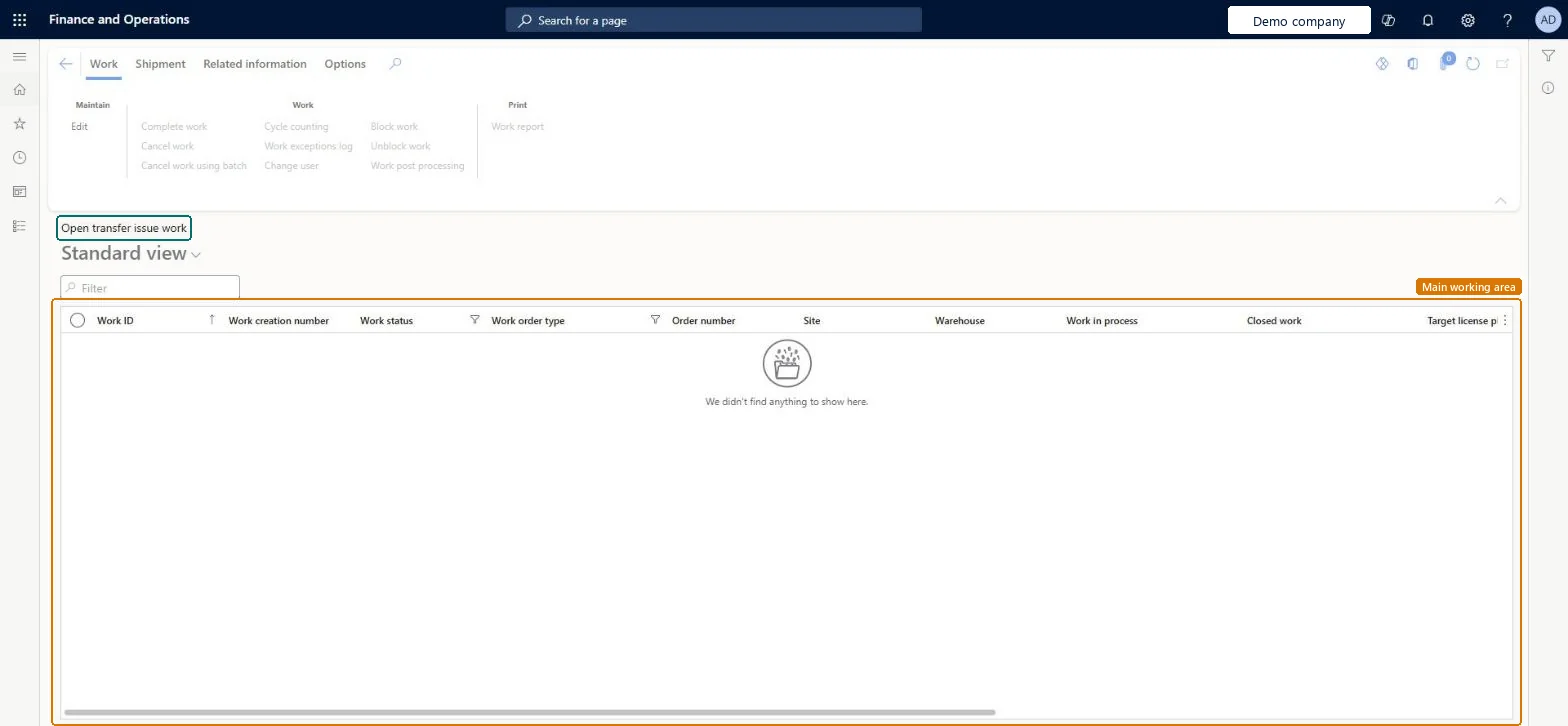
Warehouse management › Work › Outbound › Open transfer issue work
End user · Functional consultant
3How to do it
About the examples: Examples and screenshots in this guide use BEAT, a demo company in a Dynamics 365 test environment. Use your own company's codes and values instead of copying them.
How to use it
Go to Warehouse management > Work > Outbound > Open transfer issue work.
Type in the Filter box to narrow the list.
Select the filter icon on a column heading, such as Work status or Work order type, to narrow the list by that value.
Select a work record to work with it.
Use the buttons on the Work, Shipment and Related information tabs of the Action Pane to act on the selected work.
PrivilegesMaintain open replenishment work by using a list page WHSWorkTableListPageMaintainView work tables using a list page WHSWorkTableListPageViewDutiesMaintain warehouse planning WHSWarehousePlanningMaintainInquire into warehouse planning status WHSWarehousePlanningStatusInquire5 security rolesReceiving clerk InventReceivingClerkShipping clerk InventShippingClerkWarehouse planner WHSWarehousePlannerWarehouse manager WMSWarehouseManagerWarehouse worker WMSWarehouseWorkerChecked in Dynamics 365
Roles to set it up and use it
To set it up or change itWarehouse planner WHSWarehousePlannerTo use itWarehouse manager WMSWarehouseManagerWarehouse worker WMSWarehouseWorkerShipping clerk InventShippingClerkReceiving clerk InventReceivingClerkGive people one of these roles. On this system, 5 roles can open this page.Checked in Dynamics 365
Actions on the page
Work: Maintain, Work, PrintShipment: ShipmentRelated information: Related informationChecked in Dynamics 365