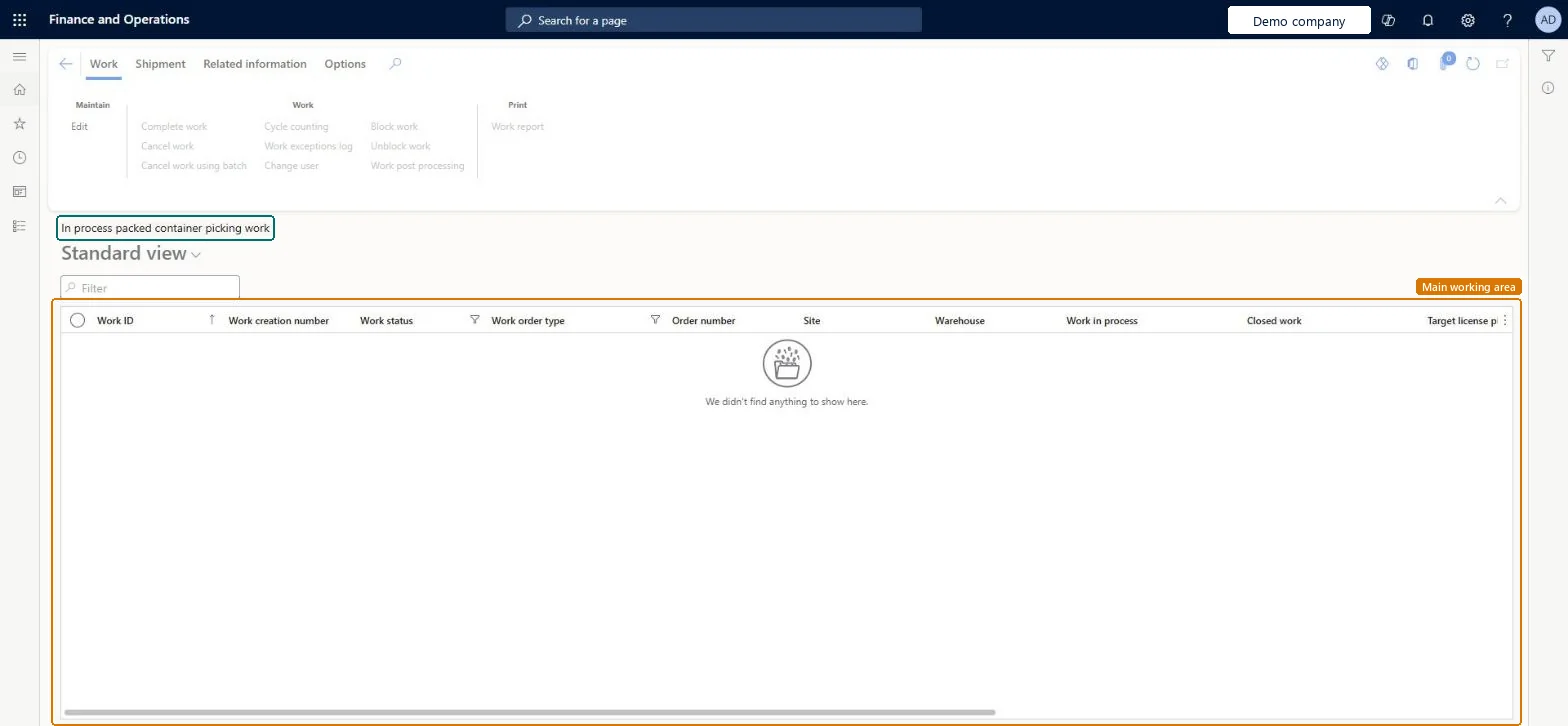
A list page that shows work for picking packed containers that is being processed, which moves them from the packing station to the staging area or the bay door.
PAGE GUIDEWhat the page does and how to use it7 sections. Choose a role to highlight what matters to you.
Everyone
1What it is and why
What it is
A list page that shows work for picking packed containers that is being processed, which moves them from the packing station to the staging area or the bay door.
What you do here
Use this page to follow packed container picking work that workers have started.
The page in Dynamics 365. page title tab to open what to set or check
Warehouse management › Work › Outbound › In process packed container picking work
End user · Functional consultant
3How to do it
About the examples: Examples and screenshots in this guide use BEAT, a demo company in a Dynamics 365 test environment. Use your own company's codes and values instead of copying them.
How to use it
Go to Warehouse management > Work > Outbound > In process packed container picking work.
Type in the Filter box to narrow the list.
Select the filter icon on a column heading, such as Work status or Work order type, to narrow the list by that value.
Select a work record to work with it.
Use the buttons on the Work, Shipment and Related information tabs of the Action Pane to act on the selected work.
Source: Checked in Dynamics 365
Common errors and fixes
Message
What to do
You cannot cancel work that is on a user.
The work is locked by a user (Work status In progress and a user ID in Locked by). Let the worker finish or release it, or have an administrator run Periodic tasks > Clean up > Cancel work for that work ID. Microsoft Learn
Work %1 cannot be cancelled because it is blocked by reason type %2. The work must be unblocked before it can be cancelled.
Open the Blocking reasons tab. For Undefined reason, select Unblock work. For Processing wave, open the wave and select Cleanup wave data. Then cancel again. Microsoft Learn
Test checklist
Set Container release policy to Create work to move container from packing station on a container packing policy and select a Work template of the Packed container picking work order type.
Pick a sales order to the packing location, pack it on Packing and containerization > Pack and close the container.
Check a packed container picking work record is created and listed as open.
Process the work on the mobile app to move the container to staging or the bay door and check the work closes.
Hard to reverse: Block work and Unblock work are reversible (manual unblock works for Held wave, Undefined reason and Replenishment overflow capacity; other reasons clear themselves). Cancel is not: the regular Cancel accepts only Open or In progress work, and the exception route (Periodic tasks > Clean up > Cancel work) covers only Sales, Transfer issue, Raw material picking and Replenishment work. Work locked by a user can't be canceled from the web client until it is released. If deferred put processing is used for packed container picking (10.0.45 or later), failed puts are handled on Deferred put processing tasks. Microsoft Learn
Technical architect
5Technical
Menu item
WHSWorkTableListPageInProcessPackedContainerPickingChecked in Dynamics 365
Form
WHSWorkTableListPageChecked in Dynamics 365
Table
WHSWorkTableShown as “WORK” in Record infoKey field: WorkIdChecked in Dynamics 365
To set it up or change itWarehouse planner WHSWarehousePlannerTo use itWarehouse manager WMSWarehouseManagerWarehouse worker WMSWarehouseWorkerShipping clerk InventShippingClerkReceiving clerk InventReceivingClerkGive people one of these roles. On this system, 5 roles can open this page.Checked in Dynamics 365
Actions on the page
Work: Maintain, Work, PrintShipment: ShipmentRelated informationChecked in Dynamics 365