About the examples: Examples and screenshots in this guide use BEAT, a demo company in a Dynamics 365 test environment. Use your own company's codes and values instead of copying them.
When to run it
When to run it
After a shift or a period ends, when you review which warehouse work was completed in that time window.
How often
On demand, for example at the end of each shift or day when supervisors review completed work.
What the output shows
The warehouse work that was closed between the from and to date/time you entered. Work you expected but don't see was usually closed outside the range or is still open or cancelled.
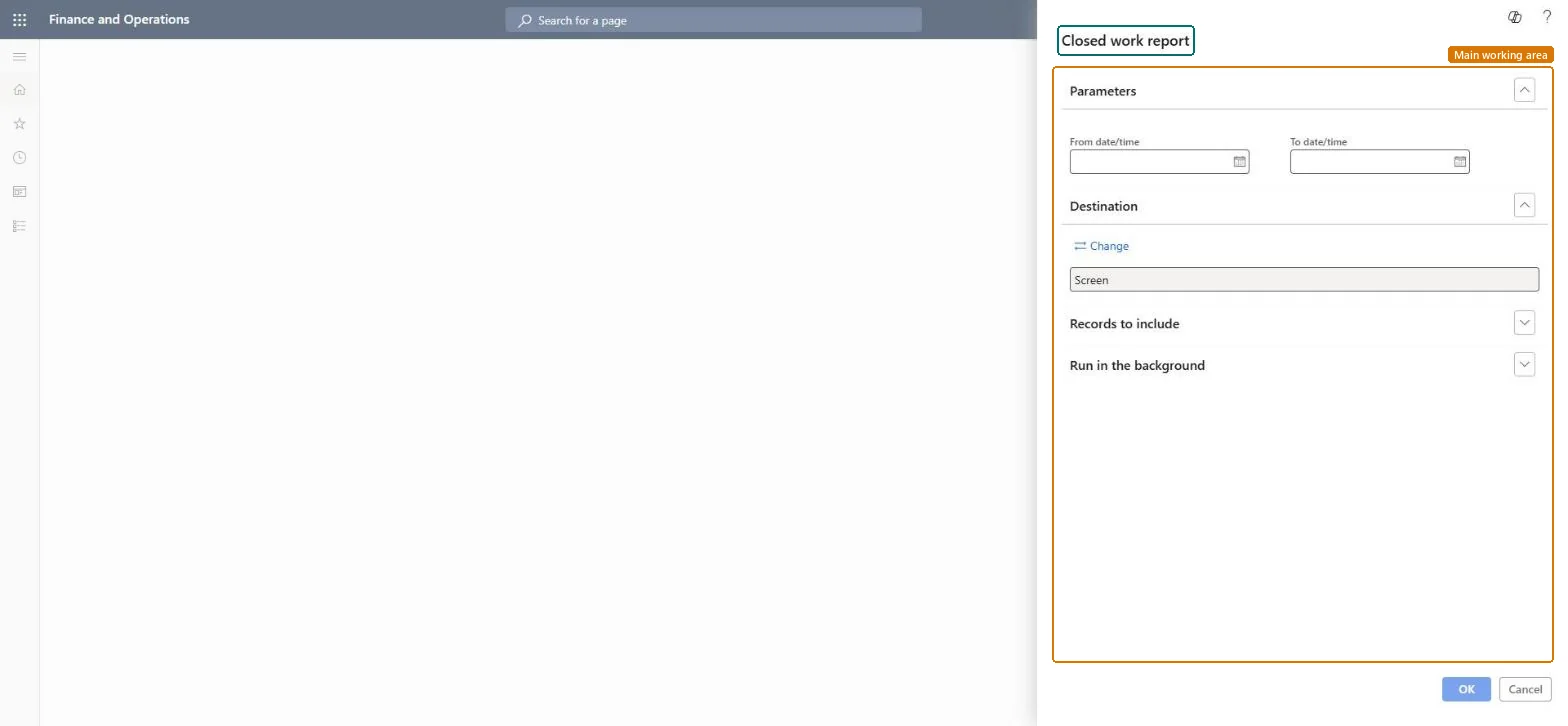
Go to Warehouse management > Work > Closed work report.
In From date/time and To date/time, enter the period whose closed work you want to see, for example yesterday's shift.
Narrow the query to one warehouse or work order type when you only want to review part of the closed work.
Keep Screen as output to review on line, or change the output when you need a file to share.
Read the result per work ID and compare it with All work, where closed work shows when Show closed work is selected. The same report is also under Inquiries and reports.