Warehouse management › Shipments › Shipments ready to ship
End user · Functional consultant
3How to do it
About the examples: Examples and screenshots in this guide use BEAT, a demo company in a Dynamics 365 test environment. Use your own company's codes and values instead of copying them.
How to use it
Go to Warehouse management > Shipments > Shipments ready to ship.
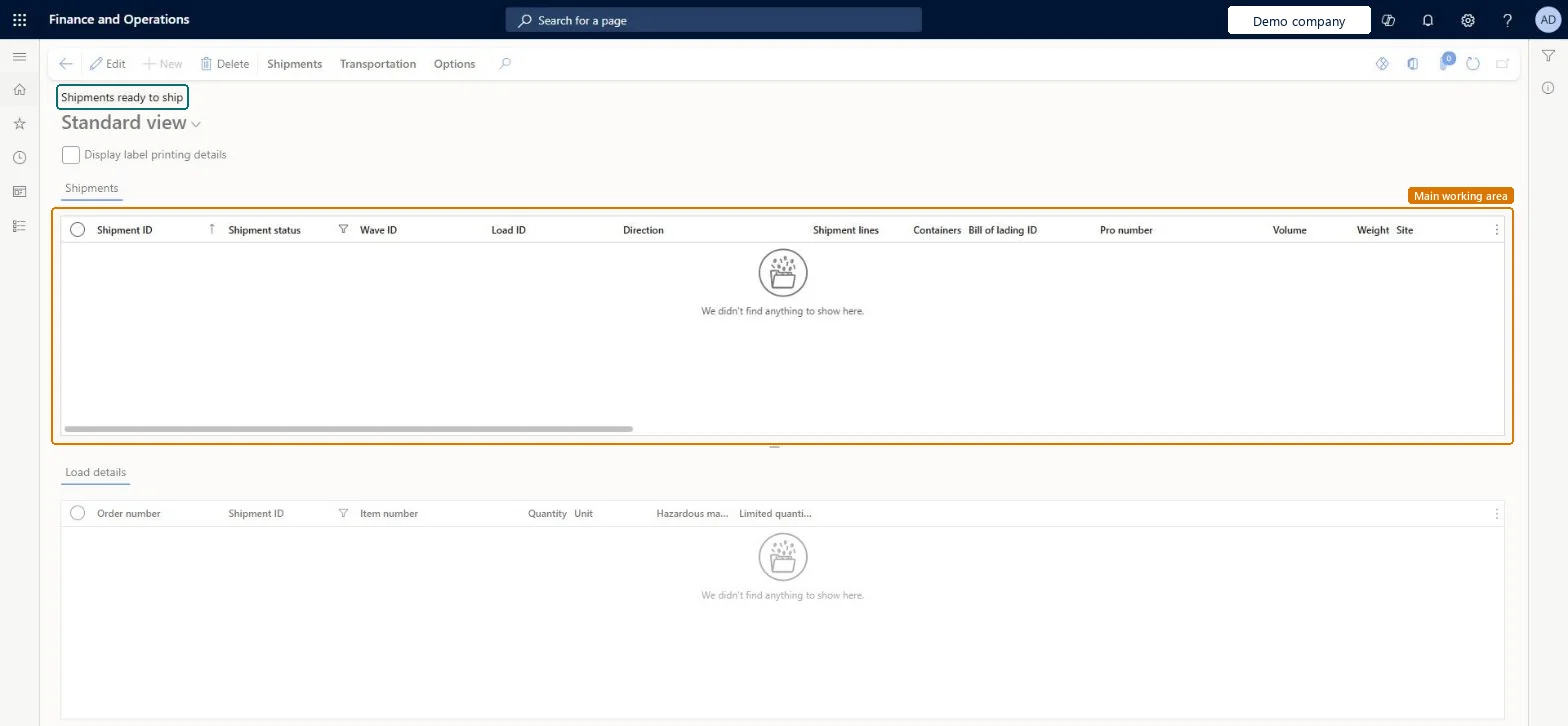
Review the shipments in the upper grid, which shows the shipment ID, shipment status, wave ID, load ID, direction, shipment lines, containers, bill of lading ID, volume, weight and site.
Select a shipment to see its order number, item number, quantity and unit in the Load details grid.
Select the Display label printing details check box to include label printing details.
PrivilegesMaintain loaded shipping plan by using a list page WHSShipPlanningListPageLoadedMaintainView loaded shipping plan by using a list page WHSShipPlanningListPageLoadedViewDutiesReview transportation management process performance TMSTransportationMgmtProcessPerfReviewMaintain load planning WHSLoadPlanningMaintainInquire into load planning progress WHSLoadPlanningProgressInquire4 security rolesLogistics manager TMSLogisticsManagerTransportation coordinator TMSTransportationCoordinatorWarehouse planner WHSWarehousePlannerWarehouse manager WMSWarehouseManagerChecked in Dynamics 365
Roles to set it up and use it
To set it up or change itTransportation coordinator TMSTransportationCoordinatorTo use itWarehouse planner WHSWarehousePlannerWarehouse manager WMSWarehouseManagerLogistics manager TMSLogisticsManagerGive people one of these roles. On this system, 4 roles can open this page.Checked in Dynamics 365
Actions on the page
Shipments: Shipments, Actions, Generate, Work, Related information, Print, Hazardous material documentTransportation: Transportation, ContainersChecked in Dynamics 365
WHSInboundShipmentHeaderEntity (Inbound shipment header): loaded for each company.WHSOutboundShipmentHeaderEntity (Outbound shipment headers): loaded for each company.Microsoft Learn