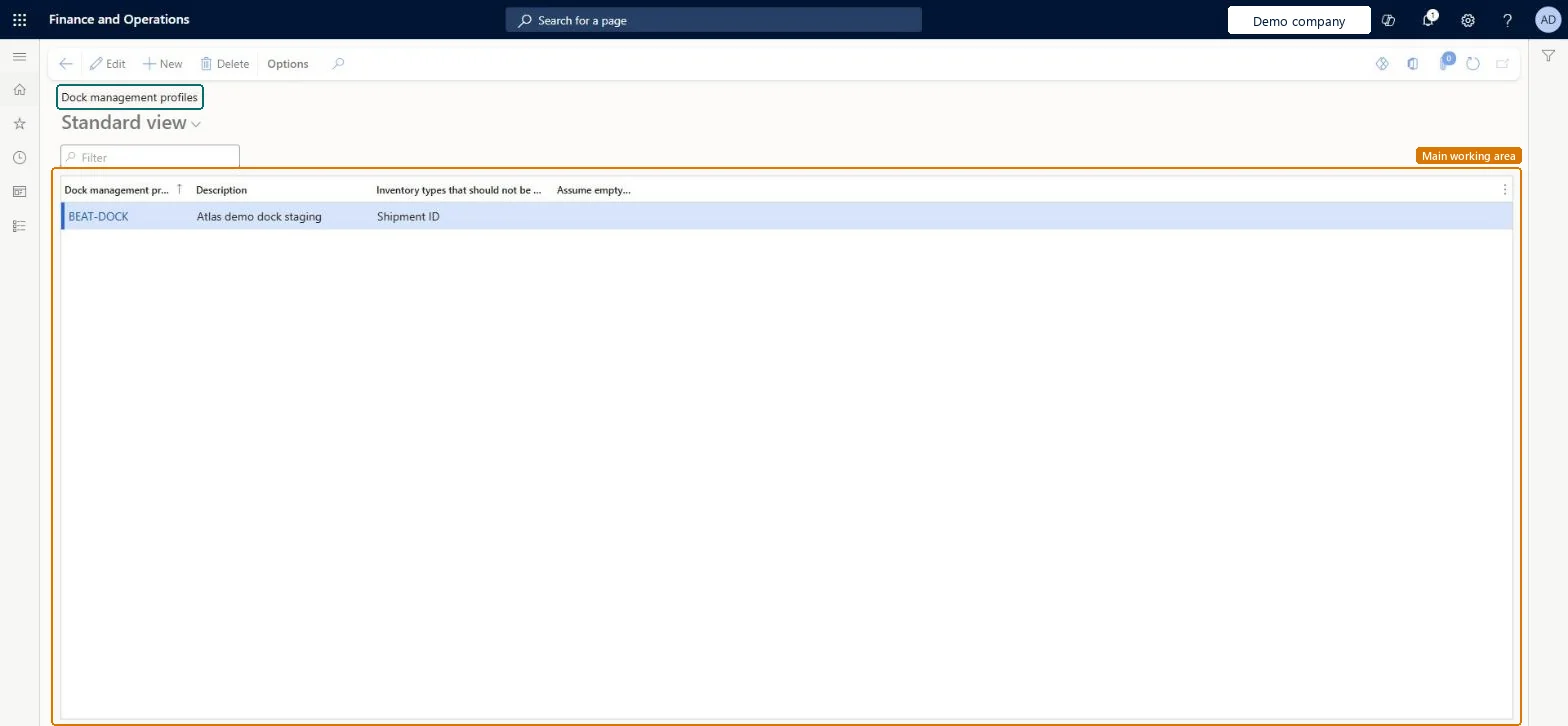
About the examples: Examples and screenshots in this guide use BEAT, a demo company in a Dynamics 365 test environment. Use your own company's codes and values instead of copying them.
Setup steps on this page
Set up Dock management profiles
Use this page to set the rules that keep selected kinds of inventory apart at locations that use a dock management profile.
How to use it
Go to Warehouse management > Setup > Warehouse > Dock management profiles.
Select New on the Action Pane.
Enter a Dock management profile ID and a Description in the new row.
In the Inventory types that should not be mixed column, choose the kind of inventory to keep apart.
Source: Checked in Dynamics 365
Test checklist
Create a profile with Shipment ID as the type not to mix and assign it to the receiving location profile.
On the purchase order work template, add Shipment ID to the query sorting and select it in Work header breaks.
Receive two shipments to the dock.
Check each shipment gets its own work header and put location.
Set Inventory types that should not be mixed (for example Shipment ID) and add a matching work header break on the work templateDock management profiles expect a work header to have only one put location, so work must be split up front by a work header break.
Setting the profile without a work header break; inventory types still get mixed at the final location when shipment consolidation policies are used.
Reversible: Profiles and work header breaks can be changed at any time; existing work isn't split again. Microsoft Learn
Technical architect
6Technical
Menu item
WHSDockMgmtProfileChecked in Dynamics 365
Form
WHSDockMgmtProfileChecked in Dynamics 365
Table
WHSDockMgmtProfileShown as “DOCK MANAGEMENT PROFILE” in Record infoKey field: DockMgmtProfileIdChecked in Dynamics 365
Data entities
WHSLoadingDockManagementProfileEntityLoading dock management profiles Microsoft data model
Who can open it
PrivilegesMaintain document management profiles WHSDockMgmtProfileMaintainView document management profiles WHSDockMgmtProfileViewDutiesInquire into warehouse operation master WMSWarehouseOperationMasterInquireMaintain warehouse operation master WMSWarehouseOperationMasterMaintain6 security rolesField Service Integration User FieldServiceIntegrationUserProduction supervisor ProdProductionSupervisorProcess engineer RouteProcessEngineerProcess engineering manager RouteProcessEngineeringManagerWarehouse planner WHSWarehousePlannerWarehouse manager WMSWarehouseManagerChecked in Dynamics 365
Roles to set it up and use it
To set it up or change itWarehouse manager WMSWarehouseManagerProcess engineer RouteProcessEngineerTo use itWarehouse planner WHSWarehousePlannerProduction supervisor ProdProductionSupervisorProcess engineering manager RouteProcessEngineeringManagerField Service Integration User FieldServiceIntegrationUserGive people one of these roles. On this system, 6 roles can open this page.Checked in Dynamics 365
WHSLoadingDockManagementProfileEntity (Loading dock management profiles): loaded for each company, in Microsoft's default template 400 - Warehouse management.Load order: Microsoft's default template 400 - Warehouse management loads Loading dock management profiles at execution unit 1, level 30, sequence 10. Lower levels load first, and entities at the same level load in sequence order.Load first: the default templates at lower levels (System setup to General ledger)Microsoft Learn