BeyondERP.Newsletter
Menu

Job page · Warehouse management

Process warehouse app events

A periodic task that processes the events that the Warehouse Management mobile app adds to a queue, as a batch job.

Business process
Manage work assignments
Menu item
action:WHSMobileDeviceQueueManager
Show what matters for
PAGE GUIDEWhat the page does and how to use it7 sections. Choose a role to highlight what matters to you.
Everyone

1What it is and why

What it isA periodic task that processes the events that the Warehouse Management mobile app adds to a queue, as a batch job.
What you do hereUse this task to set up the scheduled batch job that processes warehouse app events, such as the creation and line updates of transfer orders made from the warehouse app.
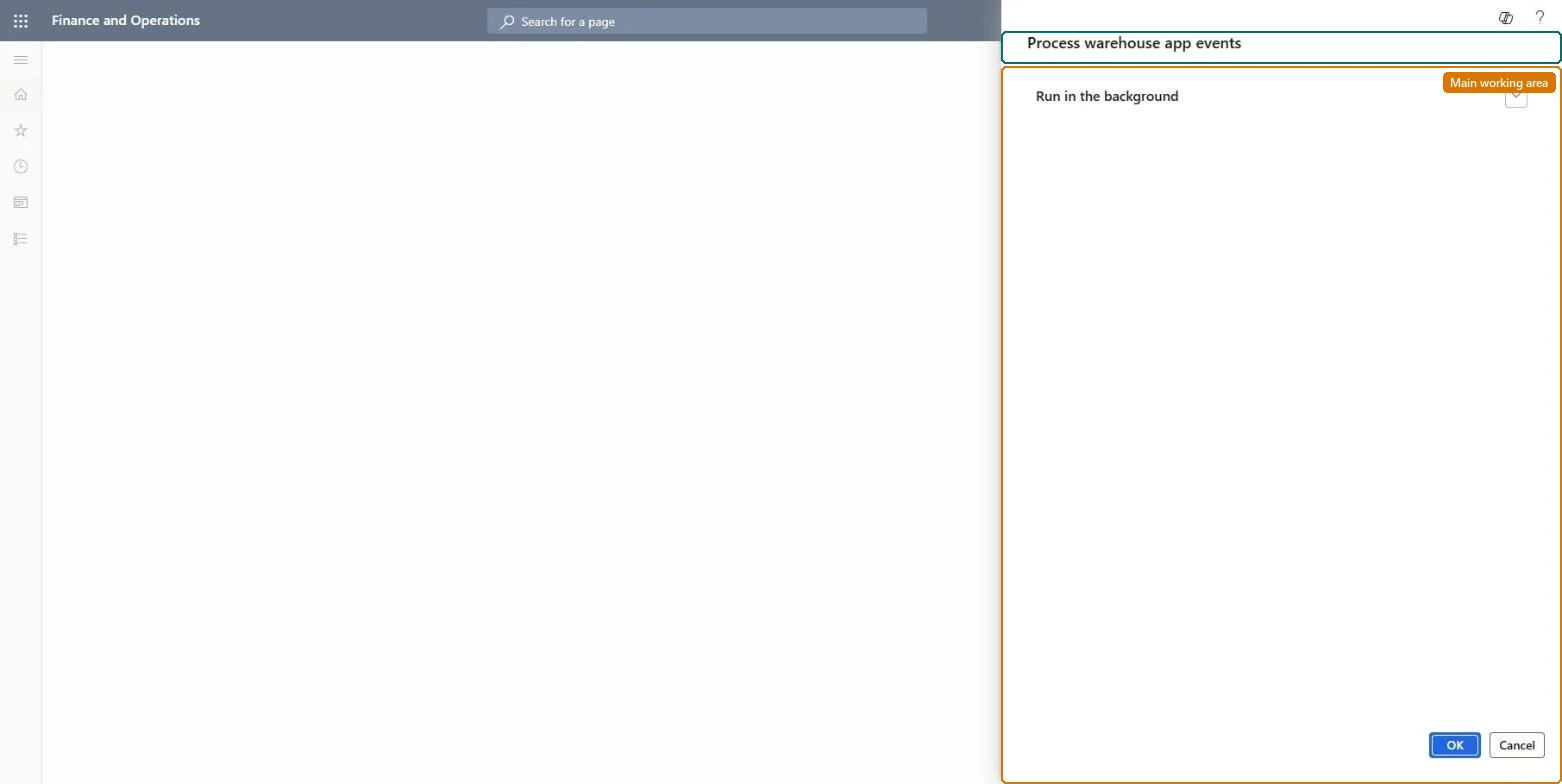
Process warehouse app events page in Dynamics 365
The page in Dynamics 365. page title tab to open what to set or check
Functional consultant · Solution architect

2Where it fits

Business processManage warehouse operations › Manage work assignments
Menu pathWarehouse management › Periodic tasks › Process warehouse app events
Related pagesWarehouse app events Microsoft Learn
End user · Functional consultant

3How to do it

About the examples: Examples and screenshots in this guide use BEAT, a demo company in a Dynamics 365 test environment. Use your own company's codes and values instead of copying them.

When to run it

When to run itWhen workers use warehouse app features that queue events, such as creating transfer orders or deferred inventory movement.
How oftenRecurring, as often as you want app events turned into records; the delay for workers depends on it.
Batch settingsRun it as a recurring batch job with no end date.
What the output showsEvents processed into records, for example transfer orders and lines. Completed events are removed from the queue; Failed ones stay with a reason in the batch log.
Source: Microsoft Learn

Steps from Microsoft

  1. Go to Warehouse management > Periodic tasks > Process warehouse app events.
  2. Open the dialog and make it a recurring batch job with a schedule that fits your business.
  3. Know which events it picks up: only messages with Event state Queued; Waiting messages wait until the app sets them to Queued.
  4. View the queue under Warehouse management > Inquiries and reports > Mobile device logs > Warehouse app events.
  5. For Failed messages, read the Batch log, fix the setup (for example a missing transit warehouse), then use Reset or Delete.

Source: Microsoft Learn

Test checklist

  1. A transfer order created in the app exists after the job runs.
  2. No events stay Failed.
  3. Completed events left the queue.

Source: Microsoft Learn

Solution architect

4Design impact

Can it be undonePartly: Records it creates, such as transfer orders, must be corrected on their own pages. Microsoft Learn
If you change it laterCreates and updates records, such as transfer orders, from queued warehouse app events. Microsoft Learn
Technical architect

5Technical

Menu itemaction:WHSMobileDeviceQueueManager
Roles to set it up and use itTo use itWarehouse planner WHSWarehousePlannerGive people one of these roles. On this system, 1 role can run this page.Checked in Dynamics 365
Developer

6Developer

Open it by URLhttps://<your-environment>/?mi=action:WHSMobileDeviceQueueManager
Everyone

7Sources