PAGE GUIDEWhat the page does and how to use it7 sections. Choose a role to highlight what matters to you.
Everyone
1What it is and why
What it is
A periodic task that confirms outbound shipments for loads that are ready to ship, as a batch job.
What you do here
Use this task to set up a batch job that confirms outbound shipments for loads that are ready to ship. The batch job applies to transfer order shipments, not to sales orders.
The page in Dynamics 365. page title tab to open what to set or check
Warehouse management › Periodic tasks › Process outbound shipments
End user · Functional consultant
3How to do it
About the examples: Examples and screenshots in this guide use BEAT, a demo company in a Dynamics 365 test environment. Use your own company's codes and values instead of copying them.
When to run it
When to run it
When loads for transfer orders are fully loaded and must be ship-confirmed without a user confirming each load.
How often
Recurring, as often as transfer order loads leave the warehouse.
Batch settings
Run it as a recurring batch job after the automatic transfer order release and loading.
What the output shows
Confirmed outbound shipments for loaded transfer order loads, with Load status Shipped. A load that isn't shipped usually isn't at status Loaded yet or contains sales order lines.
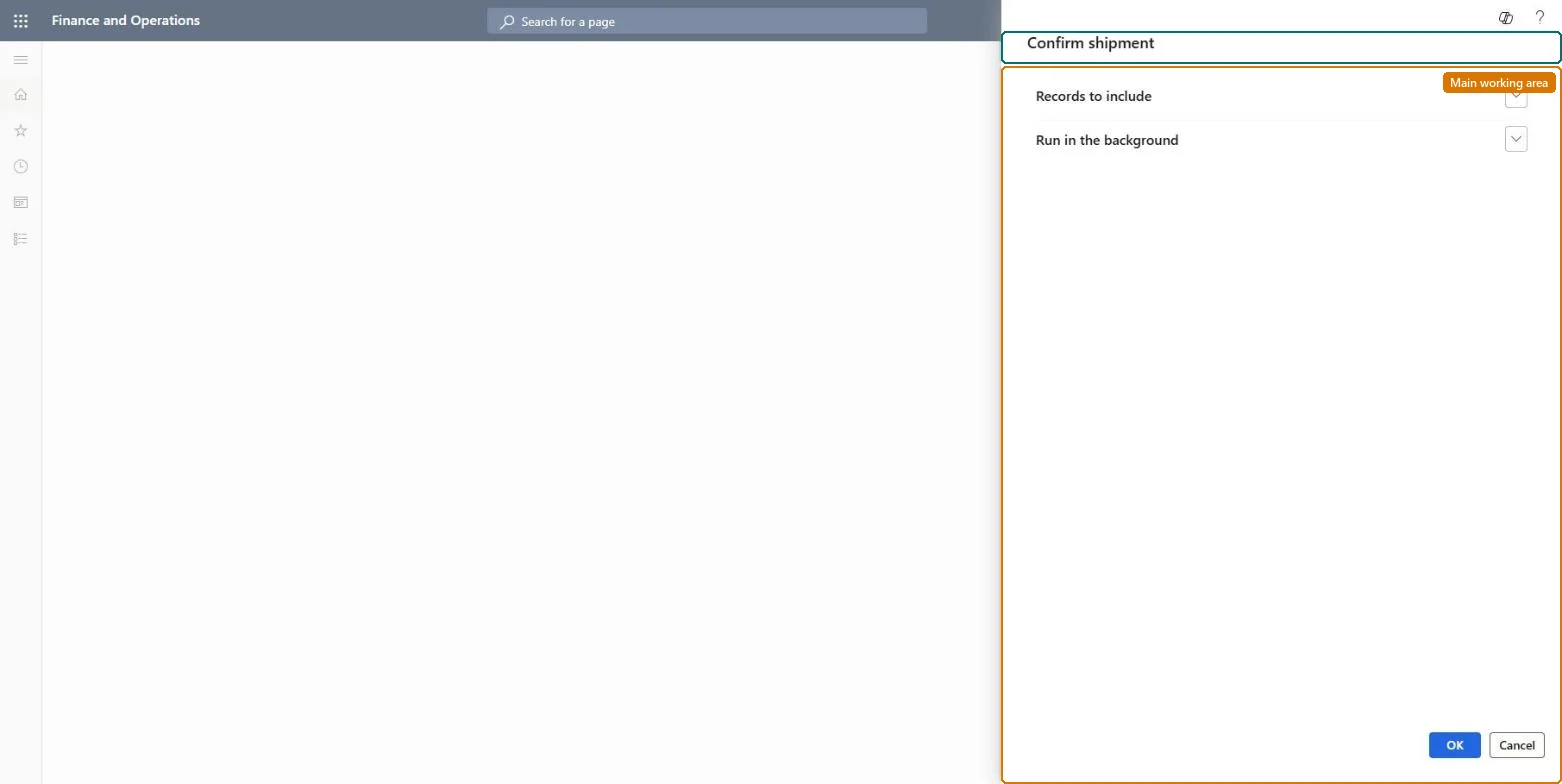
Go to Warehouse management > Periodic tasks > Process outbound shipments.
In the Confirm shipment dialog, use the query to select ready loads: on the Range tab add Table Loads, Derived table Loads, Field Load status and Criteria Loaded.
Remember it only confirms transfer order shipments, not sales orders.
Schedule it to repeat as needed for your business and add it to the queue.
Look at the confirmed loads: their Load status is Shipped and the Load packing slip background posting status is Queued.