PAGE GUIDEWhat the page does and how to use it7 sections. Choose a role to highlight what matters to you.
Everyone
1What it is and why
What it is
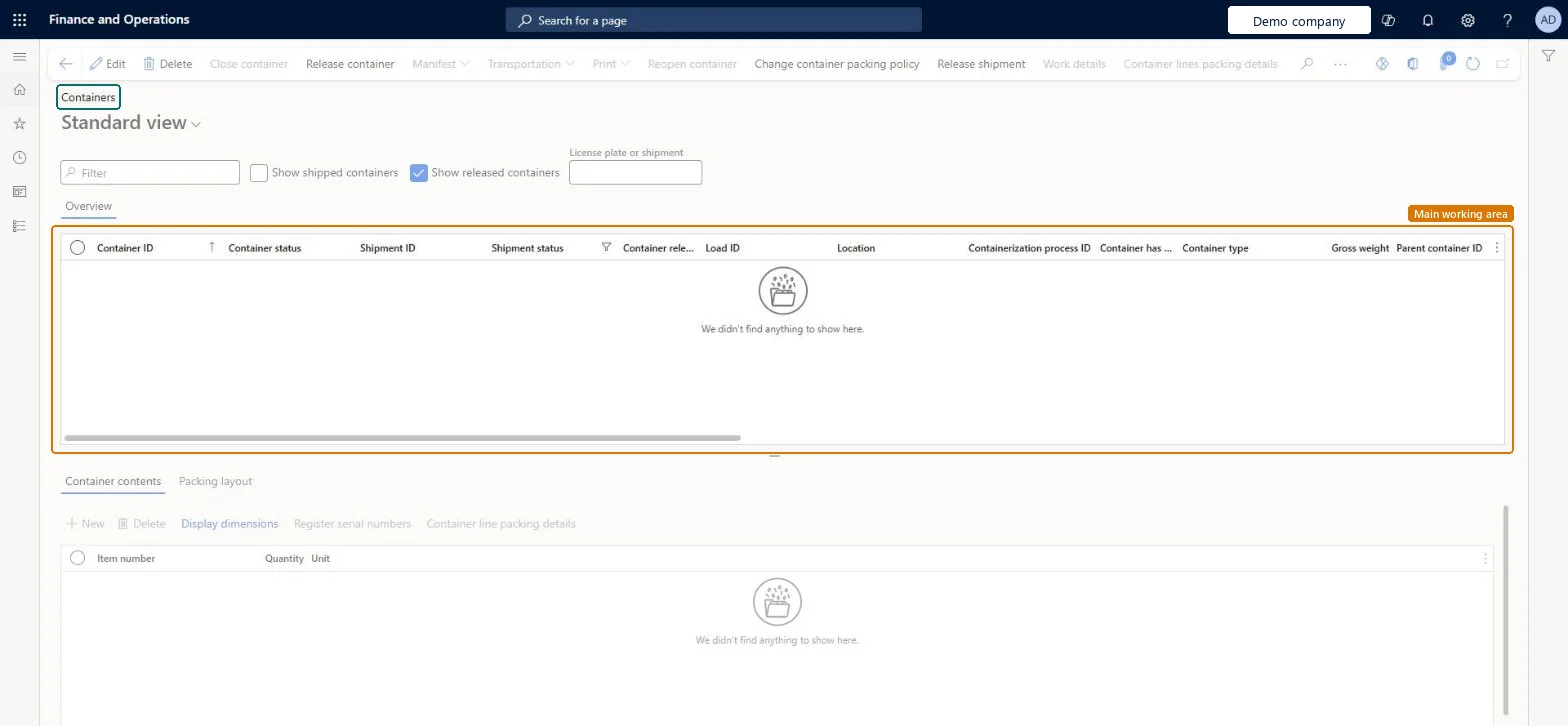
A list page that shows all containers across packing stations, with the contents and packing layout of the selected container shown below the list.
What you do here
Use this page to find a container, check what is packed in it, and work with it through the Action Pane buttons, such as Close container, Release container and Print.
The page in Dynamics 365. page title tab to open what to set or check
About the examples: Examples and screenshots in this guide use BEAT, a demo company in a Dynamics 365 test environment. Use your own company's codes and values instead of copying them.
Steps from Microsoft
Go to Warehouse management > Packing and containerization > Containers.
On the upper pane, select the container you want to inspect.
To see the packing details of all the container lines, select Container lines packing details on the Action Pane.
To see the packing details of a single container line, select the line in the lower pane and then select Container line packing details on the lower pane toolbar.
Hard to reverse: Closing a container can release it at once, depending on the container packing policy. Release then either moves the container to the final shipping location or creates work to move it, so plan the closing policy before go-live rather than fixing containers afterwards. Microsoft Learn
Technical architect
5Technical
Menu item
WHSContainerTableChecked in Dynamics 365
Form
WHSContainerTableChecked in Dynamics 365
Roles to set it up and use it
To set it up or change itShipping clerk InventShippingClerkTo use itWarehouse planner WHSWarehousePlannerWarehouse manager WMSWarehouseManagerProduction supervisor ProdProductionSupervisorProcess engineering manager RouteProcessEngineeringManagerField Service Integration User FieldServiceIntegrationUserGive people one of these roles. On this system, 7 roles can open this page.Checked in Dynamics 365
Actions on the page
(Action Pane without tabs): Close container, Release container, Manifest, Transportation, Print, Reopen container, Change container packing policy, Release shipment, Work details, Container lines packing detailsChecked in Dynamics 365