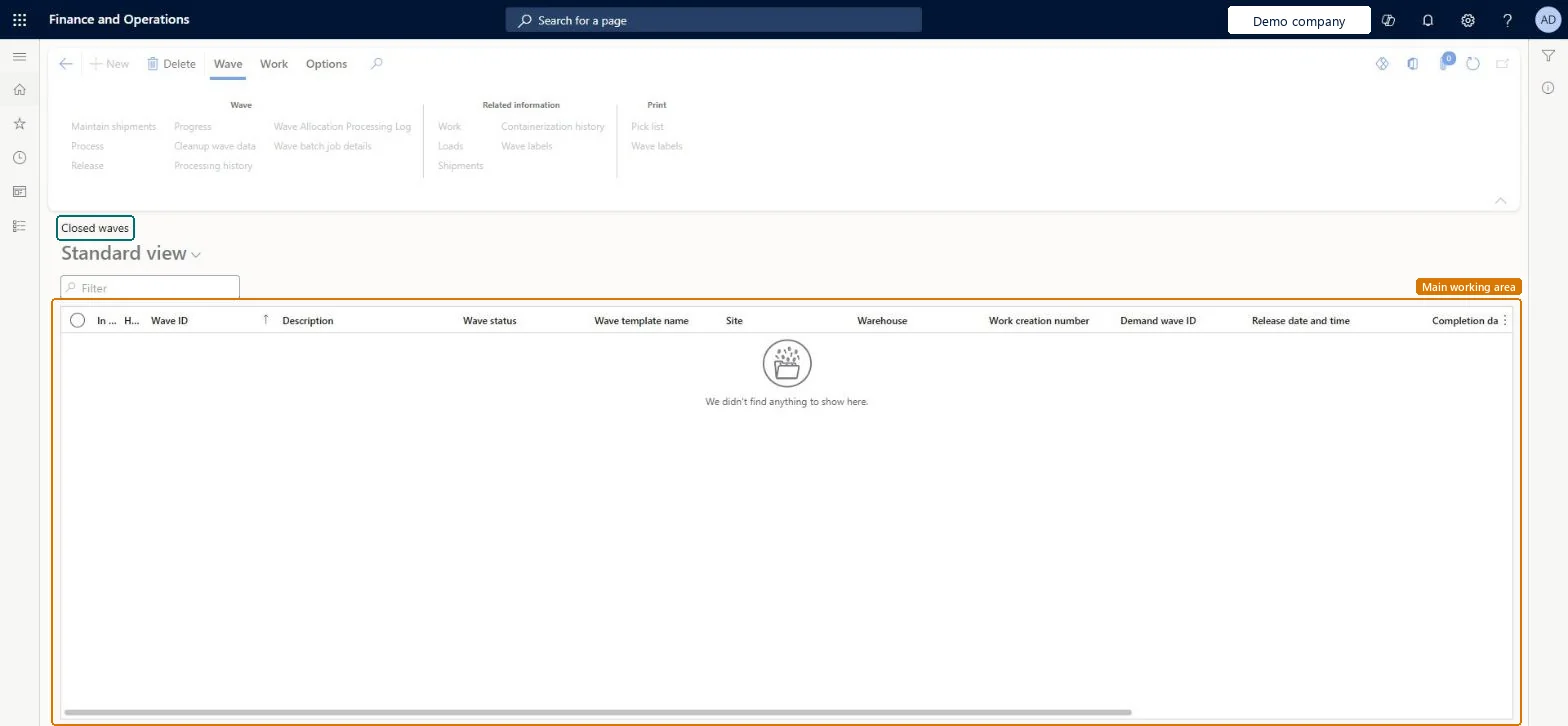
About the examples: Examples and screenshots in this guide use BEAT, a demo company in a Dynamics 365 test environment. Use your own company's codes and values instead of copying them.
How to use it
Go to Warehouse management > Outbound waves > Shipment waves > Closed waves.
Use the Filter field to find a wave by wave ID, description or wave template name.
Select a wave, then use the Related information group on the Wave tab to open its work, loads or shipments.
Use the Print group to print the pick list or wave labels for the selected wave.
Source: Checked in Dynamics 365
Test checklist
Release a reserved sales order to the warehouse for a warehouse with a shipment wave template.
If the wave template doesn't create waves automatically, select Wave on the Action Pane, enter a Description and Wave template name, and add the lines.
Select Process and check Wave status changes from Created to Held and work is created.
Select Release wave and check the picking work is available on the mobile app.
Check the wave shows on this page at the expected stage.
Hard to reverse: Lines can be added to a wave until it is released. A wave can be processed only in status Created (it then becomes Held). After release you can cancel the wave (Work tab > Cancel, which cancels the picking work) and add lines, but you can't change the lines already on it. Microsoft Learn
Technical architect
5Technical
Menu item
WHSWaveTableListPageClosedChecked in Dynamics 365
Form
WHSWaveTableListPageChecked in Dynamics 365
Table
WHSWaveTableShown as “WAVES” in Record infoKey field: WaveIdChecked in Dynamics 365
Who can open it
PrivilegesMaintain closed waves by using a list page WHSWaveTableListPageClosedMaintainView closed waves by using a list page WHSWaveTableListPageClosedViewDutiesMaintain warehouse planning WHSWarehousePlanningMaintainInquire into warehouse planning status WHSWarehousePlanningStatusInquire5 security rolesReceiving clerk InventReceivingClerkShipping clerk InventShippingClerkWarehouse planner WHSWarehousePlannerWarehouse manager WMSWarehouseManagerWarehouse worker WMSWarehouseWorkerChecked in Dynamics 365
Roles to set it up and use it
To set it up or change itWarehouse planner WHSWarehousePlannerTo use itWarehouse manager WMSWarehouseManagerWarehouse worker WMSWarehouseWorkerShipping clerk InventShippingClerkReceiving clerk InventReceivingClerkGive people one of these roles. On this system, 5 roles can open this page.Checked in Dynamics 365
Actions on the page
Wave: Wave, Related information, PrintWork: WorkChecked in Dynamics 365