About the examples: Examples and screenshots in this guide use BEAT, a demo company in a Dynamics 365 test environment. Use your own company's codes and values instead of copying them.
How to use it
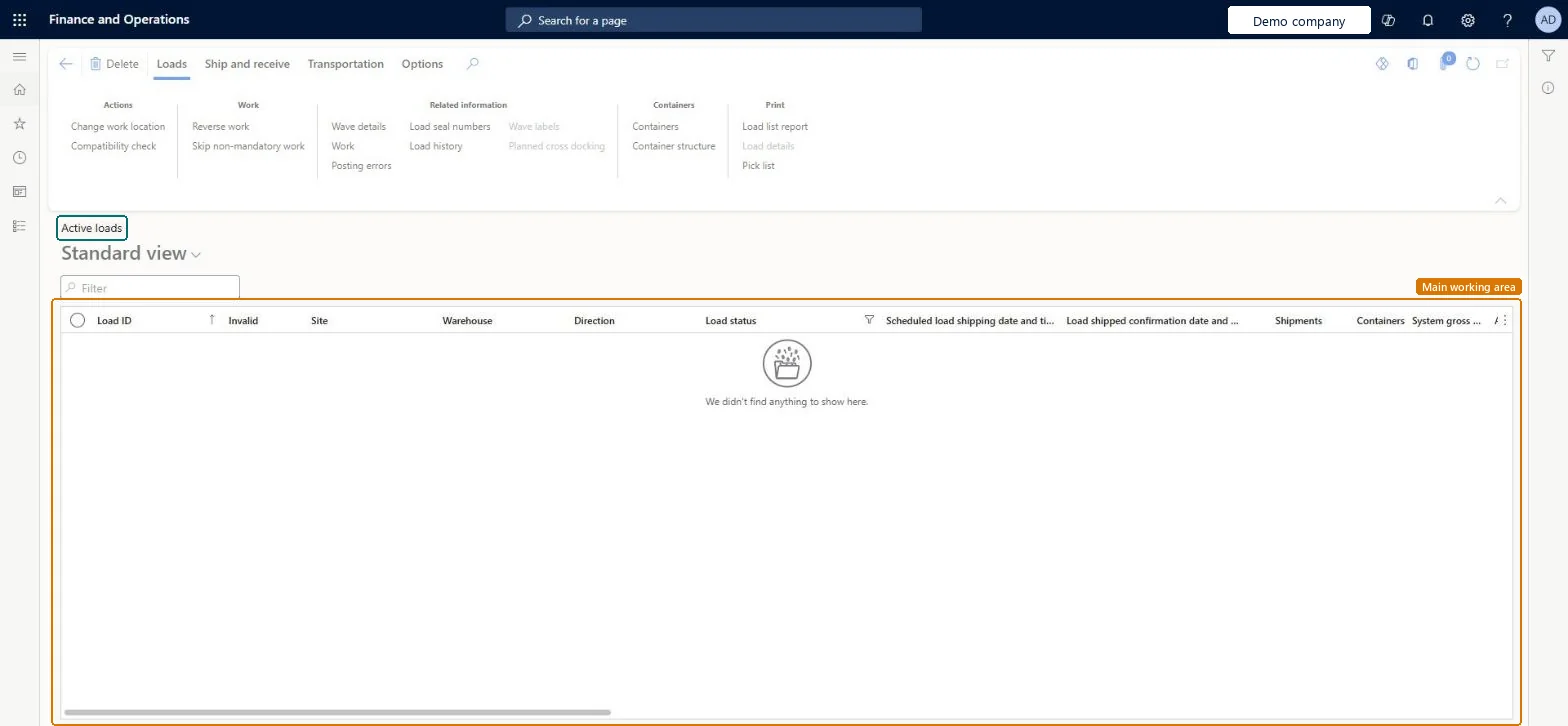
Go to Warehouse management > Loads > Active loads.
Use the Filter box or the column headers to find a load.
Select a load in the list.
On the Loads tab of the Action Pane, use actions such as Change work location, Reverse work and Skip non-mandatory work.
Use the Related information group to open Wave details, Work, Load history or Posting errors for the selected load.
Source: Checked in Dynamics 365
Common errors and fixes
Message
What to do
Some of the items that are needed for load %1 have not yet been picked and moved to the final shipping location.
Make sure all related work has been picked and moved to the final shipping location and that the picked work quantity matches the work created quantity on each load line. Microsoft Learn
Test checklist
Create and reserve a sales order line for a warehouse enabled for warehouse management processes, then select Release to warehouse. Check that a shipment and load are created.
Open the load from this page and check Load status, site, warehouse and the load lines.
After picking work is complete, select Ship and receive > Confirm > Outbound shipment. Check Load status changes to Shipped and Load packing slip background posting status changes from None to Queued.
On a test load, run Ship and receive > Reverse > Reverse shipment confirmation and check the load can be adjusted again.
Hard to reverse: Shipment confirmation, packing slips and work on a load can be reversed from the All loads page (Ship and receive > Reverse > Reverse shipment confirmation or Cancel packing slips, and Loads > Work > Reverse work), but each step must be undone in reverse order and the order then re-released. A packing slip posted from the sales order instead of the load can't be canceled from the load, so post packing slips from the load. On inbound loads, once Load status is Received no more product receipts can be posted from the load; further receipts must be posted from the purchase order. Microsoft Learn
Technical architect
5Technical
Menu item
WHSLoadPlanningListPageActiveChecked in Dynamics 365
Form
WHSLoadPlanningListPageChecked in Dynamics 365
Table
WHSLoadTableShown as “LOADS” in Record infoKey field: LoadIdChecked in Dynamics 365
PrivilegesMaintain active load planning using a list page WHSLoadPlanningListPageActiveMaintainView active load planning using a list page WHSLoadPlanningListPageActiveViewDutiesReview transportation management process performance TMSTransportationMgmtProcessPerfReviewMaintain load planning WHSLoadPlanningMaintainInquire into load planning progress WHSLoadPlanningProgressInquire4 security rolesLogistics manager TMSLogisticsManagerTransportation coordinator TMSTransportationCoordinatorWarehouse planner WHSWarehousePlannerWarehouse manager WMSWarehouseManagerChecked in Dynamics 365
Roles to set it up and use it
To set it up or change itTransportation coordinator TMSTransportationCoordinatorTo use itWarehouse planner WHSWarehousePlannerWarehouse manager WMSWarehouseManagerLogistics manager TMSLogisticsManagerGive people one of these roles. On this system, 4 roles can open this page.Checked in Dynamics 365
Actions on the page
Loads: Actions, Work, Related information, Containers, PrintShip and receive: Confirm, Receive, Generate, Reverse, Hazardous material documentTransportation: Loads, Rating and routing, Appointments, Transportation tenders, Related informationChecked in Dynamics 365
WHSInboundLoadHeaderEntity (Inbound load header): loaded for each company.WHSOutboundLoadHeaderEntity (Outbound load header): loaded for each company.Microsoft Learn