Warehouse management › Inquiries and reports › Custom data
End user · Functional consultant
3How to do it
About the examples: Examples and screenshots in this guide use BEAT, a demo company in a Dynamics 365 test environment. Use your own company's codes and values instead of copying them.
How to use it
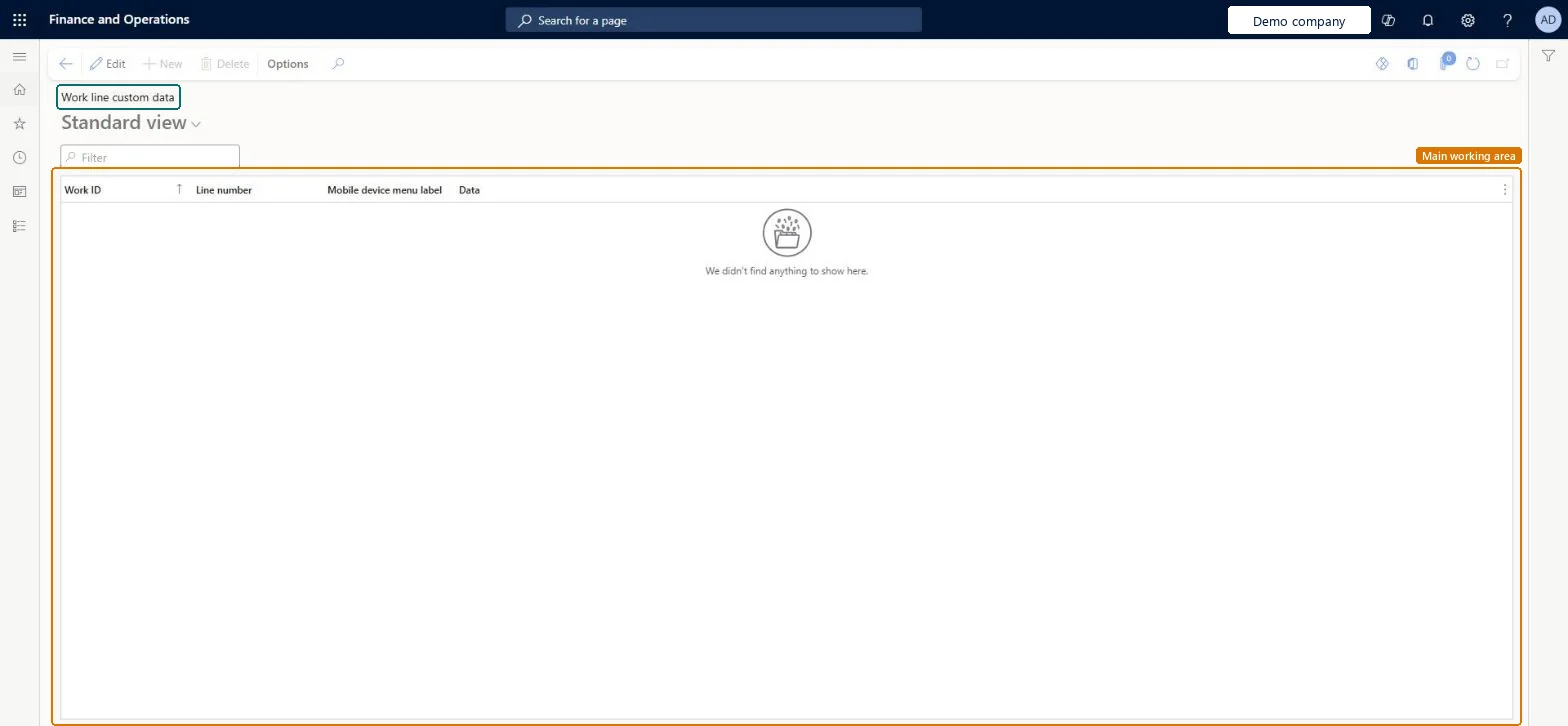
Go to Warehouse management > Inquiries and reports > Custom data.
Type in the Filter box to find the data for a work ID.
Review the Line number, Mobile device menu label and Data columns.
WHSWorkLineCustomShown as “WORK LINE CUSTOM DATA” in Record infoKey field: WorkIdChecked in Dynamics 365
Who can open it
PrivilegesMaintain custom work lines WHSWorkLineCustomMaintainView custom work lines WHSWorkLineCustomViewDutiesMaintain warehouse planning WHSWarehousePlanningMaintainInquire into warehouse planning status WHSWarehousePlanningStatusInquire5 security rolesReceiving clerk InventReceivingClerkShipping clerk InventShippingClerkWarehouse planner WHSWarehousePlannerWarehouse manager WMSWarehouseManagerWarehouse worker WMSWarehouseWorkerChecked in Dynamics 365
Roles to set it up and use it
To set it up or change itWarehouse planner WHSWarehousePlannerTo use itWarehouse manager WMSWarehouseManagerWarehouse worker WMSWarehouseWorkerShipping clerk InventShippingClerkReceiving clerk InventReceivingClerkGive people one of these roles. On this system, 5 roles can open this page.Checked in Dynamics 365