BeyondERP.Newsletter
Menu

Setup page · Transportation management

Constraints

A setup page where you define transportation constraints, for example to prevent a selected item from being transported through a selected hub.

Used by
Logistics manager, Transportation coordinator
Business process
Manage freight and transportation
Menu item
TMSConstraint
Main table
TMSItemConstraint
Data entity
TMSTransportationItemConstraintEntity
Setup steps
1 on this page
Show what matters for
PAGE GUIDEWhat the page does and how to use it7 sections. Choose a role to highlight what matters to you.
Everyone

1What it is and why

What it isA setup page where you define transportation constraints, for example to prevent a selected item from being transported through a selected hub.
What you do hereUse this page to restrict how items or shipments can be transported, by shipping carrier, carrier service, mode, transportation method or hub, for a set period.
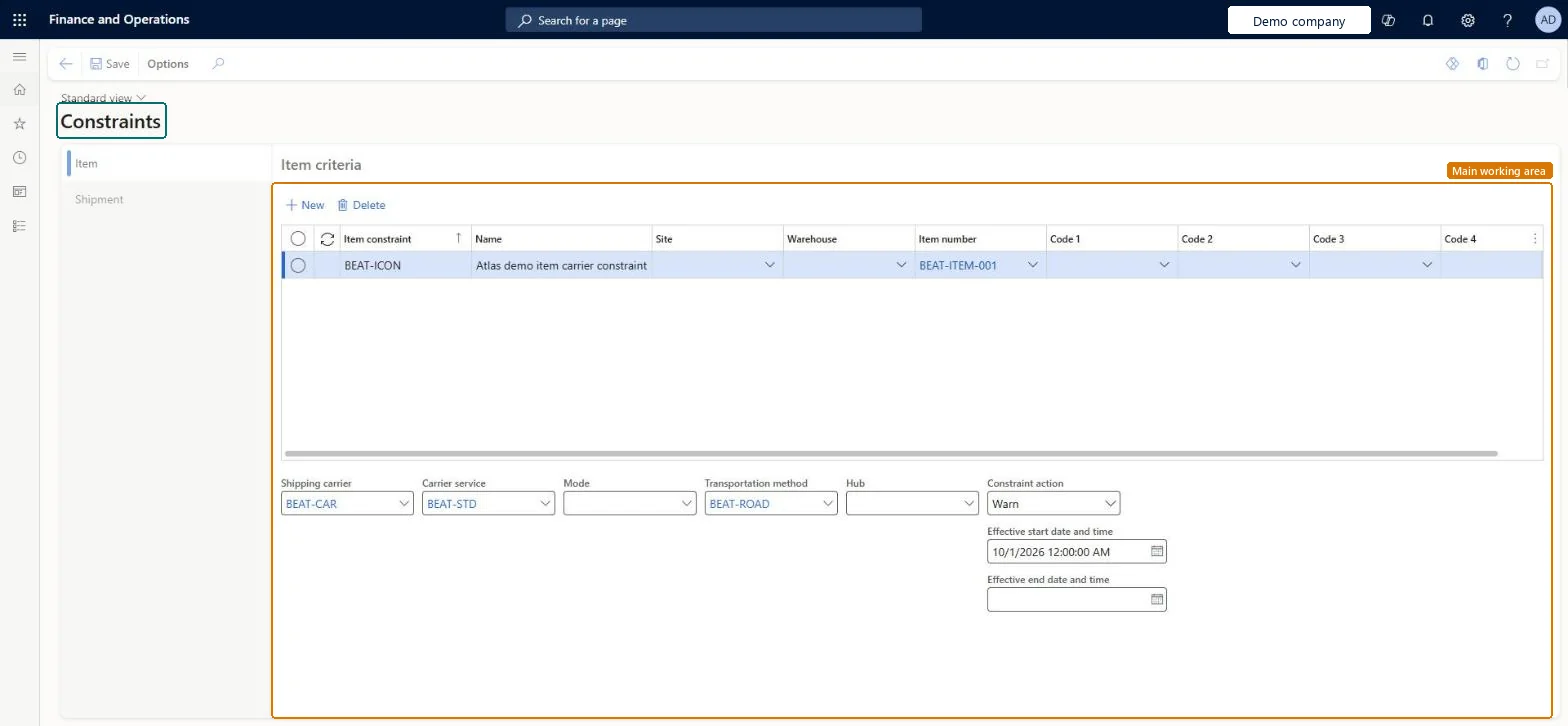
Constraints page in Dynamics 365
The page in Dynamics 365. page title tab to open what to set or check
Functional consultant · Solution architect

2Where it fits

Business processManage freight and transportation
Menu pathTransportation management › Setup › Routing › Constraints
End user · Functional consultant

3How to do it

About the examples: Examples and screenshots in this guide use BEAT, a demo company in a Dynamics 365 test environment. Use your own company's codes and values instead of copying them.

Setup steps on this page

Set up Constraints

Use this page to restrict how items or shipments can be transported, by shipping carrier, carrier service, mode, transportation method or hub, for a set period.

Steps from Microsoft

  1. Go to Transportation management > Setup > Routing > Constraints.
  2. Open the Item tab.
  3. On the toolbar, select New, and then enter the Item constraint, Name, Site, Warehouse and Item number.
  4. With the new row still selected, set the Shipping carrier, Carrier service, Mode, Transportation method and Hub at the bottom of the page.
  5. Select the Constraint action, and enter the effective start and end dates.
  6. Select Save, and then close the page.

Source: Microsoft Learn

Fields on the page

FieldWhat it meansTable column
Item constraintA unique identifier for the constraint.Microsoft Learn ItemConstraintCode
Item numberThe item that the constraint applies to.Microsoft Learn
Shipping carrierThe shipping carrier that the constraint applies to.Microsoft Learn
ModeThe mode of delivery where the constraint applies.Microsoft Learn
Transportation methodThe transportation method where the constraint applies.Microsoft Learn
HubThe hub where the constraint applies.Microsoft Learn
Constraint actionThe type of constraint to apply.Microsoft Learn
Effective start date and timeThe first date on which the constraint applies.Microsoft Learn

Test checklist

  1. On the Item tab, create an item constraint for one item, site and warehouse.
  2. Set the Hub, Constraint action and an Effective start date of today and Effective end date in the future, then save.
  3. Build and route a load for the item through that hub and check that the constraint prevents it.
  4. Route a load for a different item through the same hub and check that it isn't affected.

Source: Microsoft Learn

Solution architect

4Design impact

Shared or per companyPer company: each legal entity has its own records. Microsoft data model
Can it be undoneReversible: Each constraint has an Effective start date and Effective end date, so you can end a constraint by setting its end date, or change it at any time. Microsoft Learn
Technical architect

5Technical

Menu itemTMSConstraint Checked in Dynamics 365
FormTMSConstraint Checked in Dynamics 365
TableTMSItemConstraintShown as “ITEM CONSTRAINT” in Record infoKey field: ItemConstraintCodeChecked in Dynamics 365
Data entitiesTMSTransportationItemConstraintEntityTransportation item constraints Microsoft data model
Who can open itPrivilegesMaintain constraints TMSConstraintMaintainView constraints TMSConstraintViewDutiesInquire into carrier master and network planning information TMSCarrierMasterInquireMaintain carrier and network planning master TMSCarrierMasterMaintain
2 security rolesLogistics manager TMSLogisticsManagerTransportation coordinator TMSTransportationCoordinator
Checked in Dynamics 365
Roles to set it up and use itTo set it up or change itLogistics manager TMSLogisticsManagerTo use itTransportation coordinator TMSTransportationCoordinatorGive people one of these roles. On this system, 2 roles can open this page.Checked in Dynamics 365
Developer

6Developer

Open it by URLhttps://<your-environment>/?mi=TMSConstraint
Integrate withTMSTransportationItemConstraintEntity data entity Microsoft data model
Data migrationTMSTransportationItemConstraintEntity (Transportation item constraints): loaded for each company, in Microsoft's default template 405 - Transportation management.Load order: Microsoft's default template 405 - Transportation management loads Transportation item constraints at execution unit 1, level 405, sequence 30. Lower levels load first, and entities at the same level load in sequence order.Load first: First product filter codes, Fourth product filter codes, Second product filter codes, Third product filter codes, Transportation methods, the default templates at lower levels (System setup to Warehouse management)Microsoft Learn
Table definitionTMSItemConstraint columns and relations Microsoft data model
Everyone

7Sources