About the examples: Examples and screenshots in this guide use BEAT, a demo company in a Dynamics 365 test environment. Use your own company's codes and values instead of copying them.
Setup steps on this page
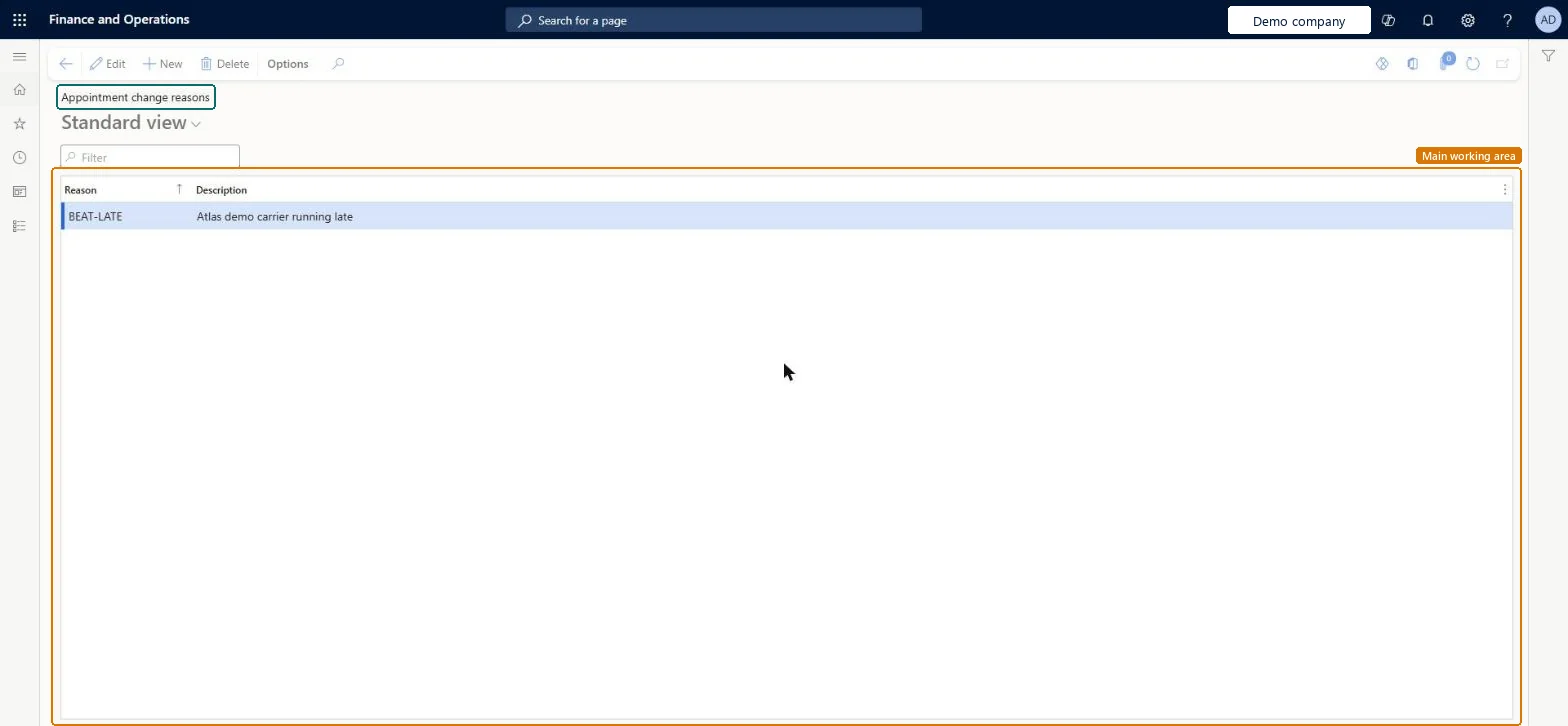
Set up Appointment change reasons
Use this page to create and maintain the reasons that are available when dock appointments are changed.
How to use it
Go to Transportation management > Setup > Appointment scheduling > Appointment change reasons.
Select New.
Enter a Reason and a Description.
Use the Filter box to find an existing reason, or select Delete to remove one.
TMSChangeReasonShown as “APPOINTMENT CHANGE REASONS” in Record infoKey field: ReasonCodeChecked in Dynamics 365
Data entities
TMSDockDoorAppointmentChangeReasonEntityDock door appointment change reasons Microsoft data model TMSTransportationAppointmentChangeReasonCodeEntityTransportation appointment change reason codes Microsoft data model
Who can open it
PrivilegesMaintain change reasons TMSChangeReasonMaintainView the reason changes TMSChangeReasonViewDutiesInquire into carrier master and network planning information TMSCarrierMasterInquireMaintain carrier and network planning master TMSCarrierMasterMaintain2 security rolesLogistics manager TMSLogisticsManagerTransportation coordinator TMSTransportationCoordinatorChecked in Dynamics 365
Roles to set it up and use it
To set it up or change itLogistics manager TMSLogisticsManagerTo use itTransportation coordinator TMSTransportationCoordinatorGive people one of these roles. On this system, 2 roles can open this page.Checked in Dynamics 365
TMSDockDoorAppointmentChangeReasonEntity (Dock door appointment change reasons): loaded for each company, in Microsoft's default template 405 - Transportation management.TMSTransportationAppointmentChangeReasonCodeEntity (Transportation appointment change reason codes): loaded for each company, in Microsoft's default template 405 - Transportation management.Load order: Microsoft's default template 405 - Transportation management loads Dock door appointment change reasons at execution unit 1, level 30, sequence 10. Lower levels load first, and entities at the same level load in sequence order.Load first: the default templates at lower levels (System setup to General ledger)Microsoft Learn