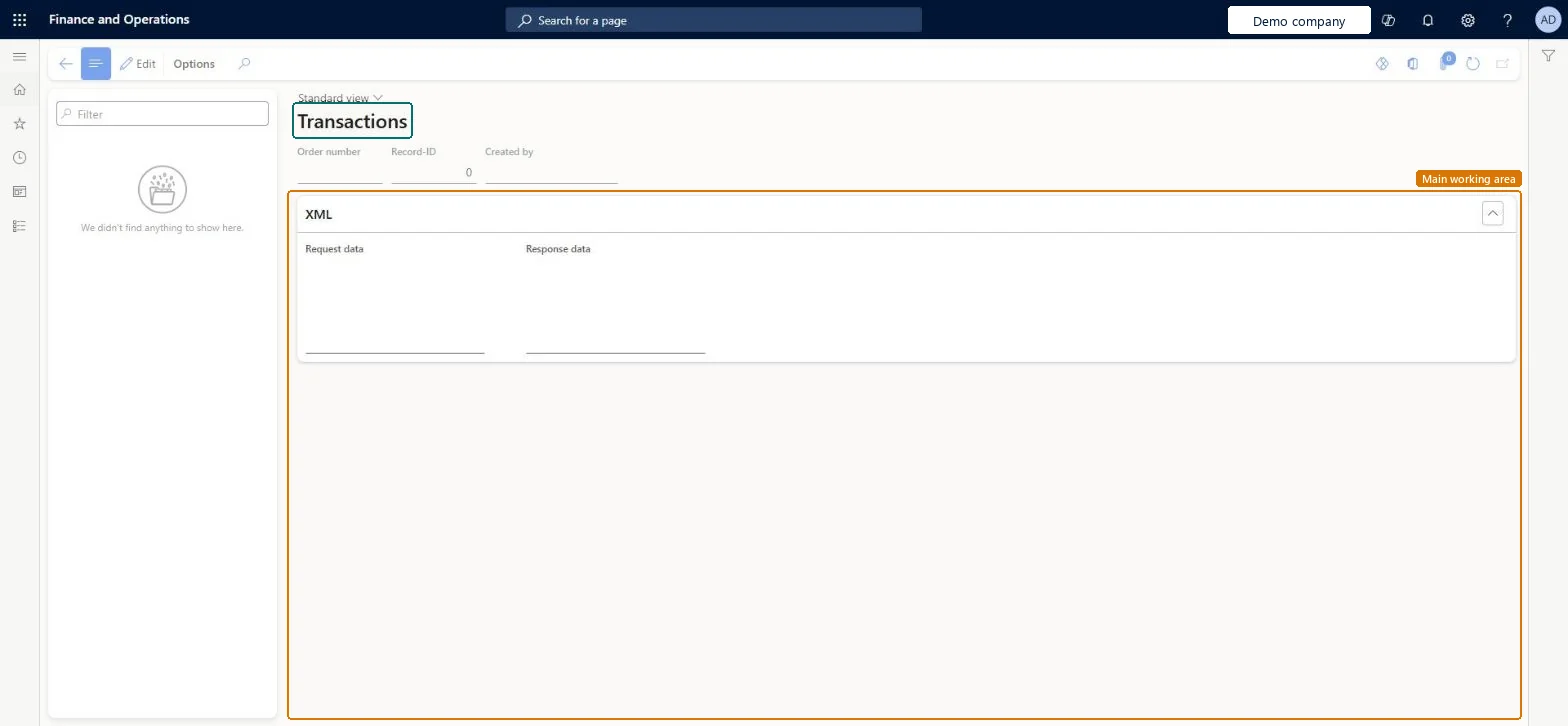
A details page that shows transportation transaction records, each with its order number, record ID, the user who created it and the XML request data and response data stored for it.
PAGE GUIDEWhat the page does and how to use it7 sections. Choose a role to highlight what matters to you.
Everyone
1What it is and why
What it is
A details page that shows transportation transaction records, each with its order number, record ID, the user who created it and the XML request data and response data stored for it.
What you do here
Use this page to look up a transportation transaction by order number and review the XML request data and response data that are stored for it.
The page in Dynamics 365. page title tab to open what to set or check
About the examples: Examples and screenshots in this guide use BEAT, a demo company in a Dynamics 365 test environment. Use your own company's codes and values instead of copying them.
When to run it
When to run it
When a transportation result for an order looks wrong and you need the XML request and response that were stored for it.
How often
On demand, when you troubleshoot a transportation transaction for an order.
What the output shows
A list of transportation transactions for the current legal entity, each with order number, record ID, creator and the stored XML request and response. If you find no transaction for an order, check that you're in the legal entity that processed it, because each legal entity keeps its own records.
Nothing to undo: The page only shows stored transactions; reading them changes nothing. Microsoft Learn
Technical architect
5Technical
Menu item
TMSTransactionChecked in Dynamics 365
Form
TMSTransactionChecked in Dynamics 365
Table
TMSTransactionShown as “TRANSACTIONS” in Record infoChecked in Dynamics 365
Who can open it
PrivilegesMaintain transactions TMSTransactionMaintainView XML transactions requests and responses TMSTransactionViewDutiesMaintain rating and routing TMSRateRouteOperationMaintainInquire into rating and routing transaction TMSRateRouteOperationStatusInquireReview transportation management process performance TMSTransportationMgmtProcessPerfReview2 security rolesLogistics manager TMSLogisticsManagerTransportation coordinator TMSTransportationCoordinatorChecked in Dynamics 365
Roles to set it up and use it
To set it up or change itTransportation coordinator TMSTransportationCoordinatorTo use itLogistics manager TMSLogisticsManagerGive people one of these roles. On this system, 2 roles can open this page.Checked in Dynamics 365