About the examples: Examples and screenshots in this guide use BEAT, a demo company in a Dynamics 365 test environment. Use your own company's codes and values instead of copying them.
When to run it
When to run it
After workers' employment has ended and their last registrations are calculated, approved and transferred.
How often
Periodically, for example once per pay period, or on demand after terminations.
Batch settings
Run it as a recurring batch job, for example after each pay period closes.
What the output shows
Workers who are no longer active are deactivated, so they're no longer included in calculations and approvals. A worker who still appears on the Calculate page is usually still marked as active in the time registration worker setup.
Keep workers who left out of calculation and approval.
Steps from Microsoft
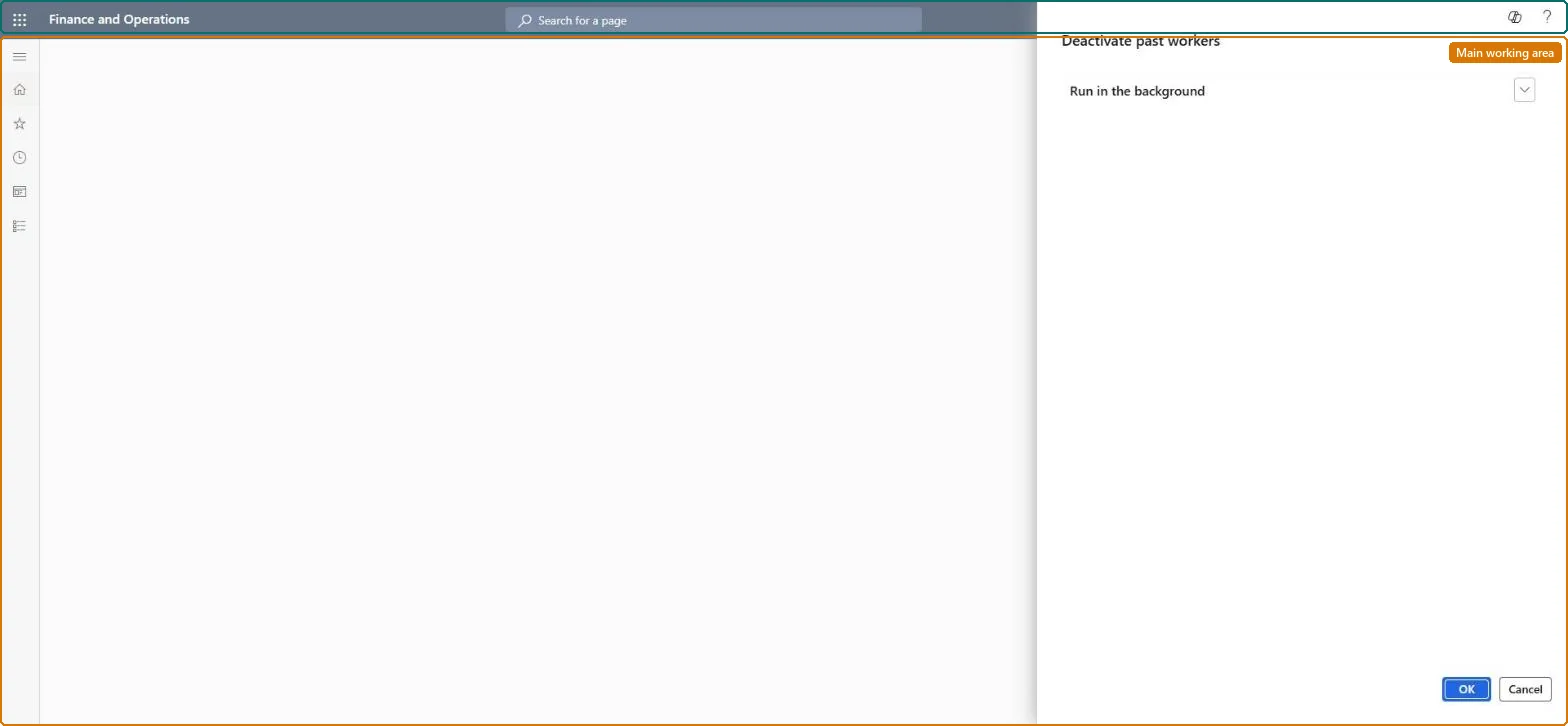
Go to Time and attendance > Periodic tasks > Deactivate past workers.
Before you run it, make sure the last registrations of workers who left are calculated, approved and transferred, because deactivated workers are left out of calculation and approval.
Enter batch settings if you want the job to run regularly, for example after each payroll period.
Run it, then open Time registration workers and filter on Active to see which workers were deactivated.
Time and attendance roles come from the security read in the Technical section. On this system access comes from duties such as Production supervisor. The Microsoft Learn article for this page names no Feature management feature to turn on.
Per company: Time and attendance data is kept per legal entity (every Time and attendance entity in Data management is per company), so the job or report works on the registrations of the company it is run in. Microsoft Learn
Can it be undone
No reversal: The job has no undo run. To bring a worker back, make the time registration worker active again on Time registration workers. Microsoft Learn
If you change it later
Deactivates time registration workers who are no longer active, so they're left out of calculation and approval. Microsoft Learn
Technical architect
6Technical
Menu item
JmgDeactivatePastWorkersChecked in Dynamics 365
Form
DialogChecked in Dynamics 365
Roles to set it up and use it
To use itProduction supervisor ProdProductionSupervisorGive people one of these roles. On this system, 1 role can run this page.Checked in Dynamics 365
Load order: Deactivate past workers has no data entity in Data management, so it can't be loaded from a file or a configuration template. Load only active time registration workers at go-live; this job keeps the list clean afterwards.Checked in Dynamics 365