BeyondERP.Newsletter
Menu

Inquiry page · Time and attendance

Calculation and approval status

An inquiry page that shows, by date and group, whether worker registrations have been calculated, approved, and transferred.

Business process
Record employee time
Menu item
JmgCalcApprOverview
Setup steps
1 on this page
Show what matters for
PAGE GUIDEWhat the page does and how to use it8 sections. Choose a role to highlight what matters to you.
Everyone

1What it is and why

What it isAn inquiry page that shows, by date and group, whether worker registrations have been calculated, approved, and transferred.
What you do hereUse this page to check the calculation and approval status of registrations, and to open the Calculate or Approve page for a selected date and group.
ExampleFor example, a payroll officer checks whether all calculation groups related to their approval group have been calculated.
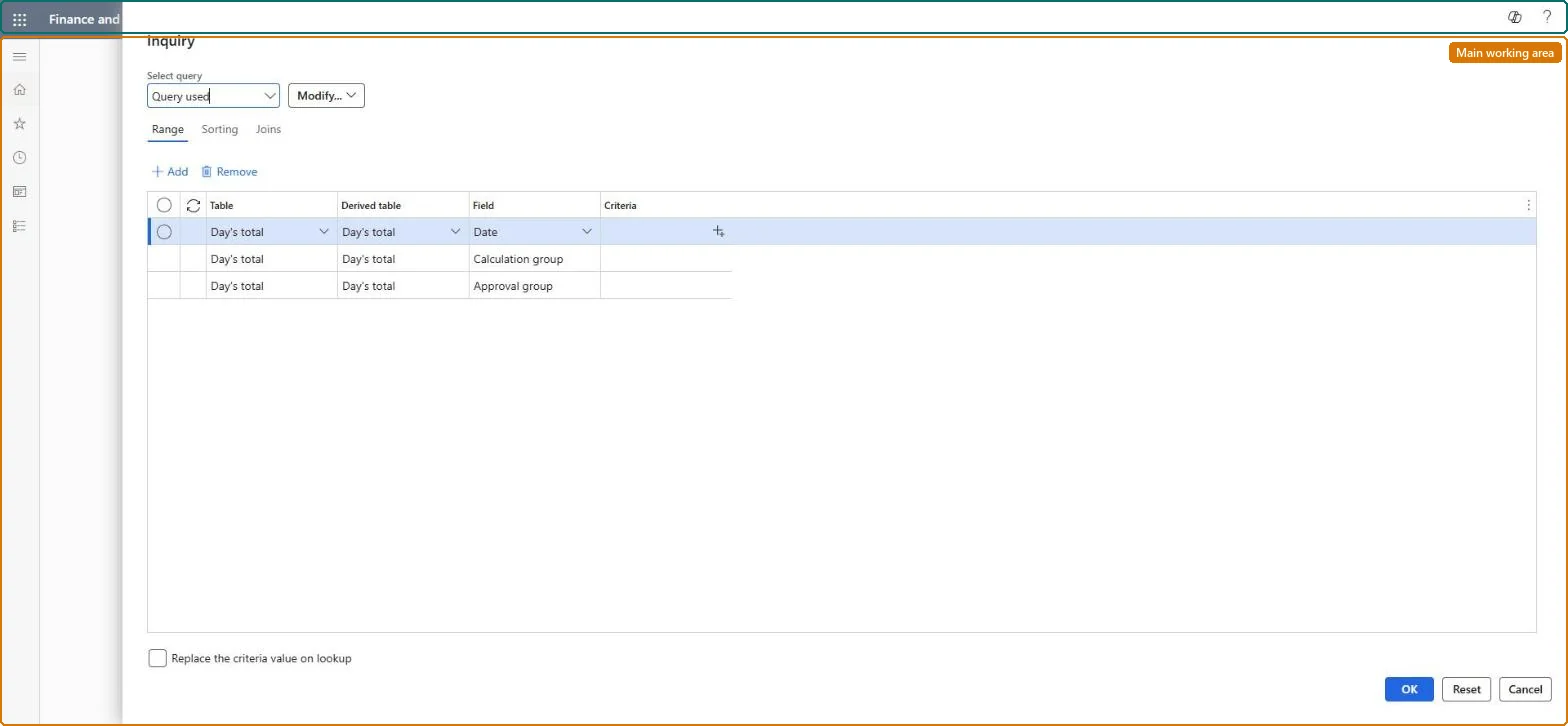
Calculation and approval status page in Dynamics 365
The page in Dynamics 365. page title tab to open what to set or check
Functional consultant · Solution architect

2Where it fits

Business processManage time and attendance › Record employee time
Menu pathTime and attendance › Inquiries and reports › Calculation and approval status
Set up firstCalculate Microsoft Learn
Used next byApprove Microsoft Learn
Related pagesCalculate Microsoft Learn Approve Microsoft Learn
End user · Functional consultant

3How to do it

About the examples: Examples and screenshots in this guide use BEAT, a demo company in a Dynamics 365 test environment. Use your own company's codes and values instead of copying them.

Setup steps on this page

Check which days are calculated and approved

Read the page to answer one question about registrations or pay.

Steps from Microsoft

  1. Go to Time and attendance > Inquiries and reports > Calculation and approval status.
  2. In the inquiry dialog, select the criteria.
  3. Select OK.
  4. Select a line, and then select Calculate or Approve to open that page for the selected date and group.

Source: Microsoft Learn

Fields on the page

FieldWhat it means
DateThe profile date of the registrations.Microsoft Learn
CalculatedShows that registrations have been calculated.Microsoft Learn
ApprovedShows that registrations have been approved.Microsoft Learn
TransferredShows that registrations have been transferred.Microsoft Learn
Calculation groupThe calculation group of the registrations.Microsoft Learn
Approval groupThe approval group of the registrations.Microsoft Learn

Common errors and fixes

MessageWhat to do
Registrations can't be transferredOnly registrations that are calculated and approved without errors can be transferred. Select Display errors, fix the lines on the Error tab and calculate again. Microsoft Learn

Test checklist

  1. Calculate one day for a group but don't approve it.
  2. Open the status for the date and group.
  3. Check Calculated is Yes and Approved is No.

Source: Microsoft Learn

Functional consultant

4Setup decisions

Setup stepRecommended value and whyDecision, common mistake and test
Check which days are calculated and approvedQuery on the date range and your approval group, then filter on Calculated = No or Approved = No.Approval and transfer must happen daily; this shows the days still open before the pay period closes.Who checks the status, and when?Reading a calculated day as approved: approval and transfer are separate columns.Test: Check which days are calculated and approved

Feature management and licence

Licence or add-inTime and attendance roles come from the security read in the Technical section. On this system access comes from duties such as Production supervisor, Manager. The Microsoft Learn article for this page names no Feature management feature to turn on.

Microsoft Learn

Solution architect

5Design impact

Shared or per companyPer company: it shows the calculation and approval groups of the company you are signed in to. Microsoft Learn
Can it be undoneReversible: The inquiry changes no data.
If you change it laterThe inquiry changes no data; it shows where each day is in calculate, approve and transfer. Microsoft Learn
Technical architect

6Technical

Menu itemJmgCalcApprOverview Checked in Dynamics 365
FormSysQueryForm Checked in Dynamics 365
Roles to set it up and use itTo use itProduction supervisor ProdProductionSupervisorManager HcmManagerGive people one of these roles. On this system, 2 roles can open this page.Checked in Dynamics 365
Developer

7Developer

Open it by URLhttps://<your-environment>/?mi=JmgCalcApprOverview
Data migrationLoad order: Calculation and approval status has no data entity in Data management, so it can't be loaded from a file or a configuration template. It shows the state of registrations; nothing is moved.Checked in Dynamics 365
Everyone

8Sources