Setup page · Tax
Populate records actions
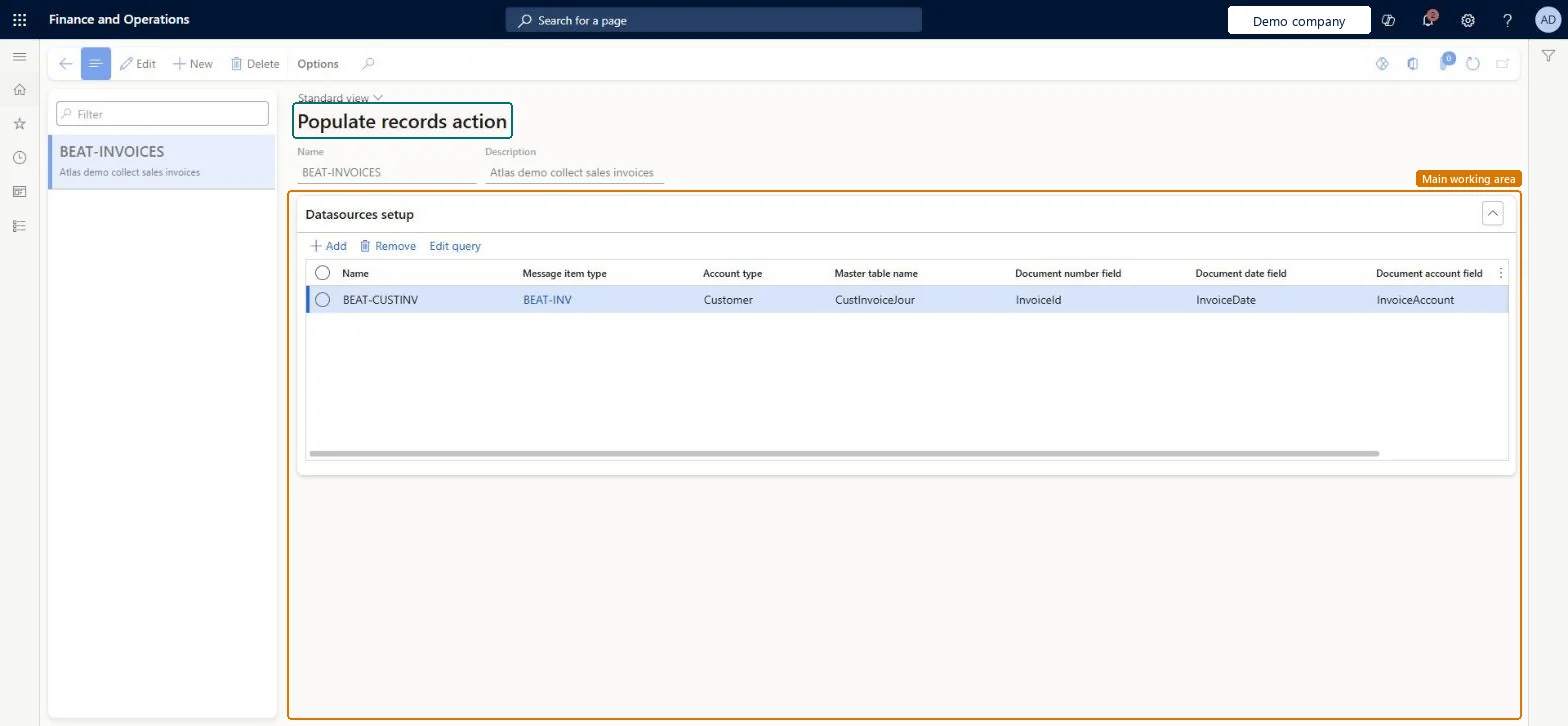
A setup page for populate records actions, which add records to the message items table so they can be included in an electronic message.
- Used by
- Accounts payable clerk, Collections manager, Accounts receivable clerk and 6 more roles
- Business process
- Report tax and financial data to authorities in Dynamics 365 Finance
- Menu item
EMActionPopulateRecord- Main table
EMActionPopulateRecord- Data entity
- —
- Setup steps
- 1 on this page
Show what matters for
Everyone
1What it is and why
| What it is | A setup page for populate records actions, which add records to the message items table so they can be included in an electronic message. |
|---|---|
| What you do here | Used to set the data sources, such as a Finance table and query, that message items are collected from. |
| Example | For example, to report customer invoices, you set up a populate records action whose data source is the customer invoice journal table. |
Functional consultant · Solution architect
2Where it fits
| Business process | Record financial transactions › Record tax commitments › Report tax and financial data to authorities in Dynamics 365 Finance |
|---|---|
| Menu path | Tax › Setup › Electronic messages › Populate records actions |
| Set up first | Message item types Microsoft Learn ↗ |
| Used next by | Message processing actions Microsoft Learn ↗ |
| Related pages | — |
End user · Functional consultant
3How to do it
Step by step, with screenshots
Set up Populate records actions1 screen
Used to set the data sources, such as a Finance table and query, that message items are collected from.
Screen 1
Create the populate records action
Go to Tax > Setup > Electronic messages > Populate records actions
- Select New, and enter the Name and Description
- On Datasources setup, select Add and enter the line Name
- Select the Message item type, Account type and Master table name
- Select the Document number, Document date and Document account fields, then select Save
1Name BEAT-INVOICES Datasource line BEAT-CUSTINV: BEAT-INV, Customer, CustInvoiceJour, InvoiceId, InvoiceDate, InvoiceAccount 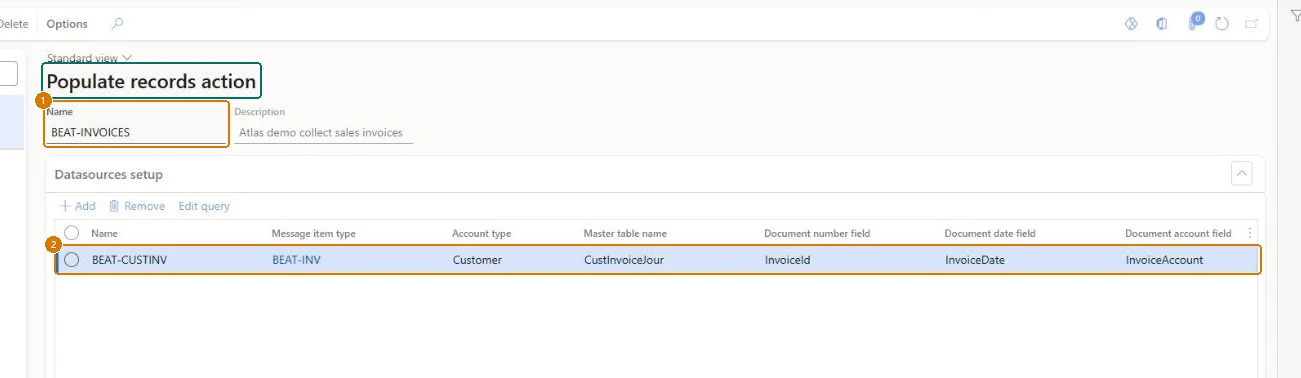
Show the full screen
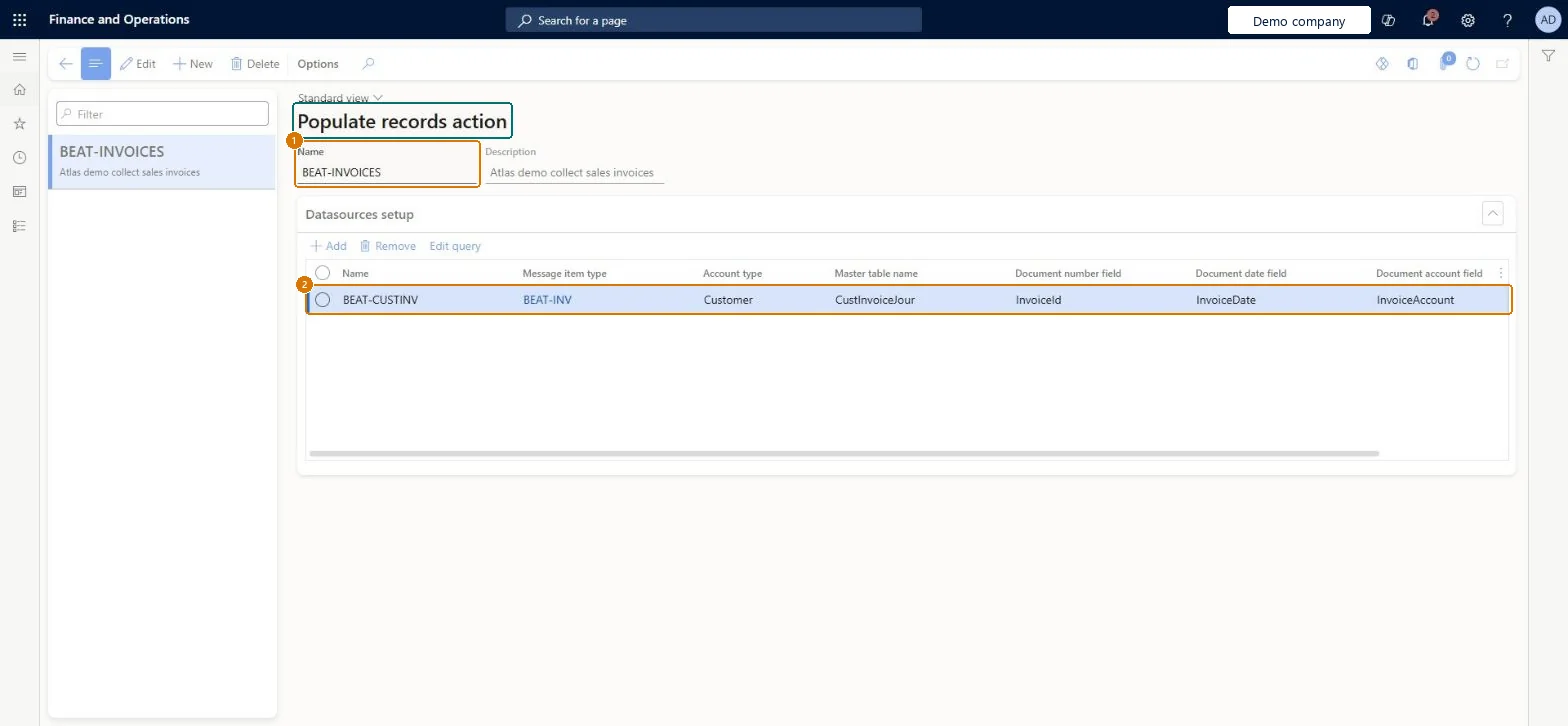
page title tab to open what to set or check
Microsoft's steps
- Go to Tax > Setup > Electronic messages > Populate records actions.
- Create a record and enter a name and description.
- On the Datasources setup FastTab, add a line for each data source.
- On each line, select the message item type, account type and master table, and the document number, date and account fields.
- To limit the records, select Edit query and enter the criteria.
- To collect data from several legal entities, add a line per legal entity with its Company and query.
Source: Microsoft Learn ↗
Field guide
| Field | What it means | Worked example | Table column |
|---|---|---|---|
| Message item type | The message item type given to records from the data source.Microsoft Learn ↗ | — | — |
| Account type | The type of account linked to records from the data source.Microsoft Learn ↗ | — | — |
| Master table name | The table that is the data source.Microsoft Learn ↗ | — | — |
| Document number field | The field that gives the message item its document number.Microsoft Learn ↗ | — | — |
| Document date field | The field that gives the message item its date.Microsoft Learn ↗ | — | — |
| Document account field | The field that gives the message item its account number.Microsoft Learn ↗ | — | — |
| Company | The legal entity to collect data from, when cross-company populate records is turned on.Microsoft Learn ↗ | — | — |
| Name | — | BEAT-INVOICES | — |
| Datasource line | — | BEAT-CUSTINV: BEAT-INV, Customer, CustInvoiceJour, InvoiceId, InvoiceDate, InvoiceAccount | — |
Functional consultant
4Setup decisions
| Setup step | Recommended value and why | Decision · common mistake · test |
|---|---|---|
| Set up Populate records actions | — | — |
Solution architect
5Design impact
| Shared or per company | — |
|---|---|
| Can it be undone | — |
| Feature or country | — |
| If you change it later | — |
Technical architect
6Technical
| Menu item | EMActionPopulateRecord Checked in Dynamics 365 |
|---|---|
| Form | EMActionPopulateRecord Checked in Dynamics 365 |
| Table | EMActionPopulateRecordShown as “Action populate records” in Record infoChecked in Dynamics 365 |
| Data entities | — |
| Who can open it | PrivilegesMaintain electronic messages ElectronicMessageMaintainView electronic messages ElectronicMessageViewDutiesMaintain sales tax transactions TaxSalesTaxTransactionsMaintainInquire into sales tax transaction status TaxSalesTaxTransactionStatusInquire9 security rolesCollections managerCollectionLetterCollectionsManagerAccounts receivable clerk CustInvoiceAccountsReceivableClerkAccounts receivable manager CustInvoiceAccountsReceivableManagerTax accountant FBTaxAccountant_BRAccountant LedgerAccountantAccounting manager LedgerAccountingManagerAccounting supervisor LedgerAccountingSupervisorSales manager TradeSalesManagerAccounts payable clerk VendInvoiceAccountsPayableClerk |
| Actions on the page | Options: Personalize, Page options, ShareChecked in Dynamics 365 |
Developer
7Developer
| Open it directly | https://<your-environment>/?mi=EMActionPopulateRecord |
|---|---|
| Integrate with | — |
| Table definition | — |
Everyone
8Sources and checks
- learn.microsoft.com/dynamics365/finance/general-ledger/electronic-messaging-setup
- Checked in a working Dynamics 365 system, version 10.0.49: the menu item, form, table and security, the page, the demo records and the values in the screenshots.