About the examples: Examples and screenshots in this guide use BEAT, a demo company in a Dynamics 365 test environment. Use your own company's codes and values instead of copying them.
Step by step, with screenshots
Set up Server configuration1 screen
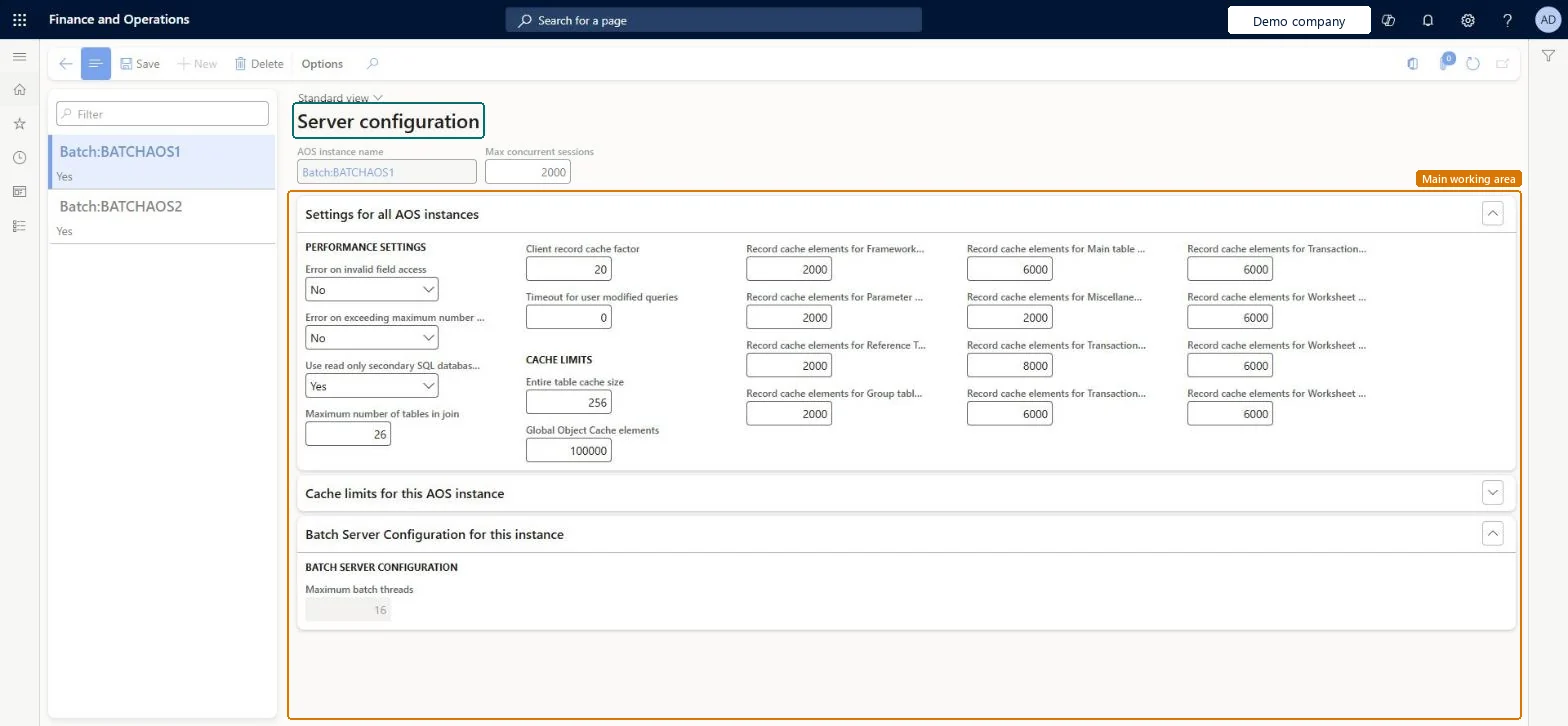
Use this page to view batch servers and to set the maximum number of batch threads each server runs.
Screen 1
Review the batch servers
Go to System administration > Setup > Server configuration
Select a server in the list on the left
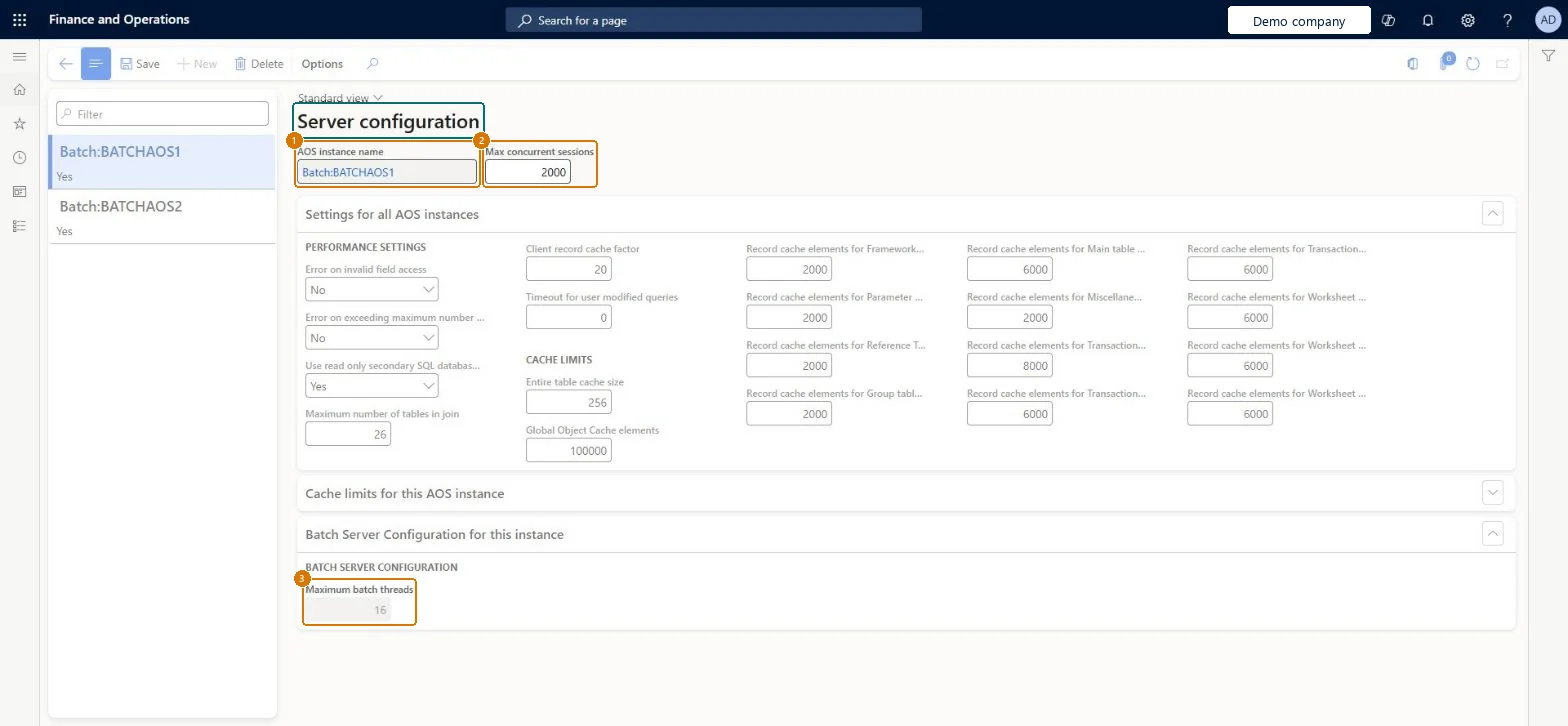
Review the maximum concurrent sessions and the cache settings
Under Batch Server Configuration for this instance, review the maximum batch threads the server runs
Show the full screen page title tab to open what to set or check
How to use it
Go to System administration > Setup > Server configuration.
Select a server in the list on the left, such as Batch:BATCHAOS1.
Review the AOS instance name, Max concurrent sessions and the Settings for all AOS instances section.
Open Batch Server Configuration for this instance to see Maximum batch threads.
Select Save.
Source: Checked in Dynamics 365
Fields on the page
Field
What it means
Example
Maximum batch threads
How many batch tasks one server can run at the same time; the default is 8.Microsoft Learn
8
Common errors and fixes
Message
What to do
A changed Maximum batch threads value goes back to another number
Batch auto scaling is active: the platform manages the thread count and overrides manual changes. Microsoft Learn
More batch capacity is needed in production
Capacity comes from user licenses: acquire more licenses and update the subscription estimate in Lifecycle Services. In a sandbox, only Tier-4 and Tier-5 sandboxes can be given more capacity. Microsoft Learn
Test checklist
Open Server configuration and list the available batch servers.
Check that Maximum batch threads is the same on every batch server and no higher than 16.
Multiply servers by threads to get the batch capacity and compare it with your peak batch load.
Run a multi-task batch job and check on Batch jobs that tasks run in parallel.
Keep Maximum batch threads at the default of 8 and the same on every batch server; never above 16The default thread count is 8, the platform caps it at 16 to avoid resource saturation, and Learn advises keeping the thread count the same across servers to avoid performance degradation.
On this system the page opens for Information technology manager. Only IT administrators change thread counts. Batch auto scaling needs priority-based batch scheduling. No Feature management feature needs to be turned on for this page.
PrivilegesMaintain server configuration SysServerConfigMaintainDutiesMaintain system settings SysServerSettingsMaintain1 security roleInformation technology manager SysServerITManagerChecked in Dynamics 365
Roles to set it up and use it
To set it up or change itInformation technology manager SysServerITManagerGive people one of these roles. On this system, 1 role can open this page.Checked in Dynamics 365
Actions on the page
Options: Page options, Edit, ShareChecked in Dynamics 365
SysServerConfigurationEntity (Server configuration): shared by all companies.Load order: SysServerConfigurationEntity (Server configuration) is enabled in Data management but isn't in any of Microsoft's default templates in BEAT, so add it to your own data project when you move this setup. The page lists the servers of this environment, so check thread counts in each environment.Checked in Dynamics 365
Checked in a working Dynamics 365 system, version 10.0.49: the menu item, form, table and security, the page, the demo records and the values in the screenshots.