About the examples: Examples and screenshots in this guide use BEAT, a demo company in a Dynamics 365 test environment. Use your own company's codes and values instead of copying them.
Setup steps on this page
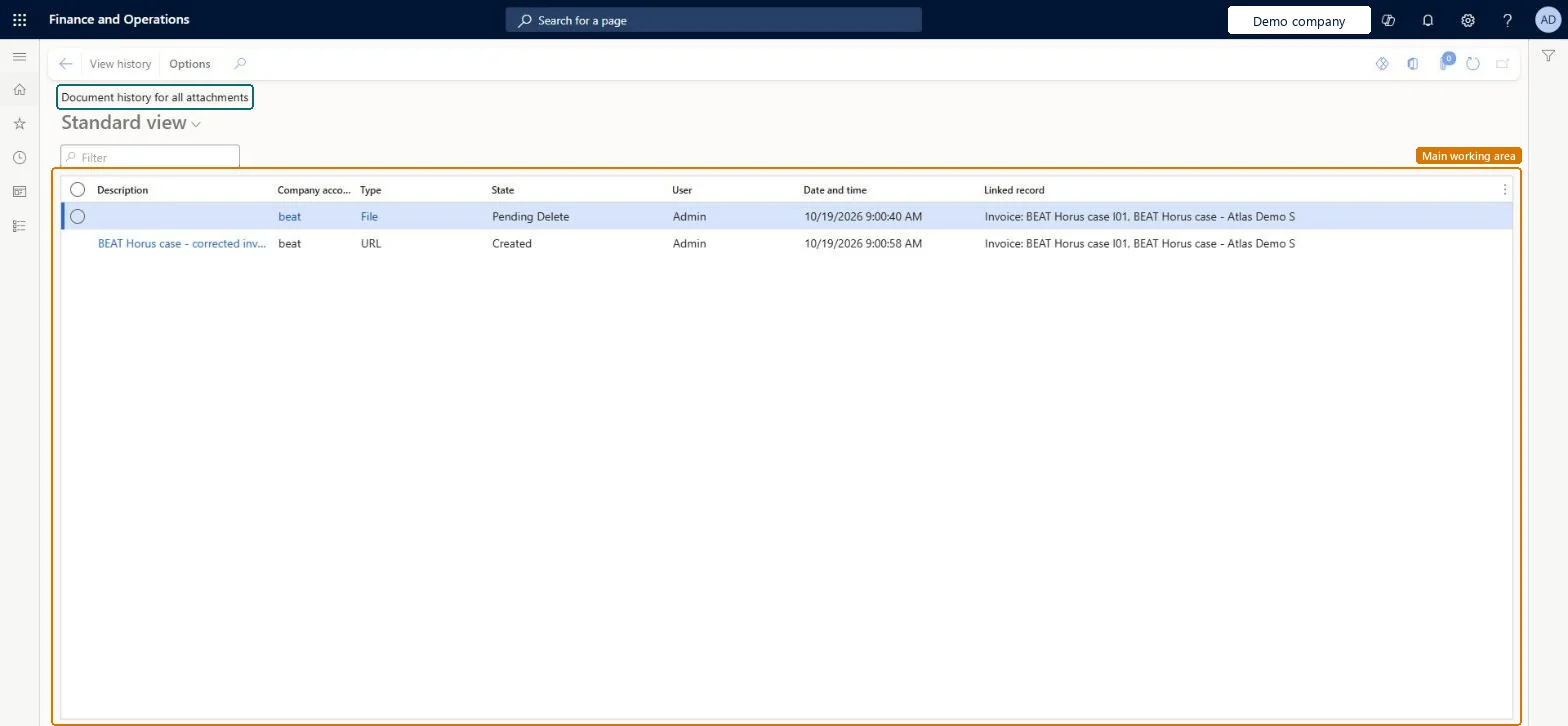
Audit attachment history
Use the page to answer who did what to an attachment and when.
Steps from Microsoft
Go to System administration > Inquiries > Document history.
Use the Filter box to find an attachment.
Read the Type, State, User, Date and time and Linked record columns for each entry.
Select an entry, then select View history to see its history.
Set Number of days to retain history to cover the audit period (default 180 days)Older entries are removed after the retention period, so a shorter period can lose evidence auditors ask for.
Shared: attachment history from every legal entity is listed. Microsoft Learn
Can it be undone
Reversible: The page only reads history; it changes nothing. Microsoft Learn
If you change it later
History is kept only for the number of days set in Number of days to retain history, which is 180 days by default. Microsoft Learn
Technical architect
6Technical
Menu item
DocuHistoryListChecked in Dynamics 365
Form
DocuHistoryListChecked in Dynamics 365
Table
DocuHistoryChecked in Dynamics 365
Who can open it
PrivilegesMaintain history for all attachments DocuHistoryListMaintain1 security roleDocument history administrator DocuHistoryListAccessChecked in Dynamics 365
Roles to set it up and use it
To use itDocument history administrator DocuHistoryListAccessGive people one of these roles. On this system, 1 role can open this page.Checked in Dynamics 365
Actions on the page
Options: Personalize, Page options, ShareChecked in Dynamics 365
Developer
7Developer
Open it by URL
https://<your-environment>/?mi=DocuHistoryList
Data migration
Load order: Document history has no data entity in Data management, so it can't be loaded from a file or a configuration template. History stays in the environment where the actions happened.Checked in Dynamics 365