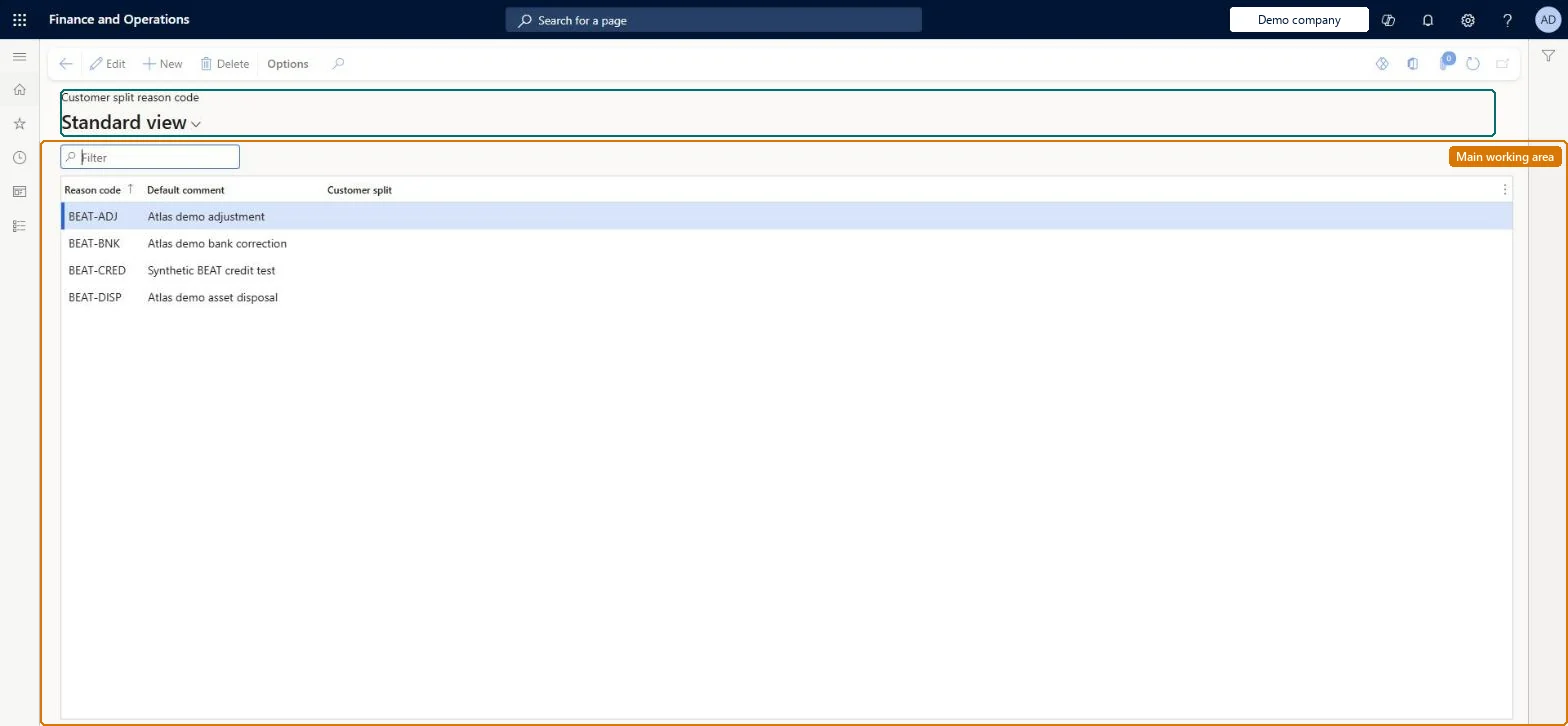
A setup page that opens the shared Reasons table with a Customer split column, where you mark the reason codes used for customer split in Subscription billing.
Subscription billing manager, Subscription billing user, Subscription billing allocation, deferral, and billing manager and 1 more role
Business process
Bill subscriptions
Menu item
SubBillCustomerSplitReasonCode
Main table
ReasonTable
Data entity
None for this page's own settings
Setup steps
1 on this page
Show what matters for
PAGE GUIDEWhat the page does and how to use it8 sections. Choose a role to highlight what matters to you.
Everyone
1What it is and why
What it is
A setup page that opens the shared Reasons table with a Customer split column, where you mark the reason codes used for customer split in Subscription billing.
What you do here
Use this page to create reason codes and select the Customer split check box on the codes used when one billing schedule bills several customers.
Example
For example, BEAT creates BEAT-SPLT with default comment Cost shared with parent company and selects Customer split; the four general BEAT codes stay clear.
The page in Dynamics 365. page title tab to open what to set or check
About the examples: Examples and screenshots in this guide use BEAT, a demo company in a Dynamics 365 test environment. Use your own company's codes and values instead of copying them.
Setup steps on this page
Set up Customer split reason code
How to use it
Go to Subscription billing > Recurring contract billing > Setup > Customer split reason code.
Select New and enter the Reason code and a Default comment.
Select the Customer split check box so the code is marked for customer split reasons.
Save. The code is in the shared Reasons table, so other modules' columns can be set on the same code.
Source: Checked in Dynamics 365
Fields on the page
Field
What it means
Example
Reason code
The code users select.Checked in Dynamics 365
Default comment
The text that defaults with the code.Checked in Dynamics 365
Customer split
Marks the code for customer split reasons.Checked in Dynamics 365
Yes
Common errors and fixes
Message
What to do
The new reason code isn't offered in the dialog
This menu item opens the shared Reasons page. Select the module's check box on the code (for example Hold or Termination) to mark it for that use. Checked in Dynamics 365
Test checklist
Create a code with the Customer split check box selected.
Create the customer split reasons the billing team agrees and select the Customer split check box on each; turn on Customer split on the parameters only if schedules bill several customers.Customer split lets one billing schedule bill several customers, and this page marks the reason codes for that use in the shared Reasons table.
Subscription billing (Must be on)Recurring contract billing (Must be on)
Licence or add-in
Turn off the Revenue recognition feature first: Subscription billing can't be used while it is on. Then, in Feature management, turn on Subscription billing and after it Recurring contract billing. Revenue recognition was deprecated in January 2024 and replaced by Subscription billing. Subscription billing managers maintain this setup; Subscription billing users can view it.
Reversible: Codes and check boxes can be changed at any time; reasons already recorded stay on the history. Checked in Dynamics 365
If you change it later
The code is a row in the shared Reasons table; the Customer split check box decides that it is used for customer split reasons. Renaming or clearing it affects only later selections; recorded reasons stay on the history. Checked in Dynamics 365
Technical architect
6Technical
Menu item
SubBillCustomerSplitReasonCodeChecked in Dynamics 365
Form
ReasonsChecked in Dynamics 365
Table
ReasonTableShown as “REASONS” in Record infoChecked in Dynamics 365
Data entities
LedgerFinancialReasonEntityFinancial reasons (the shared reason codes and default comments of the Reasons table) Microsoft data model
Who can open it
PrivilegesSubscription billing manager SubBillBillingMaintainSubscription billing user SubBillBillingViewSubscription billing allocation, deferral, and billing manager SubBillMaintainSubscription billing module user with capabilities including billing, allocation, and deferral features SubBillViewDutiesSubscription billing user SubBillBillingInquireSubscription billing manager SubBillBillingMaintainSubscription billing module user with capabilities including billing, allocation, and deferral features SubBillInquireSubscription billing allocation, deferral, and billing manager SubBillMaintain4 security rolesSubscription billing manager SubBillBillingMaintainSubscription billing user SubBillBillingViewSubscription billing allocation, deferral, and billing manager SubBillMaintainSubscription billing module user with capabilities including billing, allocation, and deferral features SubBillViewChecked in Dynamics 365
Roles to set it up and use it
To set it up or change itSubscription billing manager SubBillBillingMaintainSubscription billing allocation, deferral, and billing manager SubBillMaintainTo use itSubscription billing user SubBillBillingViewSubscription billing module user with capabilities including billing, allocation, and deferral features SubBillViewGive people one of these roles. On this system, 4 roles can open this page.Checked in Dynamics 365
LedgerFinancialReasonEntity (Financial reasons): the shared reason codes, loaded for each company in Microsoft's default template 025 - General ledger.Load order: Load reason codes with the General ledger setup, before billing schedules. Then check the Customer split check box on the codes Subscription billing uses.Load first: Legal entitiesMicrosoft Learn