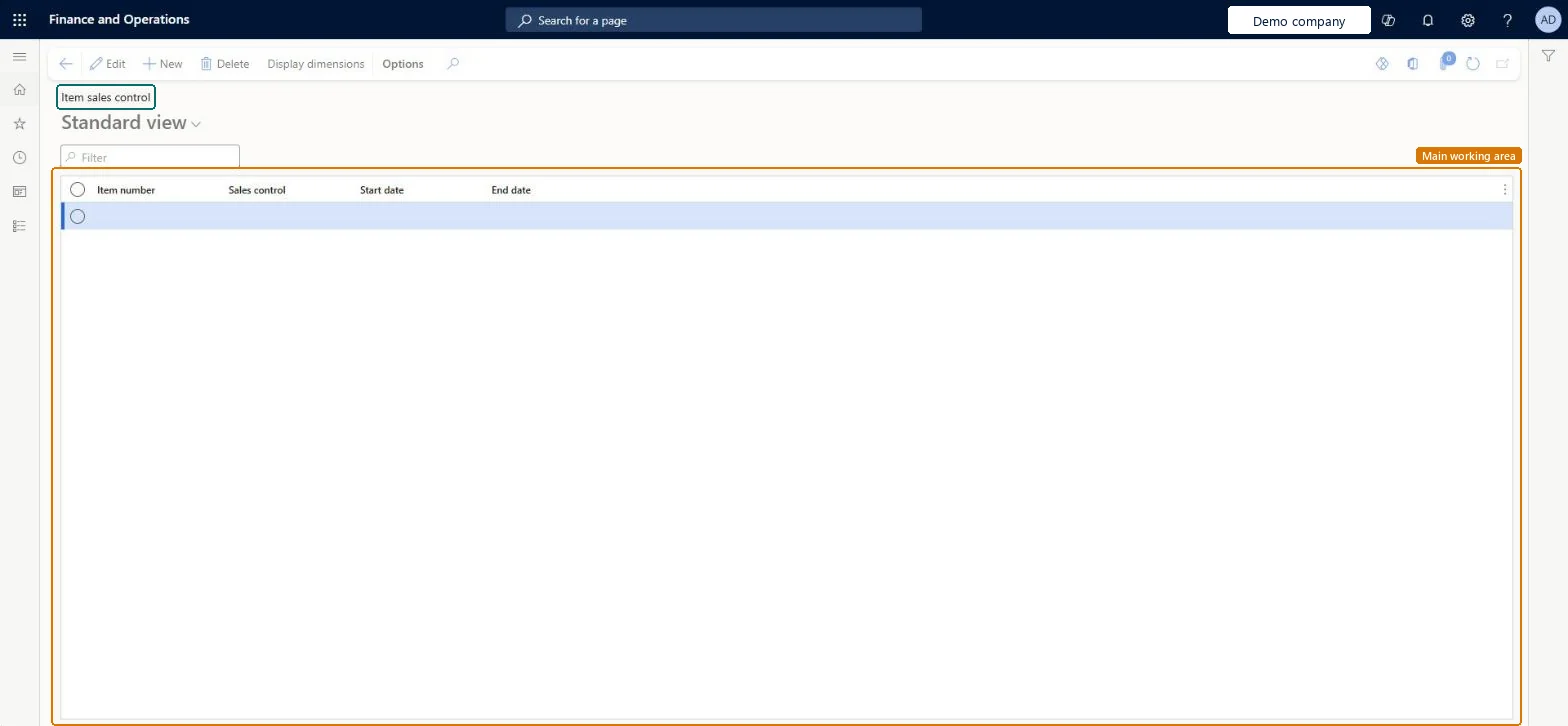
A setup list where an item gets a sales control value, such as Encourage, for a period between a start date and an end date, optionally per site and warehouse. The privilege behind the page is named Maintain encourage and discourage icons for products.
PAGE GUIDEWhat the page does and how to use it8 sections. Choose a role to highlight what matters to you.
Everyone
1What it is and why
What it is
A setup list where an item gets a sales control value, such as Encourage, for a period between a start date and an end date, optionally per site and warehouse. The privilege behind the page is named Maintain encourage and discourage icons for products.
What you do here
Use it to mark items that order takers should encourage or discourage selling for a period.
Example
BEAT wants to clear 400 units of BEAT-ITEM-001 before year end. It adds a line for BEAT-ITEM-001 with Sales control Encourage from 10/18/2026 to 12/31/2026 at site MAIN, warehouse WH01.
The page in Dynamics 365. page title tab to open what to set or check
About the examples: Examples and screenshots in this guide use BEAT, a demo company in a Dynamics 365 test environment. Use your own company's codes and values instead of copying them.
Step by step, with screenshots
Set up Item sales control1 screen
Mark items that order takers should encourage or discourage selling for a period.
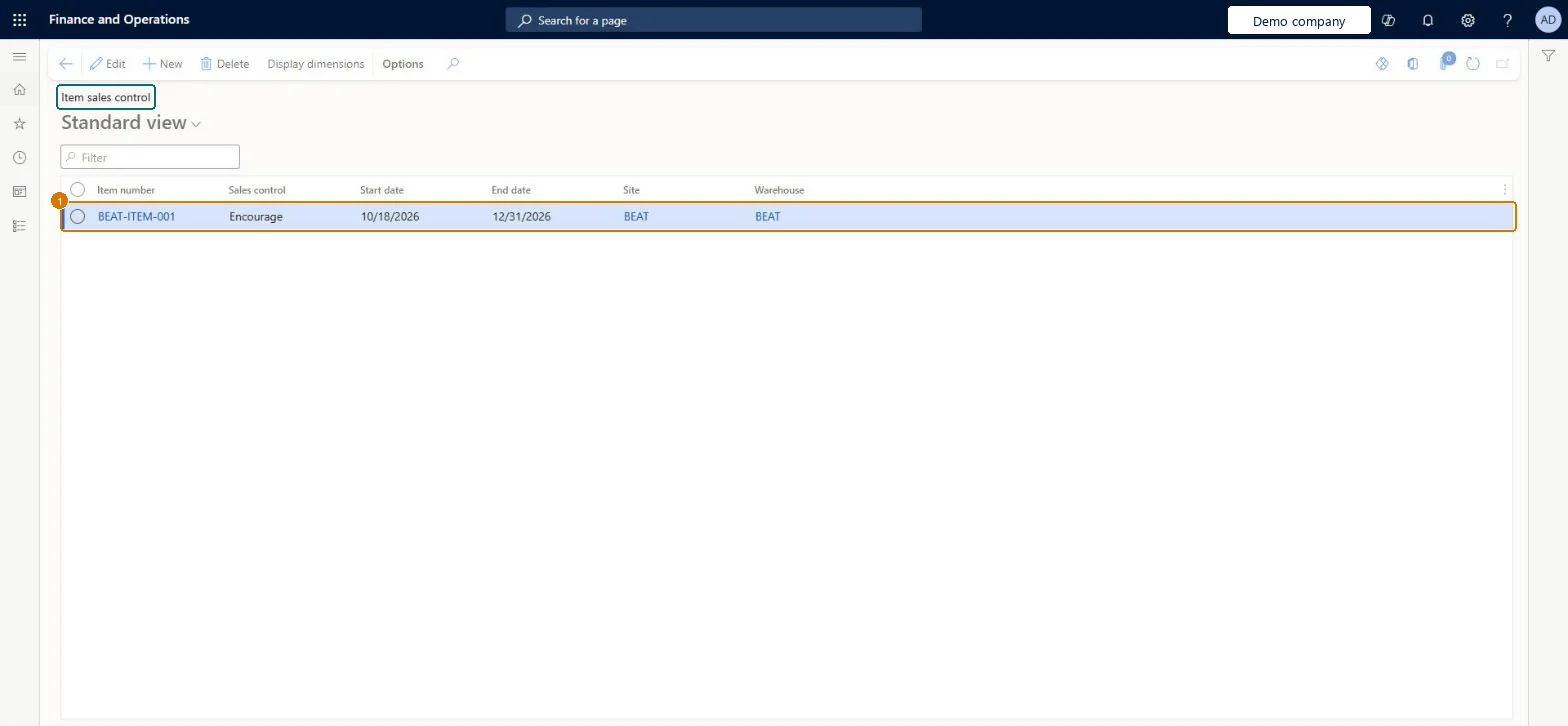
Screen 1
Create an item sales control line
Go to Sales and marketing > Setup > Sales orders > Item sales control
Make sure the released product, site and warehouse exist (here the example item BEAT-ITEM-001, site BEAT and warehouse BEAT)
Select Display dimensions, select Site and Warehouse, then select OK so the columns show
Select New
Select the item number and the sales control, Encourage or Discourage
Enter the start and end dates
Select the site and warehouse
Select Save
1Item number
BEAT-ITEM-001
Sales control
Encourage
Start date
10/18/2026
End date
12/31/2026
Site
BEAT
Warehouse
BEAT
Show the full screen page title tab to open what to set or check
How to use it
Go to Sales and marketing > Setup > Sales orders > Item sales control.
Select Display dimensions and choose Site and Warehouse if the control differs per location.
Select New and enter the Item number, the Sales control value, and the Start date and End date.
Fill in Site and Warehouse where the control applies to one location only.
Source: Checked in Dynamics 365
Fields on the page
Field
What it means
Example
Table column
Item number
The item that the sales control applies to.Checked in Dynamics 365
BEAT-ITEM-001
ItemId
Sales control
The sales control value for the item, such as Encourage; the page's privilege refers to encourage and discourage icons for products.Checked in Dynamics 365
Encourage
SalesControl
Start date
The first date the sales control applies.Checked in Dynamics 365
10/18/2026
RuleBeginDate
End date
The last date the sales control applies.Checked in Dynamics 365
12/31/2026
RuleEndDate
Site
The site the line applies to, shown when Display dimensions includes Site.Checked in Dynamics 365
MAIN
Warehouse
The warehouse the line applies to, shown when Display dimensions includes Warehouse.Checked in Dynamics 365
WH01
Common errors and fixes
Message
What to do
The control seems to have no effect after the end date
Each line applies only between its Start date and End date; add a new line with new dates. Checked in Dynamics 365
Test checklist
Add a line for BEAT-ITEM-001 with Sales control Encourage from today to 12/31/2026.
Filter the list on BEAT-ITEM-001.
Check that exactly 1 line is shown with the dates you entered.
Use date-bound lines with an explicit End date for every campaign, rather than open-ended lines.Each line applies only between its start and end dates, so dated lines stop by themselves when the campaign ends.
Per company: each legal entity has its own item sales control lines. Microsoft data model
Can it be undone
Reversible: Lines can be edited or deleted at any time. Checked in Dynamics 365
If you change it later
Lines are date-bound, so a change affects only the period it covers; nothing is posted. Checked in Dynamics 365
Technical architect
6Technical
Menu item
MCRItemSalesControlChecked in Dynamics 365
Form
MCRItemSalesControlChecked in Dynamics 365
Table
MCRItemSalesControlShown as “Item sales control” in Record infoChecked in Dynamics 365
Who can open it
PrivilegesMaintain encourage and discourage icons for products MCRItemSalesControlMaintainDutiesEnable sales MCRSalesEnable1 security roleSales manager TradeSalesManagerChecked in Dynamics 365
Roles to set it up and use it
To set it up or change itSales manager TradeSalesManagerGive people one of these roles. On this system, 1 role can open this page.Checked in Dynamics 365
Actions on the page
Options: Personalize, Page options, ShareChecked in Dynamics 365
Load order: Item sales control has no data entity in Data management. Enter the lines by hand in each legal entity, after the released products exist.Checked in Dynamics 365
Checked in a working Dynamics 365 system, version 10.0.49: the menu item, form, table and security, the page, the demo records and the values in the screenshots.