PAGE GUIDEWhat the page does and how to use it8 sections. Choose a role to highlight what matters to you.
Everyone
1What it is and why
What it is
A setup page where you create price rounding rules, grouped in rounding versions, that control price endings per price range and per currency.
What you do here
Use this page to set price endings, such as 9.95, that are applied automatically after currency conversion from a generic currency, or manually after a bulk update of trade agreements.
Example
BEAT's rounding version RETAIL holds the rule Unit price from 0.00 to 1,000.00, syntax #9,95. A price of 700.00 EUR becomes 699.95 EUR, and USD prices in a second version end in .99, as in the scenario on Learn.
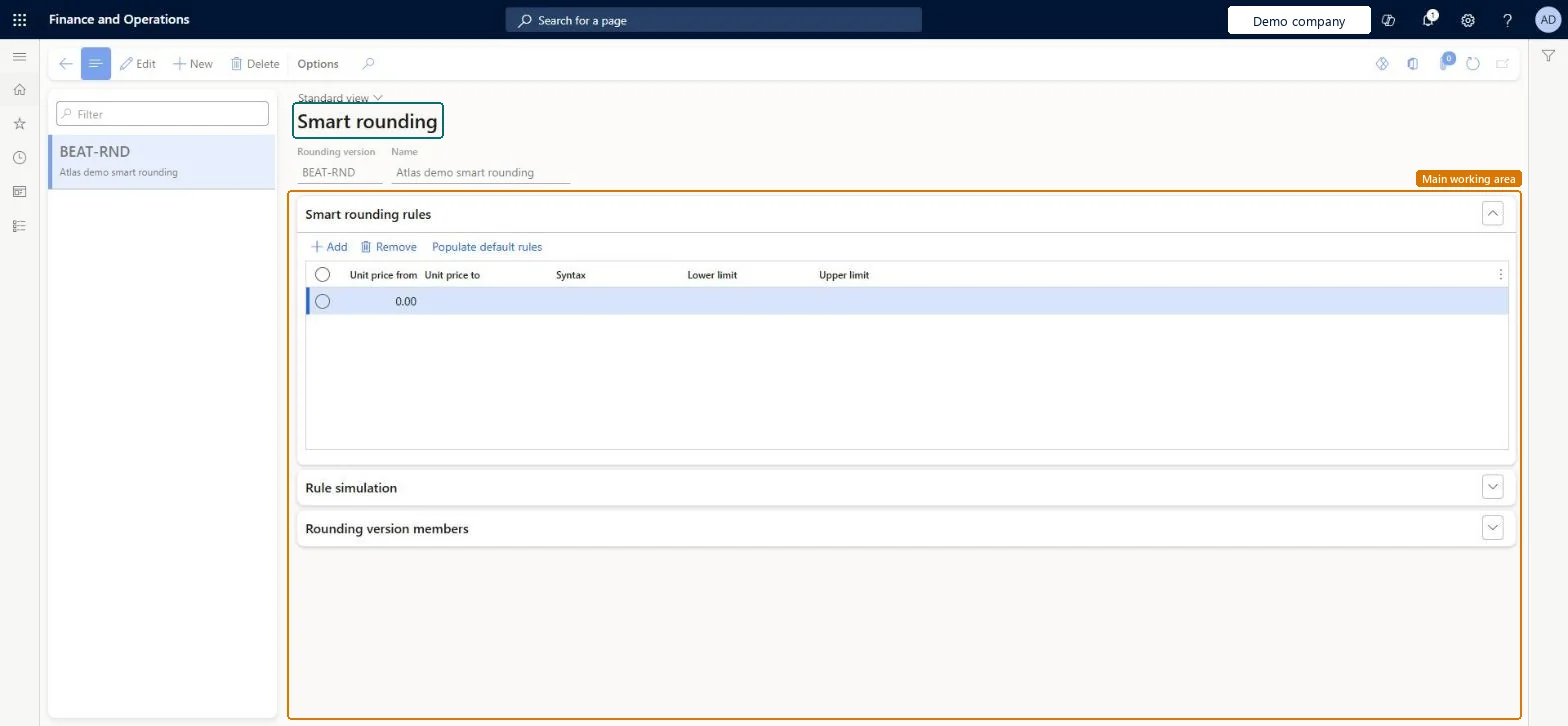
The page in Dynamics 365. page title tab to open what to set or check
About the examples: Examples and screenshots in this guide use BEAT, a demo company in a Dynamics 365 test environment. Use your own company's codes and values instead of copying them.
Step by step, with screenshots
Set up Smart rounding1 screen
Use this page to set price endings, such as 9.95, that are applied after currency conversion or after a bulk update of trade agreements.
Screen 1
Create a smart rounding version
Go to Sales and marketing > Setup > Prices and discounts > Smart rounding
Select New
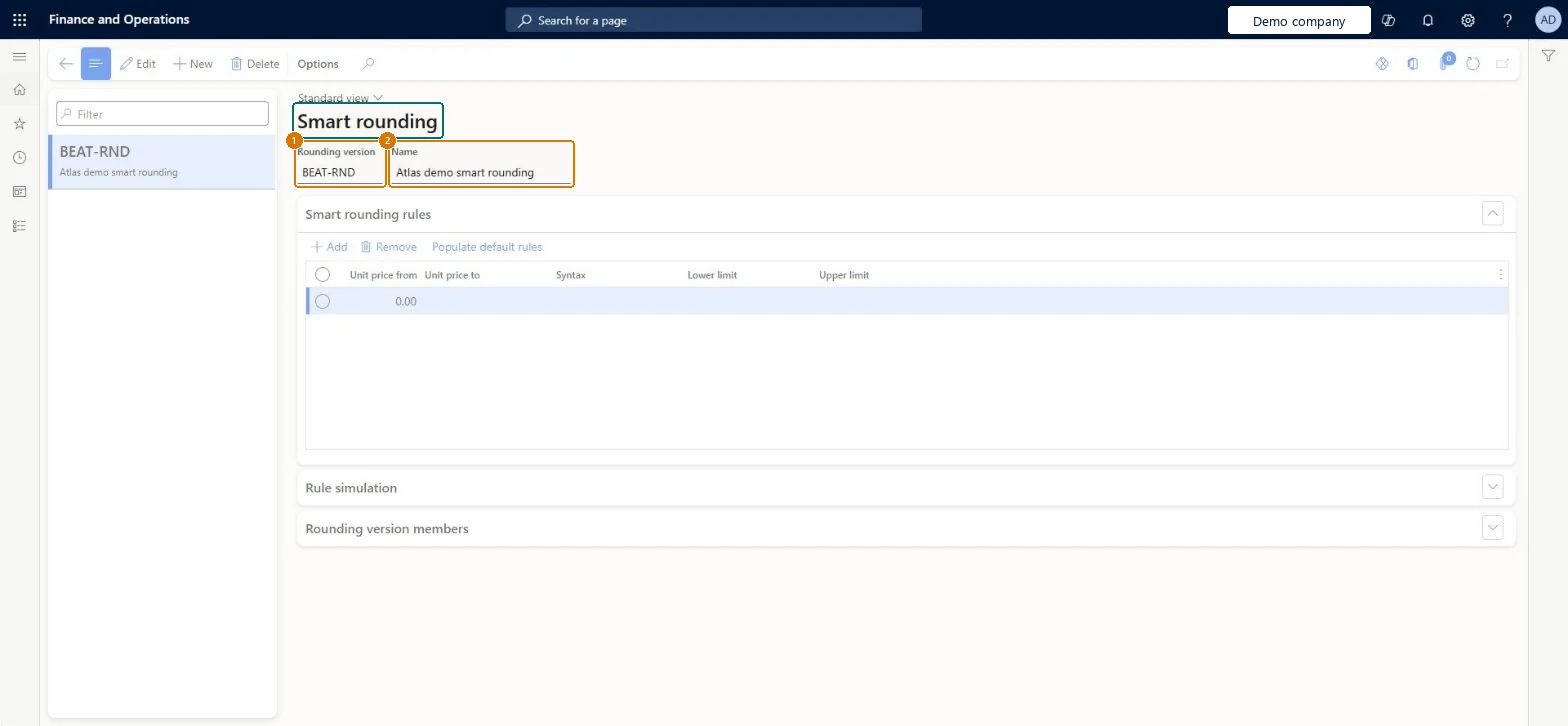
Enter the rounding version and name
Select Save
Under Smart rounding rules, add rules with price ranges and the syntax for price endings, or select Populate default rules
Use Rule simulation to test the rules, and add currencies under Rounding version members
1Rounding version
BEAT-RND
2Name
Smart rounding
Show the full screen page title tab to open what to set or check
Steps from Microsoft
Go to Sales and marketing > Setup > Prices and discounts > Smart rounding.
Select New to create a rounding version and enter the Rounding version and the Name.
In the Smart rounding rules section, select Add and fill in Unit price from, Unit price to, Syntax, Lower limit and Upper limit, or select Populate default rules.
Expand Rule simulation, enter price examples and run the simulation to see the rounded prices.
Under Rounding version members, add the currencies that use this version.
The ID of a set of rounding rules, up to 10 characters.Microsoft Learn
ROUNDING
GroupId
Rounding version members
The currencies that use the selected rounding version.Microsoft Learn
Populate default rules
Fills the grid with a set of default rules you can learn from or adjust.Microsoft Learn
Name
The name of the rounding version.Checked in Dynamics 365
Smart rounding
Name
Common errors and fixes
Message
What to do
Prices converted from the generic currency keep unrounded endings.
On Accounts receivable parameters, Prices tab, select the option to apply smart rounding after currency conversion, and add the currency to the rounding version's members. Microsoft Learn
Trade agreement prices aren't recalculated when the order currency differs from the agreement currency.
Use the generic currency on the trade agreement; after conversion, smart rounding can be applied automatically. Microsoft Learn
Test checklist
Create a rounding version with a USD rule ending in .99.
On Accounts receivable parameters > Prices, set the generic currency and turn on smart rounding after currency conversion.
Create a sales price trade agreement in the generic currency and a sales order in USD; check the unit price ends in .99.
Run a bulk adjustment of trade agreements with the rounding version and check the new prices are rounded.
A rounding version with separate rules per currency that reflect your price endings (for example USD prices ending in .99, GBP in .95), with each currency added as a member.Smart rounding rules are static, rarely change and are currency-dependent; they are applied after a bulk trade agreement adjustment or after a price is converted from a generic currency.
On the live system, Sales manager, Rental manager, Rental coordinator agent, Rental sales manager and Accounts receivable manager can maintain this page.
Reversible: Rules and versions can be edited; prices already posted in trade agreements don't change until a new adjustment is posted. Microsoft Learn
If you change it later
Rules are applied after currency conversion (when the option is set on Accounts receivable parameters) or by Adjustment > Apply smart rounding on trade agreement journal lines. Changing a rule affects prices calculated afterwards; posted agreements keep their prices until you adjust them. Microsoft Learn
Technical architect
6Technical
Menu item
PriceDiscSmartRoundingChecked in Dynamics 365
Form
PriceDiscSmartRoundingChecked in Dynamics 365
Table
PriceDiscSmartRoundingGroupShown as “Rounding version” in Record infoChecked in Dynamics 365
Data entities
SalesPriceSmartRoundingVersionEntitySales price smart rounding versions Microsoft data model
Roles to set it up and use it
To set it up or change itSales manager TradeSalesManagerRental manager RentalManagerRental coordinator agent RentalCoordinatorAgentRental sales manager RentalSalesManagerAccounts receivable manager CustInvoiceAccountsReceivableManagerTo use itAccounts receivable clerk CustInvoiceAccountsReceivableClerkSales clerk TradeSalesClerkAccounts receivable centralized payments clerk PaymAccountsReceivableCentralPaymClerkAccounts receivable payments clerk PaymAccountsReceivablePaymentsClerkGive people one of these roles. On this system, 12 roles can open this page.Checked in Dynamics 365
Actions on the page
Options: Personalize, Page options, ShareChecked in Dynamics 365
SalesPriceSmartRoundingVersionEntity (Sales price smart rounding versions): loaded for each company, in Microsoft's default template 330 - Sales and marketing.Load order: Microsoft's default template 330 - Sales and marketing loads Sales price smart rounding versions at execution unit 1, level 30, sequence 10. Lower levels load first, and entities at the same level load in sequence order.Load first: the default templates at lower levels (System setup to General ledger)Microsoft Learn
Checked in a working Dynamics 365 system, version 10.0.49: the menu item, form, table and security, the page, the demo records and the values in the screenshots.