PAGE GUIDEWhat the page does and how to use it8 sections. Choose a role to highlight what matters to you.
Everyone
1What it is and why
What it is
A setup page where you keep item lists, the items and quantities that a customer buys again and again.
What you do here
Use this page to let order takers add a customer's usual items to a new sales order in one step instead of line by line.
Example
For example, BEAT keeps item list BEAT-000017 for cafe customer BEAT-000456 with 24.00 ea of BEAT-ITEM-001 and 12.00 ea of BEAT-ITEM-014, so the weekly order is added to a new sales order in one step.
The page in Dynamics 365. page title tab to open what to set or check
About the examples: Examples and screenshots in this guide use BEAT, a demo company in a Dynamics 365 test environment. Use your own company's codes and values instead of copying them.
Step by step, with screenshots
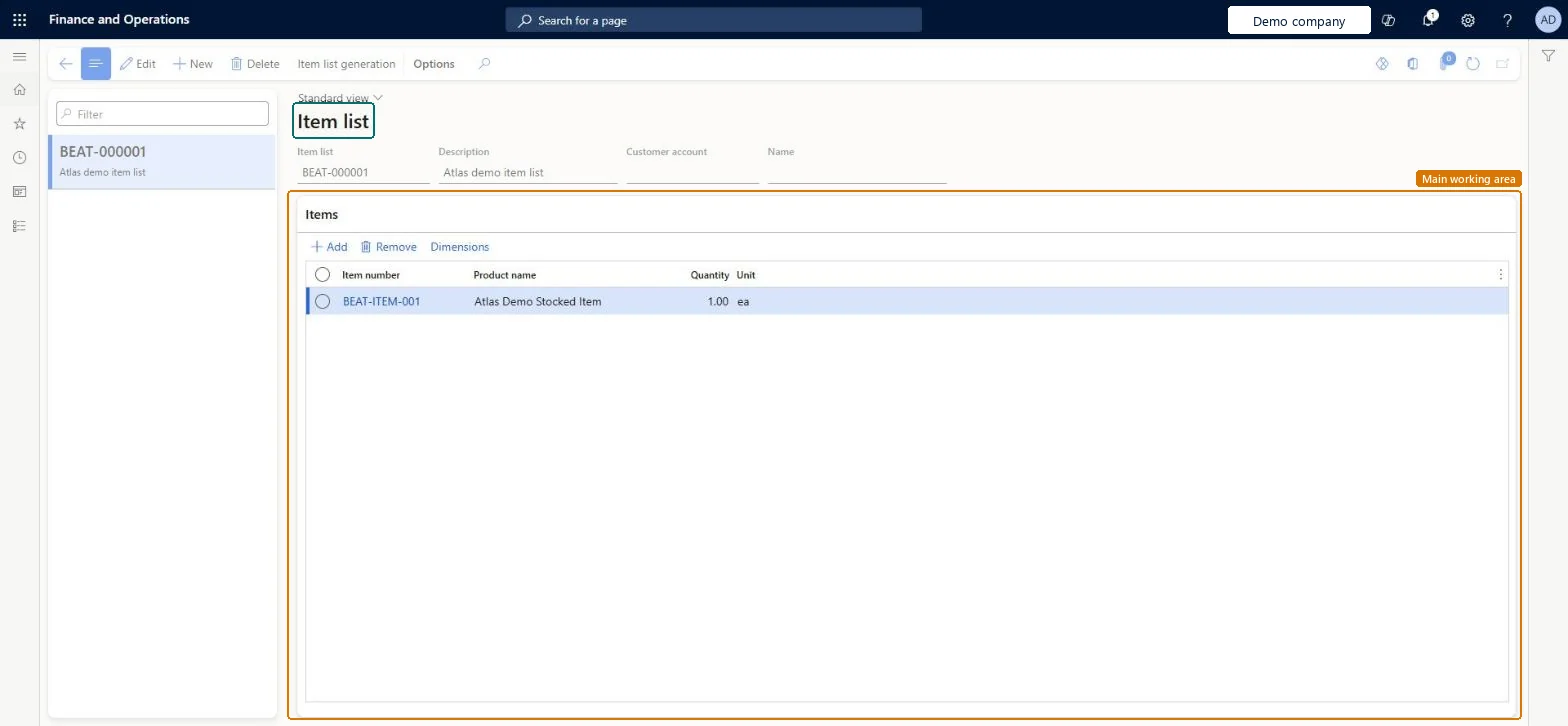
Set up Item list1 screen
Use this page to let order takers add a customer's usual items to a new sales order in one step instead of line by line.
Screen 1
Create an item list
Go to Sales and marketing > Setup > Items > Item list
Make sure the released product exists (here the example item BEAT-ITEM-001)
Select New; the item list number comes from the number sequence
Enter a description
Select Save
Under Items, select Add, select the item number and enter the quantity
Select Save
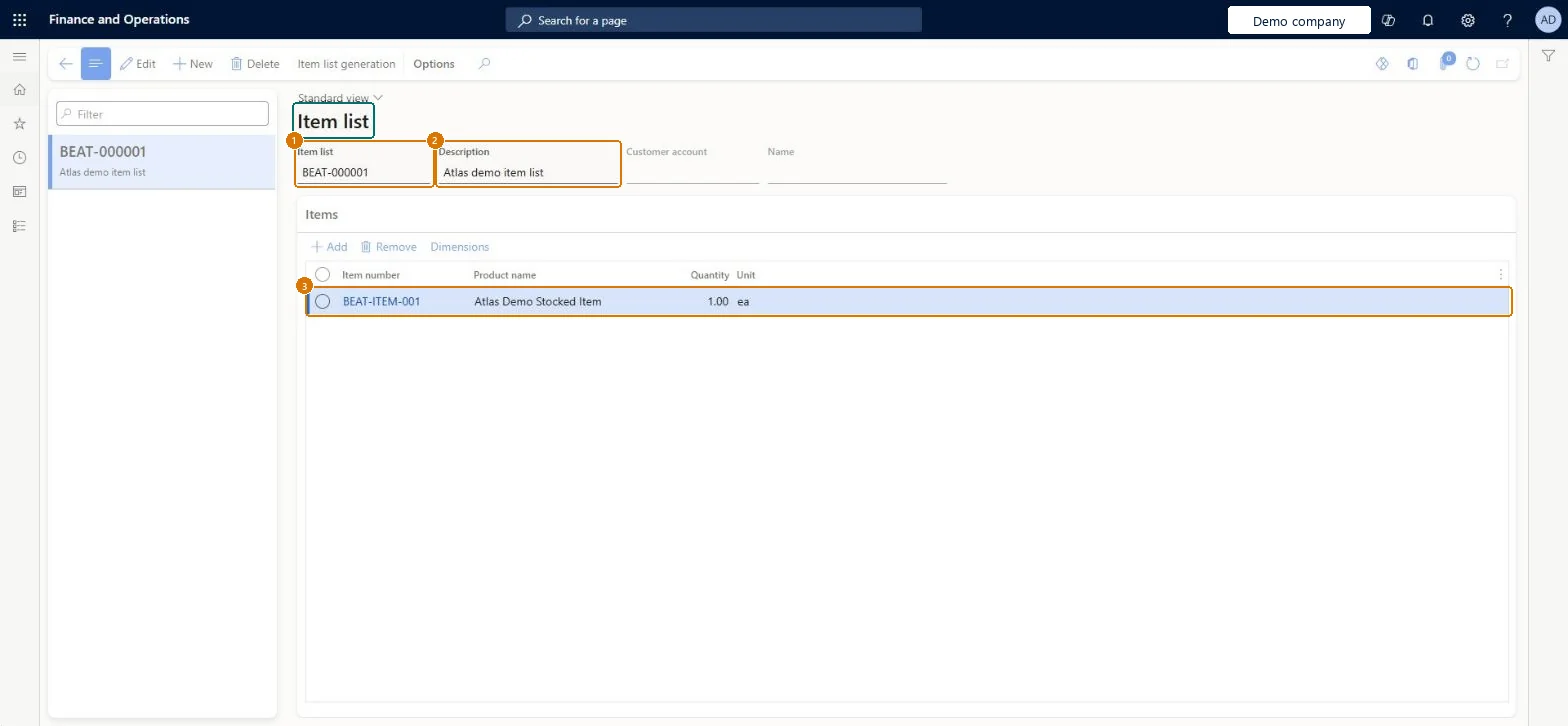
1Item list
BEAT-000001 (from the number sequence)
2Description
Item list
3Item number
BEAT-ITEM-001
Quantity
1.00 ea
Show the full screen page title tab to open what to set or check
Steps from Microsoft
Go to Sales and marketing > Setup > Items > Item list.
Select New and, in the Item list field, enter an ID if one isn't created automatically, then a short description.
On the Items FastTab, select Add, then select the Item number and enter the Quantity ordered.
Select Dimensions to add dimension information for the item if needed.
Add the list to a new sales order for the customer, or rebuild it from recent orders with Item list generation.
Item lists only for customers who reorder the same items, with Enable item list set on those customers.Item lists let order takers add a customer's usual items to a new order in one step; changes on the order don't flow back, so the list must be kept on this page.
Reversible: Item lists can be edited or deleted; sales orders already created from a list keep their lines. Microsoft Learn
If you change it later
Changing lines after an item list is copied to a sales order doesn't change the stored list; to change the list itself, edit it on this page. Microsoft Learn
Technical architect
6Technical
Menu item
MCRItemListTableChecked in Dynamics 365
Form
MCRItemListTableChecked in Dynamics 365
Table
MCRItemListTableShown as “Item list” in Record infoKey field: ItemListId, DescriptionChecked in Dynamics 365
PrivilegesMaintain item lists MCRItemListTableMaintainDutiesEnable sales MCRSalesEnableMaintain sales order MCRSalesMaintain4 security rolesMCRTestUserRoleSales clerk TradeSalesClerkSales manager TradeSalesManagerSales representative TradeSalesRepresentativeChecked in Dynamics 365
Roles to set it up and use it
To set it up or change itSales manager TradeSalesManagerSales representative TradeSalesRepresentativeSales clerk TradeSalesClerkGive people one of these roles. On this system, 3 roles can open this page.Checked in Dynamics 365
Actions on the page
Options: Personalize, Page options, ShareChecked in Dynamics 365
MCRSalesProductSetEntity (Sales product sets): the item lists on this page, loaded for each company.Load order: Load customers and released products first, because each item list line refers to an item number.Load first: Released products, CustomersMicrosoft Learn
Checked in a working Dynamics 365 system, version 10.0.49: the menu item, form, table and security, the page, the demo records and the values in the screenshots.