Marketing manager, Customer service manager, Sales manager
Business process
Maintain contacts and accounts
Menu item
smmContactGreetingsGroup
Main table
smmContactGreetingsGroup
Data entity
smmComplimentaryClosingEntity
Setup steps
1 on this page
Show what matters for
PAGE GUIDEWhat the page does and how to use it8 sections. Choose a role to highlight what matters to you.
Everyone
1What it is and why
What it is
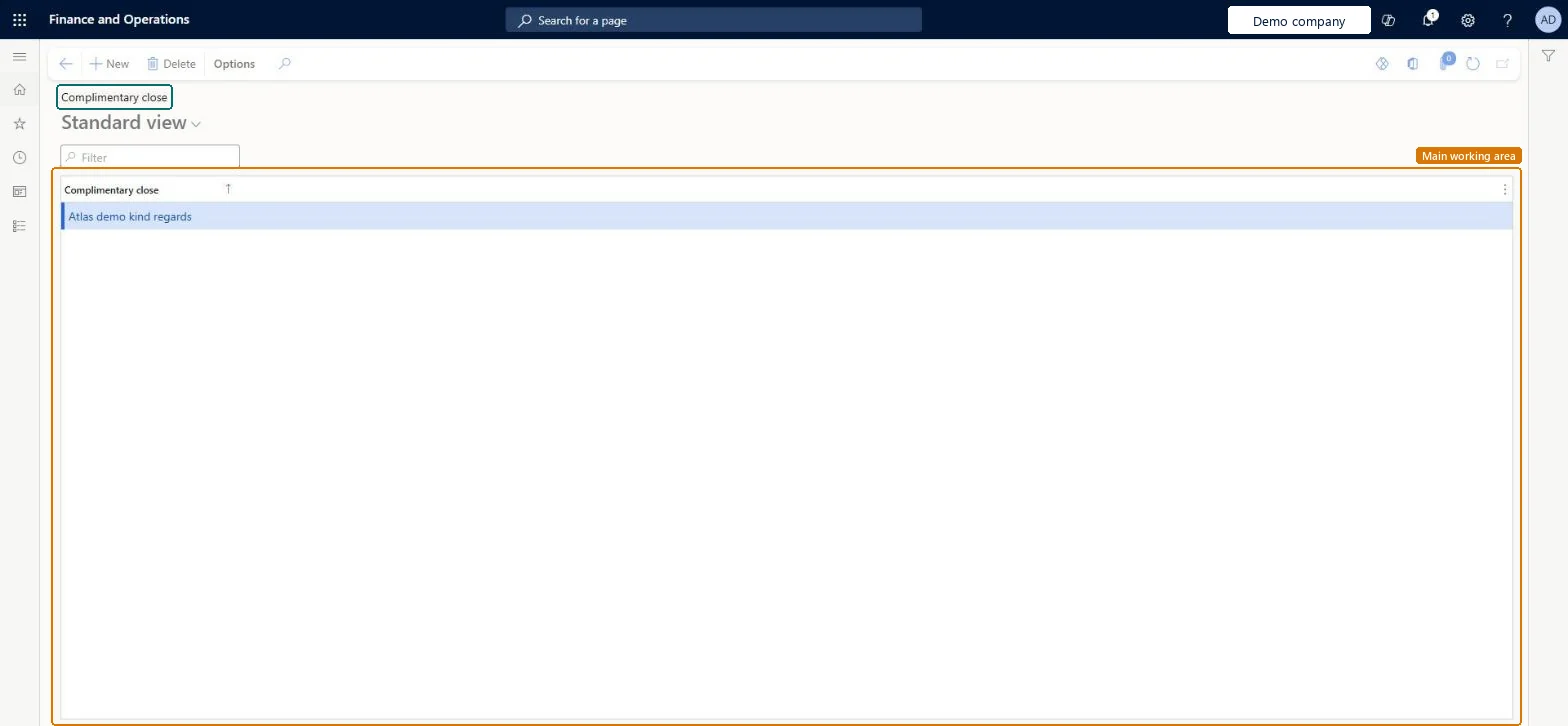
A setup page where you create closings to use in written communication with contact persons.
What you do here
Use this page to add a closing to letters and other written communication with contacts.
Example
For example, BEAT keeps 3 closings, 'Kind regards', 'Best wishes' and 'Yours sincerely', and sets 'Yours sincerely' on the 25 contacts of its public-sector customers.
The page in Dynamics 365. page title tab to open what to set or check
About the examples: Examples and screenshots in this guide use BEAT, a demo company in a Dynamics 365 test environment. Use your own company's codes and values instead of copying them.
Step by step, with screenshots
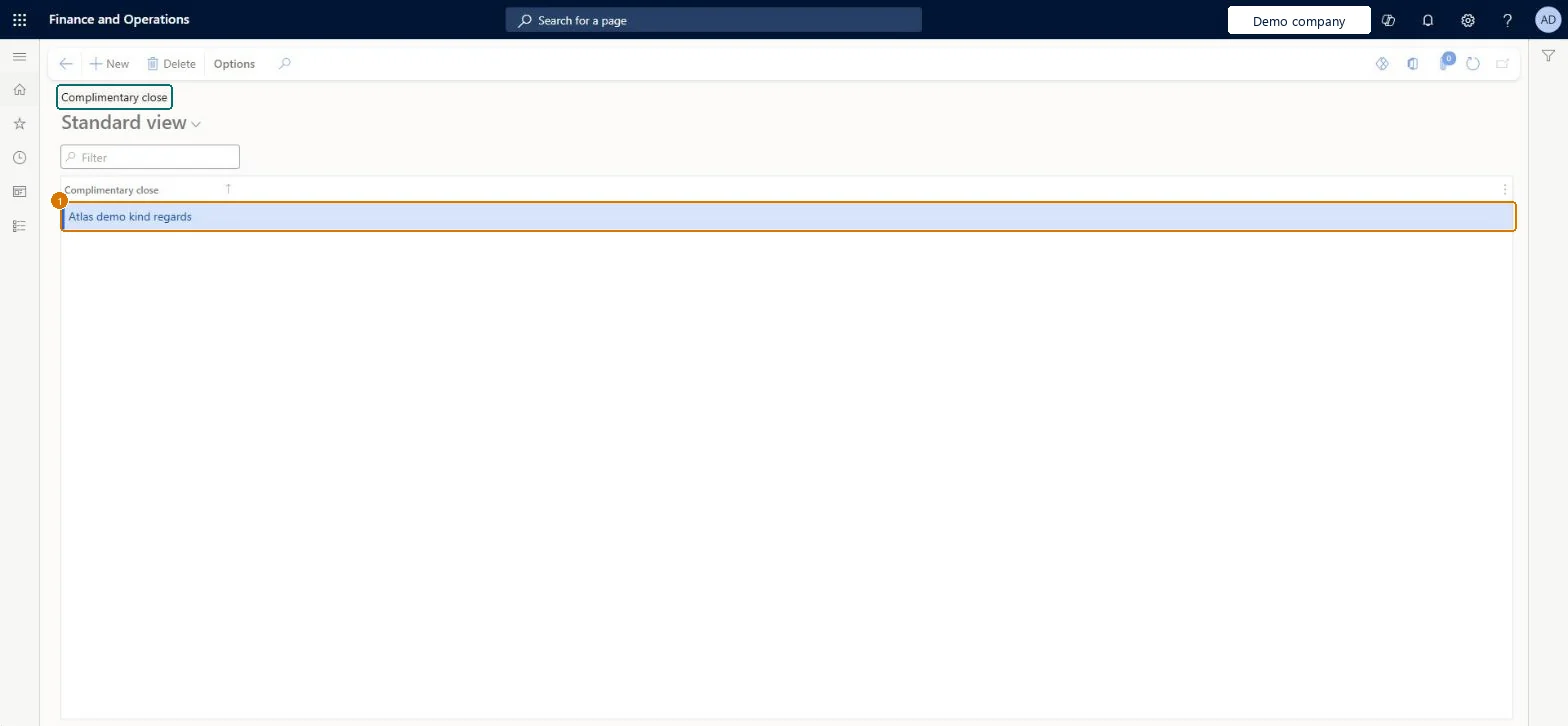
Set up Complimentary close1 screen
Use this page to add a closing to letters and other written communication with contacts.
Screen 1
Create a complimentary close
Go to Sales and marketing > Setup > Contacts > Complimentary close
Select New
Type the closing text, such as Kind regards
Select Save
Complimentary close
Kind regards
Show the full screen page title tab to open what to set or check
Steps from Microsoft
Go to Sales and marketing > Setup > Contacts > Complimentary close.
Select New to add a row to the list.
Enter the Complimentary close text, for example Kind regards.
Select the closing on each contact person who should get it on letters.
A short list of complimentary closes agreed by the sales team, loaded once with the configuration and kept the same in every company that shares contacts.The complimentary close is chosen from this list on contact persons; a short agreed list keeps contact data consistent enough to filter mailings and campaigns on it.
Reversible: Values can be added or changed at any time. Check which contacts use a complimentary close before you delete it. Microsoft data model
If you change it later
Contact persons keep the complimentary close code; changing the text here changes what is shown, and printed where used, for every contact that has it. Microsoft data model
Technical architect
6Technical
Menu item
smmContactGreetingsGroupChecked in Dynamics 365
Form
smmContactGreetingsGroupChecked in Dynamics 365
Table
smmContactGreetingsGroupShown as “Complimentary close” in Record infoChecked in Dynamics 365
PrivilegesMaintain complimentary closings smmContactGreetingsGroupMaintainView complimentary closings smmContactGreetingsGroupViewDutiesEnable contact process smmContactProcessEnableInquire into contact reference data smmContactReferenceDataInquire3 security rolesMarketing manager CRMMarketingManagerCustomer service manager TradeCustomerServiceManagerSales manager TradeSalesManagerChecked in Dynamics 365
Roles to set it up and use it
To set it up or change itSales manager TradeSalesManagerMarketing manager CRMMarketingManagerCustomer service manager TradeCustomerServiceManagerGive people one of these roles. On this system, 3 roles can open this page.Checked in Dynamics 365
Actions on the page
Options: Personalize, Page options, ShareChecked in Dynamics 365
smmComplimentaryClosingEntity (Complimentary closings): loaded for each company, in Microsoft's default template 330 - Sales and marketing.Load order: Microsoft's default template 330 - Sales and marketing loads Complimentary closings at execution unit 1, level 30, sequence 10. Lower levels load first, and entities at the same level load in sequence order.Load first: the default templates at lower levels (System setup to General ledger)Microsoft Learn
Checked in a working Dynamics 365 system, version 10.0.49: the menu item, form, table and security, the page, the demo records and the values in the screenshots.