Accounts receivable manager, Customer service manager, Customer service representative and 3 more roles
Business process
Define order management policies for Dynamics 365 Supply Chain Management
Menu item
QMSApprovedCustomerGroup
Main table
QMSApprovedCustomerGroup
Data entity
QMSApprovedCustomerGroupEntity
Setup steps
1 on this page
Show what matters for
PAGE GUIDEWhat the page does and how to use it8 sections. Choose a role to highlight what matters to you.
Everyone
1What it is and why
What it is
A setup page where you create groups of customers so that the same items can be approved for all of them at once.
What you do here
Use this page to speed up approvals, because every customer in an approved customer group can buy every item in a linked approved item group.
Example
For example, BEAT creates the approved customer group RETAILCHAIN with its 14 store accounts, links it to the approved item group PRIVLABEL on Approved customer list setup, and every store can then order all 6 private-label items without one line per customer.
The page in Dynamics 365. page title tab to open what to set or check
About the examples: Examples and screenshots in this guide use BEAT, a demo company in a Dynamics 365 test environment. Use your own company's codes and values instead of copying them.
Step by step, with screenshots
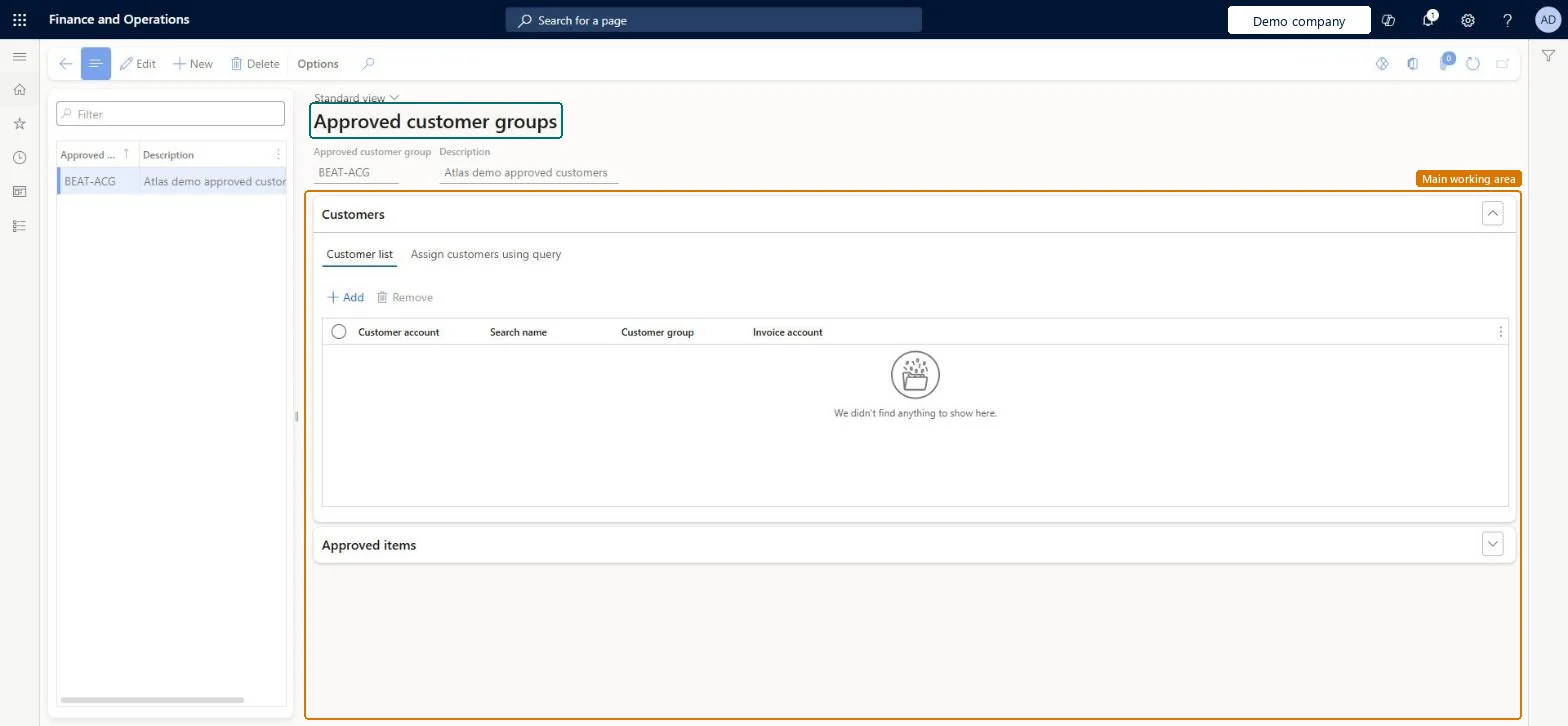
Set up Approved customer groups1 screen
Use this page to speed up approvals, because every customer in an approved customer group can buy every item in a linked approved item group.
Screen 1
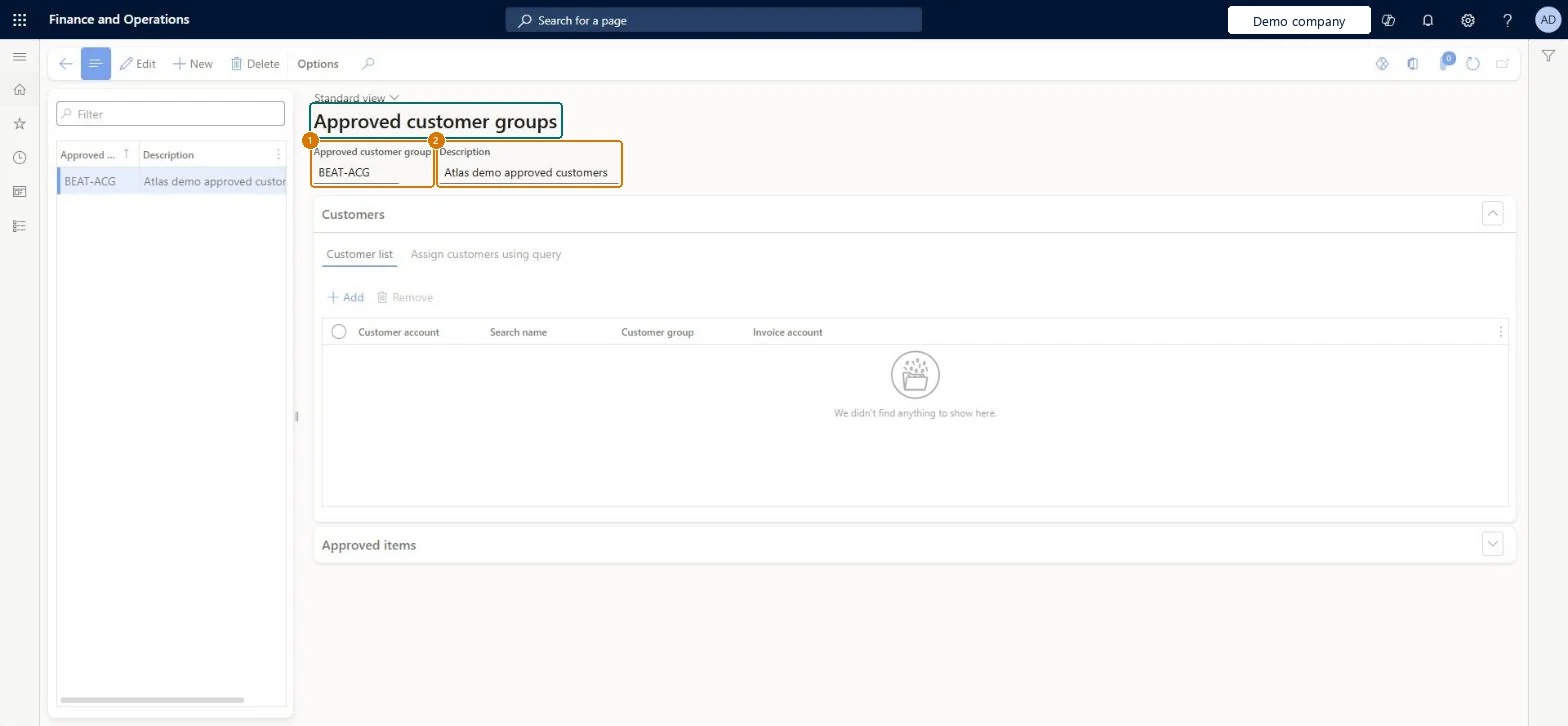
Create an approved customer group
Go to Sales and marketing > Setup > Approved customer list > Approved customer groups
Select New
Enter the approved customer group and description
Select Save
Under Customers, add the customers, and under Approved items, link the approved item groups
1Approved customer group
BEAT-ACG
2Description
Approved customers
Show the full screen page title tab to open what to set or check
Steps from Microsoft
Go to Sales and marketing > Setup > Approved customer list > Approved customer groups.
Select New and enter the Approved customer group and a Description.
On the Customer list tab, select Add for each customer that belongs to the group, or Remove to take one out.
To pick customers by criteria instead, use the Assign customers using query tab.
Expand Approved items to check which items the group is already approved for.
Open Approved customer list setup and add a line with Customer code Group for this group.
The ID of the approved customer group that you link to items or approved item groups on Approved customer list setup.Microsoft Learn
RETAILCHAIN
GroupId
Description
A short description of the group.Checked in Dynamics 365
Retail chain stores
Description
Common errors and fixes
Message
What to do
A customer in the group still gets a warning or error for an item of the linked item group.
Check the Effective and Expiration dates of the Group-to-Group line against the date set in Date type on Sales and marketing parameters; dates are validated only with Warning only or Not allowed. Microsoft Learn
Test checklist
Create an approved customer group and add the customers; create an approved item group.
On Approved customer list setup, add a Group-to-Group line.
Set Approved customer list check method to Not allowed on a customer and an item outside the group.
Add that item to a sales order for the customer and check it's blocked; add an approved item and check it's accepted.
Approved customer groups linked to approved item groups (group-to-group) where the same items are approved for several customers, with the check method Warning only or Not allowed on customers and itemsWhen an approved item group is linked to an approved customer group, every customer in the group can buy every item in the item group; validation only happens when the check method isn't No check.
Approved customer list (On by default as of 10.0.47)Advanced quality management (Mandatory as of 10.0.49)
Licence or add-in
On the live system, Sales manager and Customer service manager can maintain this page, and Accounts receivable manager, Sales clerk, Sales representative and Customer service representative can use it.
The group is used only by Approved customer list setup; it is not the customer group on the customer record. Membership is kept on this page. Microsoft Learn
Can it be undone
Reversible: Groups and their relations can be edited or deleted at any time and act on later validations. Microsoft Learn
If you change it later
Adding a customer to a group that has a Group-to-Group line approves that customer for every item in the linked approved item group at once. Microsoft Learn
Technical architect
6Technical
Menu item
QMSApprovedCustomerGroupChecked in Dynamics 365
Form
QMSApprovedCustomerGroupChecked in Dynamics 365
Table
QMSApprovedCustomerGroupChecked in Dynamics 365
Data entities
QMSApprovedCustomerGroupEntityApproved customer groups Checked in Dynamics 365
Who can open it
PrivilegesMaintain approved customer list QMSApprovedCustomerListMaintainView approved customer list QMSApprovedCustomerListViewDutiesInquire into approved customer list QMSApprovedCustomerListInquireMaintain approved customer list QMSApprovedCustomerListMaintain7 security rolesAccounts receivable manager CustInvoiceAccountsReceivableManagerMCRTestUserRoleCustomer service manager TradeCustomerServiceManagerCustomer service representative TradeCustomerServiceRepresentativeSales clerk TradeSalesClerkSales manager TradeSalesManagerSales representative TradeSalesRepresentativeChecked in Dynamics 365
Roles to set it up and use it
To set it up or change itSales manager TradeSalesManagerCustomer service manager TradeCustomerServiceManagerTo use itAccounts receivable manager CustInvoiceAccountsReceivableManagerSales clerk TradeSalesClerkSales representative TradeSalesRepresentativeCustomer service representative TradeCustomerServiceRepresentativeGive people one of these roles. On this system, 6 roles can open this page.Checked in Dynamics 365
Actions on the page
Options: Personalize, Page options, ShareChecked in Dynamics 365
QMSApprovedCustomerGroupEntity data entity Checked in Dynamics 365
Data migration
QMSApprovedCustomerGroupEntity The approved customer groups on this page.Load order: Load customers first, then the approved customer groups, then the assignments on Approved customer list setup.Load first: CustomersChecked in Dynamics 365
Checked in a working Dynamics 365 system, version 10.0.49: the menu item, form, table and security, the page, the demo records and the values in the screenshots.