Sales and marketingSales quotationsQuotation update
CustQuotationJournalConfirmation
Used by
Rental coordinator agent, Rental manager, Rental purchasing manager and 6 more roles
Business process
Estimate and quote sales
Menu item
CustQuotationJournalConfirmation
Main table
CustQuotationConfirmJour
Setup steps
1 on this page
Show what matters for
PAGE GUIDEWhat the page does and how to use it8 sections. Choose a role to highlight what matters to you.
Everyone
1What it is and why
What it is
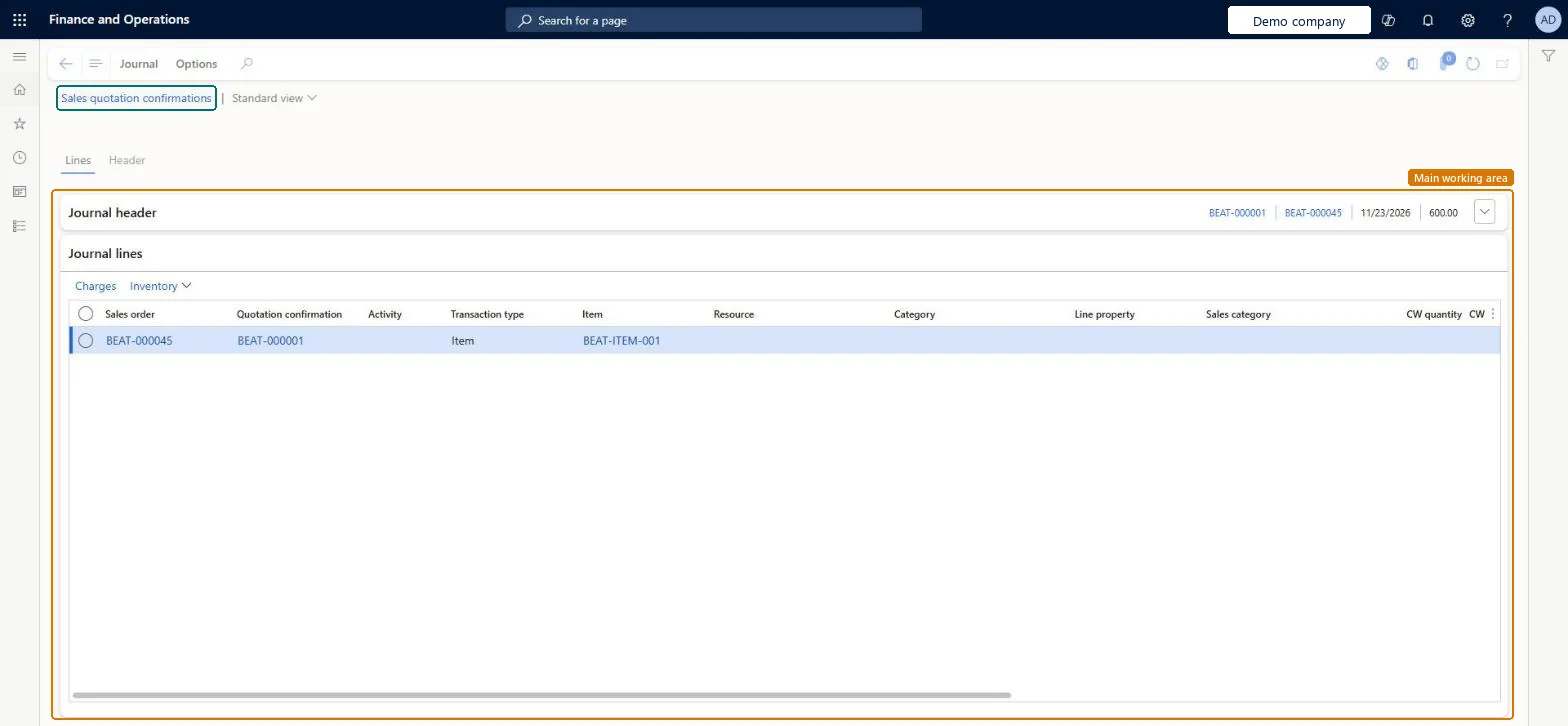
An inquiry page that lists the quotation confirmation journals, created each time a quotation is confirmed, with the sales order each one created.
What you do here
Use this page to review confirmed quotations, the sales orders they created and their lines, and to preview or reprint them.
Example
For example, BEAT's sales manager checks that confirmation of QT-000901 for 12,480.00 USD created sales order SO-001234 before the order goes to the warehouse.
The page in Dynamics 365. page title tab to open what to set or check
About the examples: Examples and screenshots in this guide use BEAT, a demo company in a Dynamics 365 test environment. Use your own company's codes and values instead of copying them.
Setup steps on this page
Check each confirmation created its sales order
Use this page to review confirmed quotations and the orders they created.
How to use it
Go to Sales and marketing > Sales quotations > Quotation update > Sales quotation confirmations.
Find the confirmation by Invoice account, Prospect or Sales order.
Read Document number, Deadline, Currency and Quotation amount, and the Sales order on the line.
On the Journal tab, select Preview/Print to reprint the confirmation, or View to see its lines.
The amount of the confirmed quotation.Checked in Dynamics 365
12,480.00
QuotationAmount
Common errors and fixes
Message
What to do
A quotation won in Dynamics 365 Sales has no confirmation journal yet.
With Create quotation confirmation journal in batch, the message processor creates it, and Link sales order and sales quotation depends on it; check the Dynamics 365 Sales integration message processor queue. Microsoft Learn
Test checklist
Confirm a quotation.
Open Sales quotation confirmations.
Check one new confirmation exists with the sales order number.
Filter on Sales order and check that every confirmation has one.The confirmation journal and the order link are created together; for quotations won in Sales they can be created in batch by the message processor.
On the live system, the roles that use this page include Sales manager, Sales representative, Sales clerk, Retail store manager and Rental manager. With Use message processor, confirmation journals for quotations won in Sales can be created in batch.
Reversible: Viewing and reprinting changes no data. Checked in Dynamics 365
If you change it later
Read-only. The confirmation journal is created when a quotation is confirmed; the linked sales order is the one created from it. Microsoft Learn
Technical architect
6Technical
Menu item
CustQuotationJournalConfirmationChecked in Dynamics 365
Form
CustQuotationConfirmationJournalChecked in Dynamics 365
Table
CustQuotationConfirmJourShown as “Quotation confirmation” in Record infoKey field: SalesIdChecked in Dynamics 365
Who can open it
PrivilegesView quotation confirmations CustQuotationJournalConfirmationViewDutiesInquire into rental sales quotation progress RentalSalesQuotationProgressInquireInquire into quotation progress SalesQuotationProgressInquire10 security rolesMCRTestUserRoleRental coordinator agent RentalCoordinatorAgentRental manager RentalManagerRental purchasing manager RentalPurchasingManagerRental representative RentalRepresentativeRetail service RetailServiceRetail store manager RetailStoreManagerSales clerk TradeSalesClerkSales manager TradeSalesManagerSales representative TradeSalesRepresentativeChecked in Dynamics 365
Roles to set it up and use it
To use itSales manager TradeSalesManagerRental manager RentalManagerRental coordinator agent RentalCoordinatorAgentSales clerk TradeSalesClerkSales representative TradeSalesRepresentativeGive people one of these roles. On this system, 9 roles can open this page.Checked in Dynamics 365
Actions on the page
Journal: Preview/Print, ViewOptions: Personalize, Page options, ShareChecked in Dynamics 365
Load order: Sales quotation confirmations has no data entity in Data management: Microsoft's list of standard Sales and marketing entities has no entity for quotation confirmation journals. Confirmations are created only by confirming quotations in this system.Microsoft data model