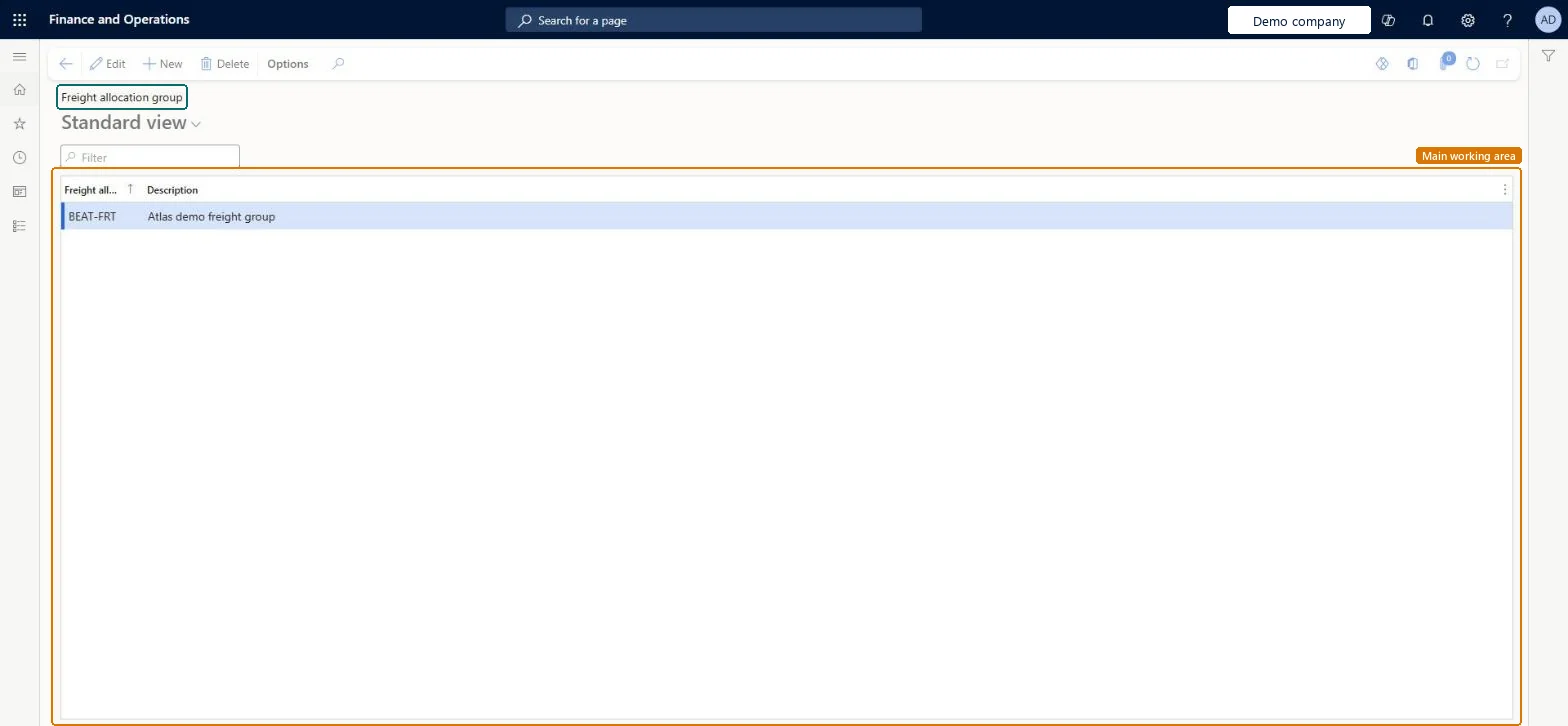
A setup page where you create freight allocation groups for items, used with Freight type customer rebates. Freight rebates accrue by region and aren't passed to the customer; they are used only for reporting. These are the older customer rebates of Sales and marketing. Microsoft describes Rebate management as the newer module for rebate deals, provisions and royalties; choose one of the two for a project.
PAGE GUIDEWhat the page does and how to use it8 sections. Choose a role to highlight what matters to you.
Everyone
1What it is and why
What it is
A setup page where you create freight allocation groups for items, used with Freight type customer rebates. Freight rebates accrue by region and aren't passed to the customer; they are used only for reporting. These are the older customer rebates of Sales and marketing. Microsoft describes Rebate management as the newer module for rebate deals, provisions and royalties; choose one of the two for a project.
What you do here
Use this page to apply freight allocations to a group of items instead of to each item one by one.
Example
For example, BEAT puts all bulky items in freight allocation group BULKY, so that its freight rebates for those items are applied at group level and reported together.
The page in Dynamics 365. page title tab to open what to set or check
About the examples: Examples and screenshots in this guide use BEAT, a demo company in a Dynamics 365 test environment. Use your own company's codes and values instead of copying them.
Step by step, with screenshots
Set up Item freight groups1 screen
Use this page to apply freight allocations to a group of items instead of to each item one by one.
Screen 1
Create an item freight group
Go to Sales and marketing > Customer rebates > Rebate groups > Item freight groups
Select New
Enter the freight allocation group code and description
Select Save
Assign the group to items on the released product
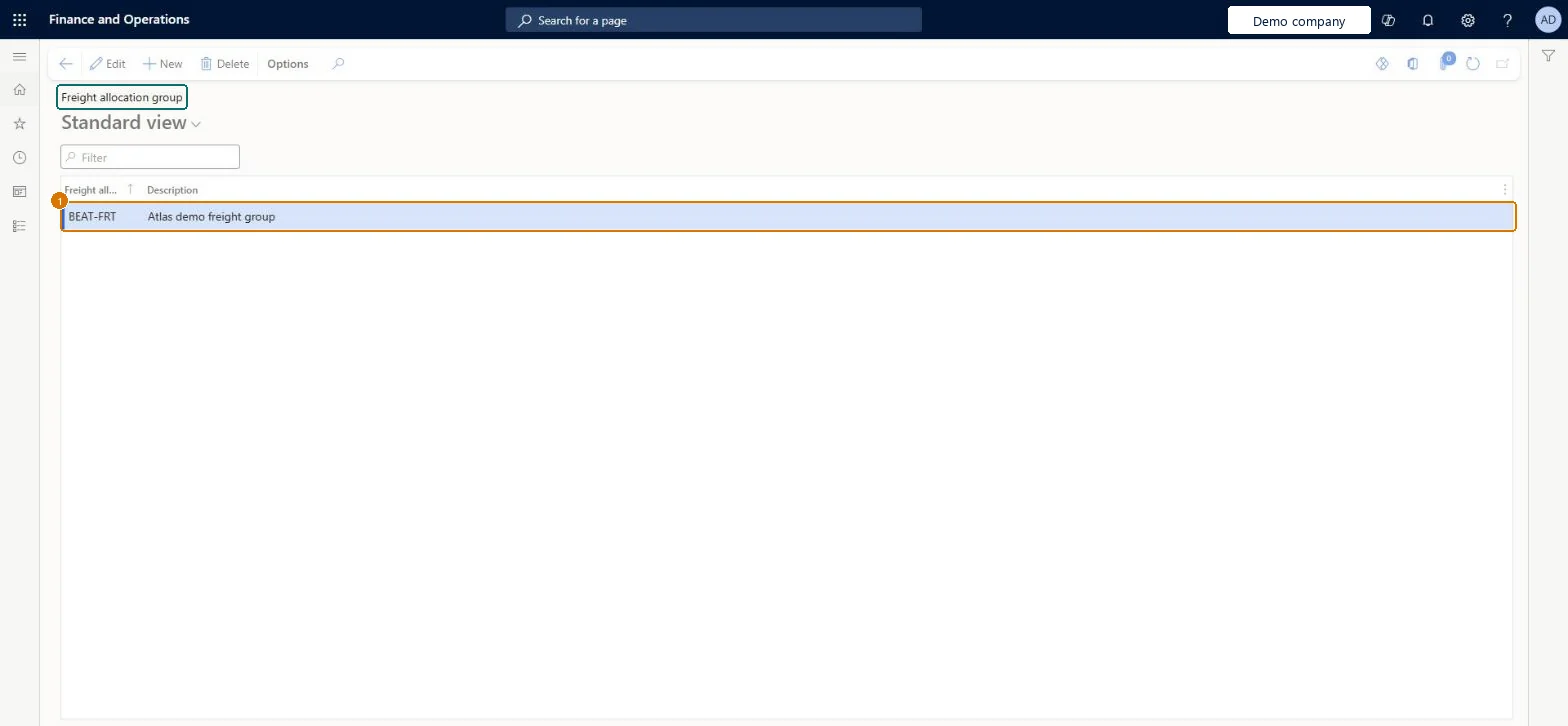
1Freight allocation group
BEAT-FRT
Description
Freight group
Show the full screen page title tab to open what to set or check
Steps from Microsoft
Go to Sales and marketing > Customer rebates > Rebate groups > Item freight groups.
Select New.
In the Freight allocation group field, enter a unique name.
The unique name or identifier of the freight allocation group, applied to items that qualify for each allocation in the group.Microsoft Learn
BULKY
PdsFreightAllocationCode
Description
A short description of the group.Checked in Dynamics 365
Freight group
Description
Common errors and fixes
Message
What to do
Freight rebates don't show on the customer's balance.
This is expected: Freight rebates accrue by region and are used only for reporting. Use a Rebate or TMA program type if the customer must be paid. Microsoft Learn
Test checklist
Create freight allocation group BULKY.
Apply it to two items.
Create a freight rebate agreement for the group.
Check that the group is offered for the items and the agreement.
Create freight groups only if Freight type rebate programs are used, and apply each group to the items that share the same freight allocation.Applying allocations at the group level means each allocation doesn't have to be assigned to every item, and Freight rebates are only for reporting.
Expecting freight rebates to pay the customer; Freight type rebates accrue by region and are only used for reporting.Test: A freight group is available on items
Feature management and licence
Licence or add-in
On the live system, Sales manager (maintain), and Accounts payable manager and Auditor (view) use this page.
Freight rebates for the group are posted with the Freight journal set on the Rebate program FastTab of Accounts receivable parameters; they aren't passed to the customer. Changing an item's group affects later rebates only. Microsoft Learn
Technical architect
6Technical
Menu item
PdsFreightGroupChecked in Dynamics 365
Form
PdsFreightGroupChecked in Dynamics 365
Table
PdsFreightGroupShown as “Freight allocation group” in Record infoChecked in Dynamics 365
Data entities
SalesRebateProductFreightGroupEntitySales rebate product freight groups Microsoft data model
Who can open it
PrivilegesMaintain customer freight groups PdsFreightGroupMaintainView customer freight groups PdsFreightGroupViewDutiesMaintains customer rebate agreements PdsRebateAgreementMaintainInquire into purchase order to invoice policies PurchOrderToInvoicePoliciesInquire3 security rolesAuditor AuditPolicyManagerSales manager TradeSalesManagerAccounts payable manager VendInvoiceAccountsPayableManagerChecked in Dynamics 365
Roles to set it up and use it
To set it up or change itSales manager TradeSalesManagerTo use itAccounts payable manager VendInvoiceAccountsPayableManagerAuditor AuditPolicyManagerGive people one of these roles. On this system, 3 roles can open this page.Checked in Dynamics 365
Actions on the page
Options: Personalize, Page options, ShareChecked in Dynamics 365
SalesRebateProductFreightGroupEntity (Sales rebate product freight groups): loaded for each company.Load order: No default configuration template places this entity. Load the groups before the rebate agreements that refer to them.Load first: Released productsMicrosoft Learn
Checked in a working Dynamics 365 system, version 10.0.49: the menu item, form, table and security, the page, the demo records and the values in the screenshots.