About the examples: Examples and screenshots in this guide use BEAT, a demo company in a Dynamics 365 test environment. Use your own company's codes and values instead of copying them.
When to run it
When to run it
After catalog publishing to an online store, to bring the status of the product listings up to date.
How often
After each catalog publish, or as a recurring batch job while you publish catalogs.
Batch settings
Recurring batch job during periods of catalog publishing.
What the output shows
Current Listing status (In progress, Success or Error) on the product listings, with the Requested listing action that produced each one. Listings left in Error need the cause fixed before they publish.
Go to Retail and Commerce > Retail and Commerce IT > Products and inventory > Update listing status.
Use it after you publish a product catalog to an online store: publishing creates a listing for each product and variant per channel and records its status.
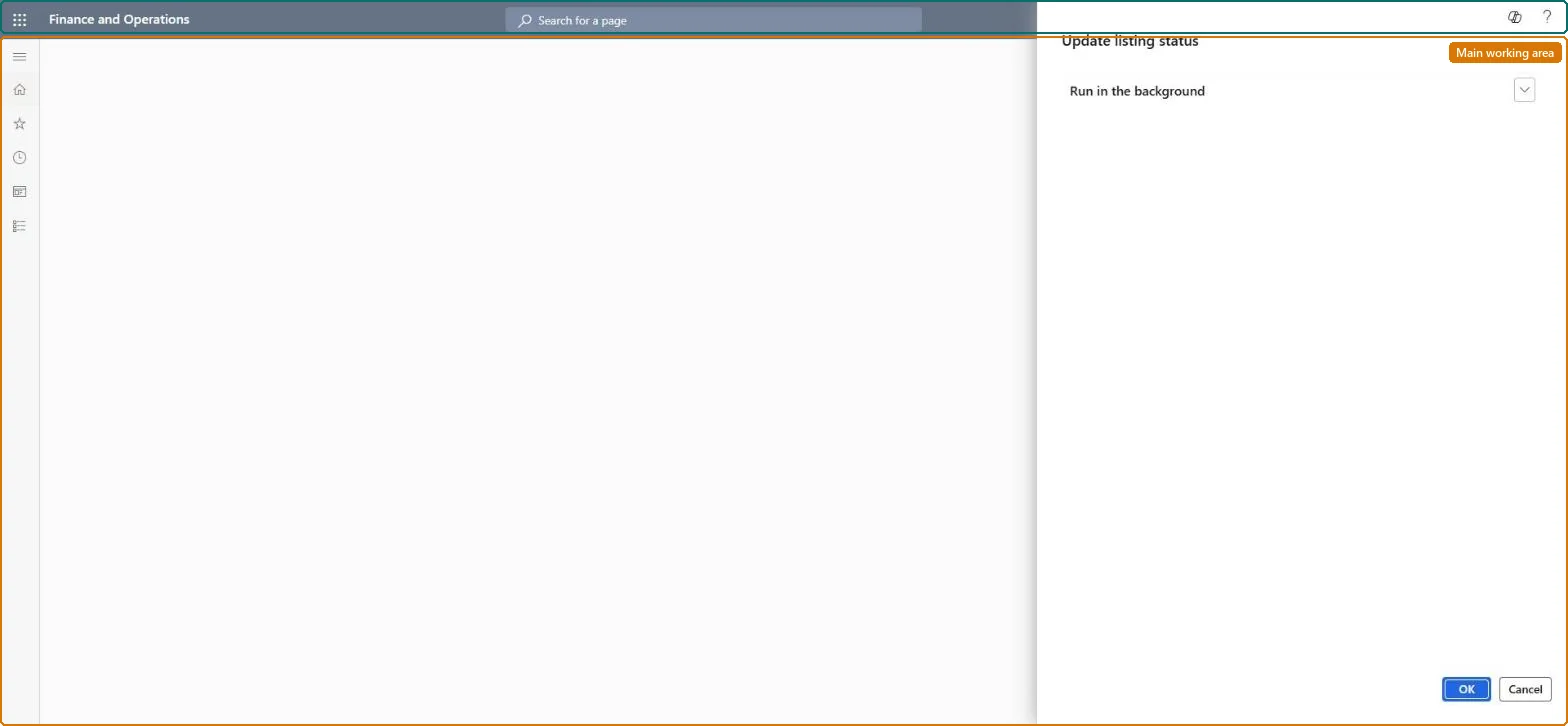
Under Run in the background, set Batch processing, the Batch group, and Recurrence if the status should update regularly.
Select OK to update the listing status now or start the schedule.
Afterwards, look at the Listing status of the listings: In progress means publishing hasn't finished, Success means the listing is published, and Error means publishing failed for that listing.
The publishing state of a product listing: In progress, Success or Error.Microsoft Learn
Requested listing action
The action, such as Publish or Expire, that produced the listing.Microsoft Learn
Solution architect
4Design impact
Can it be undone
Nothing to undo: The job only updates status values; it doesn't change products or catalogs. Microsoft Learn
Technical architect
5Technical
Menu item
RetailListingStatusJobChecked in Dynamics 365
Form
DialogChecked in Dynamics 365
Roles to set it up and use it
To use itRetail service RetailServiceRetail merchandising manager RetailMerchandisingManagerRetail catalog manager RetailCatalogManagerGive people one of these roles. On this system, 3 roles can run this page.Checked in Dynamics 365