PAGE GUIDEWhat the page does and how to use it7 sections. Choose a role to highlight what matters to you.
Everyone
1What it is and why
What it is
A clean-up job that deletes invoiced and canceled sales orders that were created on or before a chosen date or age.
What you do here
Use this page to remove outdated order information, either for one customer account or for all customers, by invoice age in days or by a last-invoiced-through date.
Example
For example, entering 30 in Invoice aged days on April 1, 2014 deletes invoiced or canceled orders created on or before March 2, 2014.
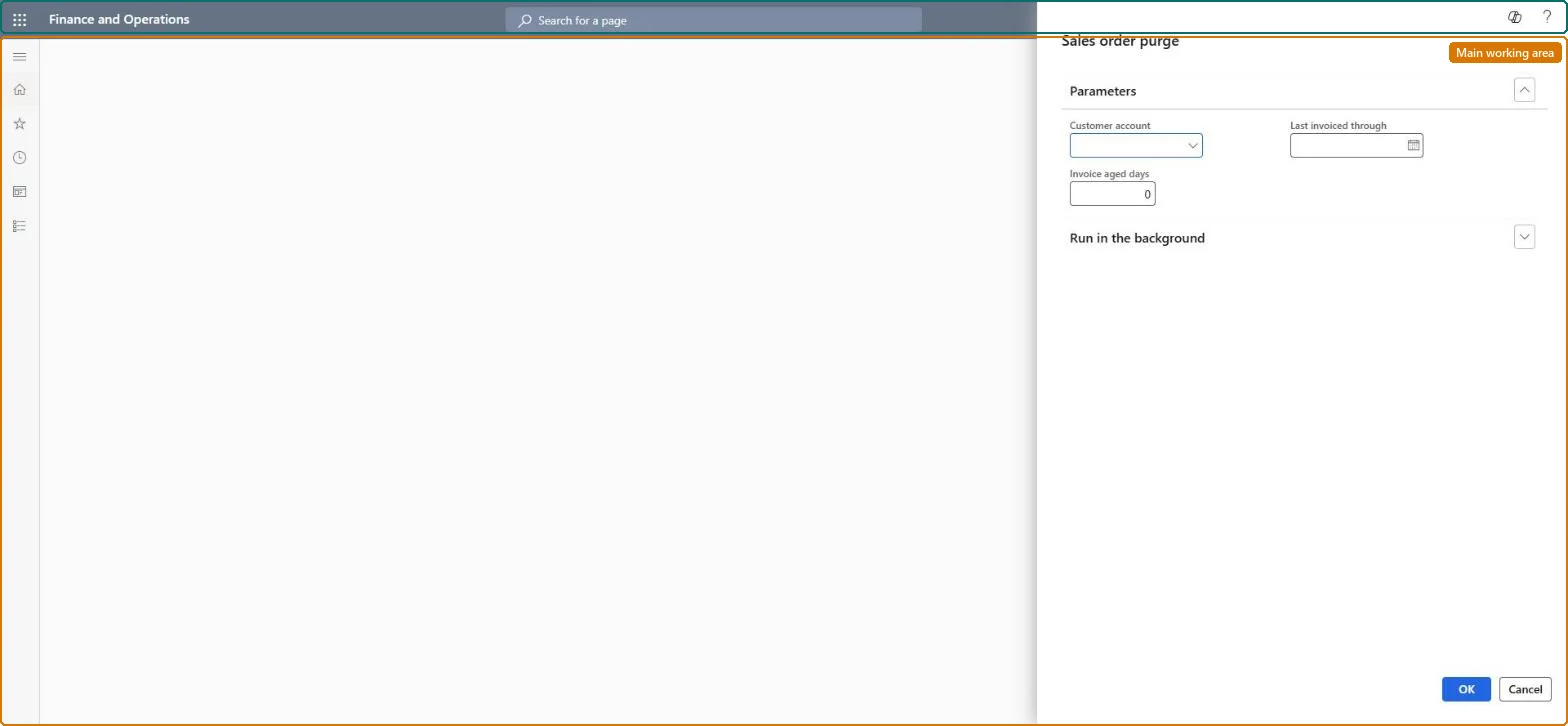
The page in Dynamics 365. page title tab to open what to set or check
Retail and Commerce › Retail and Commerce IT › Clean up › Sales order purge
End user · Functional consultant
3How to do it
About the examples: Examples and screenshots in this guide use BEAT, a demo company in a Dynamics 365 test environment. Use your own company's codes and values instead of copying them.
When to run it
When to run it
When outdated invoiced and canceled call center orders no longer need to be kept, for one customer account or for all customers.
How often
On demand, when outdated invoiced and canceled orders should be removed.
Batch settings
Run it in the background when it covers all customers, so the purge doesn't block your session.
What the output shows
Invoiced and canceled sales orders created on or before the chosen age or date are deleted, for one customer or all. If too many orders disappeared, the age or date was set too recent, because all older orders are included.
Go to Retail and Commerce > Retail and Commerce IT > Clean up > Sales order purge.
Optionally select a Customer account to purge only that customer's sales orders; leave it blank to purge for all customers.
Enter Invoice aged days to delete invoiced and canceled orders older than that many days, or a Last invoiced through date to delete those created on or before that date.
Run the purge, then check in All sales orders that invoiced and canceled orders up to that age or date are gone and open orders are still there.
No: Purged orders can't be restored. Run it only for orders the business no longer needs. Microsoft Learn
If you change it later
Purged invoiced and canceled orders are deleted, including all older ones before the chosen date. Microsoft Learn
Technical architect
5Technical
Menu item
MCRSalesPurgeBatchChecked in Dynamics 365
Form
DialogChecked in Dynamics 365
Roles to set it up and use it
To use itSales manager TradeSalesManagerSales clerk TradeSalesClerkSales representative TradeSalesRepresentativeGive people one of these roles. On this system, 3 roles can run this page.Checked in Dynamics 365