PAGE GUIDEWhat the page does and how to use it7 sections. Choose a role to highlight what matters to you.
Everyone
1What it is and why
What it is
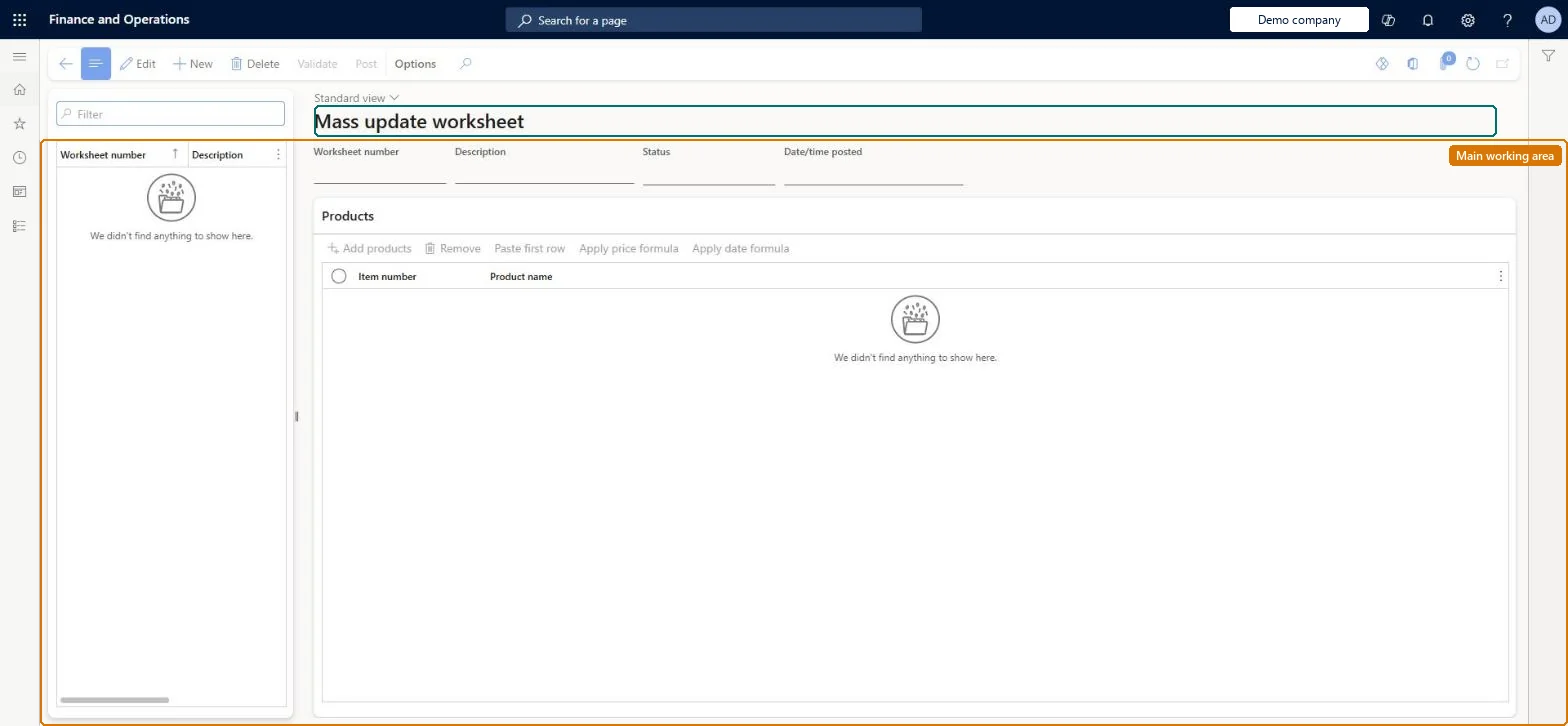
A worksheet page where you change selected product properties for many retail products at once and then validate and post the changes.
What you do here
Use this page to create a worksheet, pick the product properties to change, add products, enter or formula-fill the new values, validate them and post the update.
Example
For example, reduce the sales price of all added products by 50 percent with the formula purchase price * .50 and post the result in one batch.
The page in Dynamics 365. page title tab to open what to set or check
About the examples: Examples and screenshots in this guide use BEAT, a demo company in a Dynamics 365 test environment. Use your own company's codes and values instead of copying them.
Steps from Microsoft
Go to Retail and Commerce > Products and categories > Mass update worksheet.
Select New to create a worksheet and select the product properties to modify.
On the Products FastTab, select Add products and pick the products to update.
Enter the changes per row, or enter them on the first row and select Paste first row.
Optionally select rows and use Apply price formula or Apply date formula.
Posting is final: once a worksheet is pending or posted it can no longer be changed, and any edits after validation require re-validation. Microsoft Learn
Technical architect
5Technical
Menu item
RetailMassUpdateWorksheetChecked in Dynamics 365
Form
RetailMassUpdateWorksheetChecked in Dynamics 365
Table
RetailMassUpdateWorksheeShown as “MASS UPDATE WORKSHEET” in Record infoKey field: NumberChecked in Dynamics 365
Who can open it
PrivilegesUtilize the mass update feature RetailMassUpdateUtilize the mass update feature RetailMassUpdateEditDutiesEdit mass update worksheets RetailMassUpdateEditMaintain retail product reference data RetailProductReferenceDataMaintain2 security rolesRetail merchandising manager RetailMerchandisingManagerRetail service RetailServiceChecked in Dynamics 365
Roles to set it up and use it
To set it up or change itRetail service RetailServiceRetail merchandising manager RetailMerchandisingManagerGive people one of these roles. On this system, 2 roles can open this page.Checked in Dynamics 365
Actions on the page
(Action Pane without tabs): Validate, PostChecked in Dynamics 365