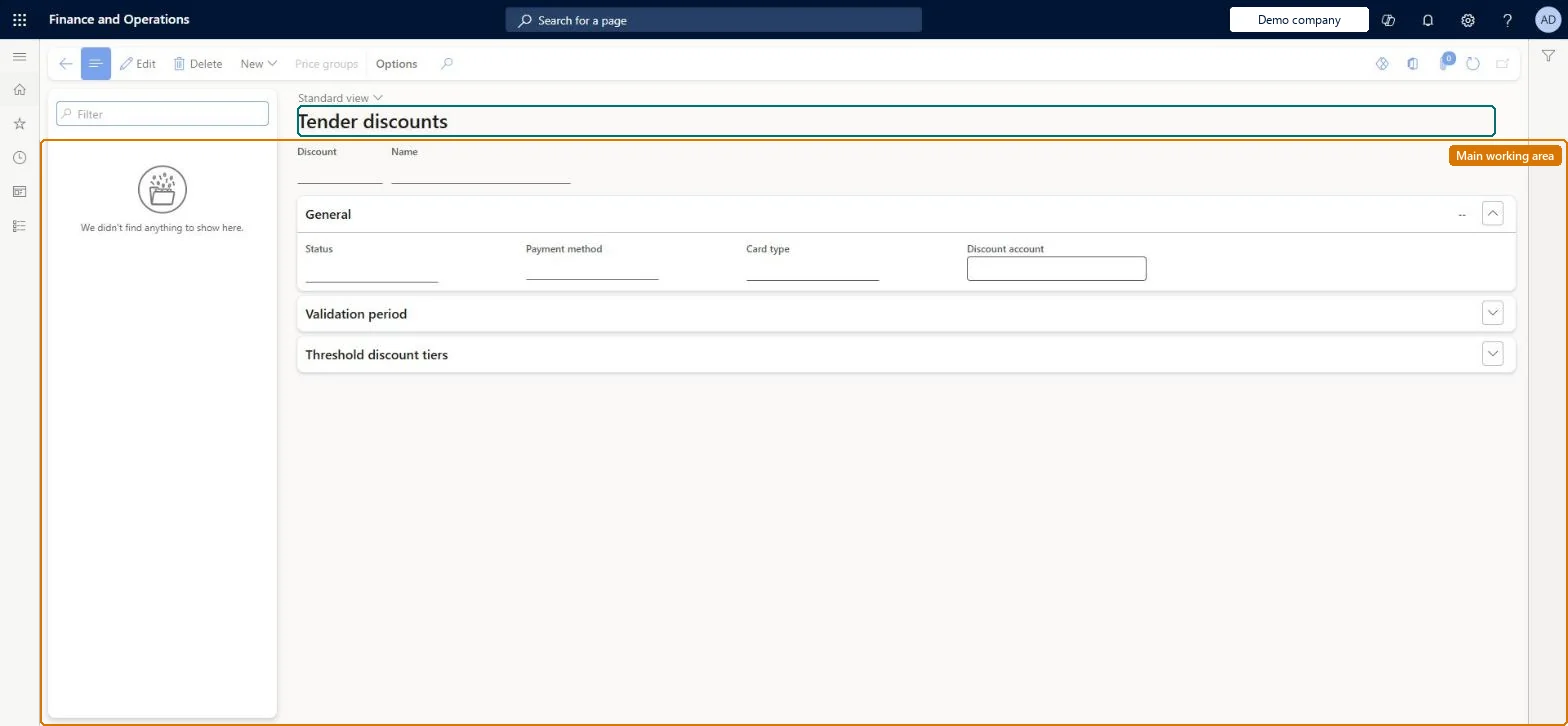
A setup page where you configure tender-based discounts, which give a tiered percentage off the pre-tax sales amount when the transaction total exceeds a threshold and the customer pays with a preferred payment type.
Retail merchandising manager, Retail operations manager, Retail service and 1 more role
Business process
Create discounts in Dynamics 365 Commerce
Menu item
RetailTenderDiscount
Main table
RetailTenderDiscount
Data entity
RetailTenderDiscountEntity
Show what matters for
PAGE GUIDEWhat the page does and how to use it7 sections. Choose a role to highlight what matters to you.
Everyone
1What it is and why
What it is
A setup page where you configure tender-based discounts, which give a tiered percentage off the pre-tax sales amount when the transaction total exceeds a threshold and the customer pays with a preferred payment type.
What you do here
Use this page to define the payment type (cash or a card type) and the amount thresholds with a discount percentage for each, so customers are encouraged to pay with the tender you prefer.
Example
For example, give an extra 5 percent off transactions over $100 that are paid with the retailer's branded credit card.
The page in Dynamics 365. page title tab to open what to set or check
Product configuration (Prevent tender based discounts) Microsoft Learn
End user · Functional consultant
3How to do it
About the examples: Examples and screenshots in this guide use BEAT, a demo company in a Dynamics 365 test environment. Use your own company's codes and values instead of copying them.
How to use it
Go to Retail and Commerce > Pricing and discounts > Tender discounts.
Use the Filter box to find a discount.
Select New and enter the Discount and Name, then under General choose the Status, the Payment method and Card type the discount rewards and the Discount account.
Expand Validation period to limit when the discount applies, and Threshold discount tiers to enter the amount tiers and the discount each tier gives.
Select Price groups to assign the price groups the discount belongs to, then Save.
Source: Checked in Dynamics 365
Fields on the page
Field
What it means
Payment type
The tender the discount rewards; currently only credit cards and cash are supported.Microsoft Learn
Card types
For card tenders, one or more card types that qualify; POS prompts the cashier with the preferred cards.Microsoft Learn
Amount threshold
The transaction amount that must be exceeded for a tier.Microsoft Learn
Discount percentage
The percentage off the pre-tax sales amount at that tier, spread proportionally across qualifying lines.Microsoft Learn
Test checklist
Create a tender discount for cash with one threshold and a percentage, and enable it.
In POS, ring up a sale above the threshold and select Pay cash; check the balance drops by the discount on the pre-tax amount.
Select Back on the payment screen and check the discount is removed.
Ring up an item with an exclusive discount and check the tender discount still compounds on top.
Check that auto-charges on the order don't change when the tender discount lowers the subtotal.
Hard to reverse: Like other discounts, it can only be edited while Disabled. After an order is placed its line prices are locked, so no tender discount is applied to balances paid later at pickup or shipment. Microsoft Learn
If you change it later
Tender discounts never compete with item discounts; they are compounded on top, and if several exist for one payment type only the best one applies. Automatic charges are not recalculated when the discount lowers the subtotal. Microsoft Learn
Technical architect
5Technical
Menu item
RetailTenderDiscountChecked in Dynamics 365
Form
RetailTenderDiscountChecked in Dynamics 365
Table
RetailTenderDiscountShown as “TENDER DISCOUNT” in Record infoChecked in Dynamics 365
To set it up or change itRetail service RetailServiceRetail merchandising manager RetailMerchandisingManagerTo use itRetail operations manager RetailOperationsManagerRetail store manager RetailStoreManagerGive people one of these roles. On this system, 4 roles can open this page.Checked in Dynamics 365
Actions on the page
(Action Pane without tabs): New, Price groupsChecked in Dynamics 365