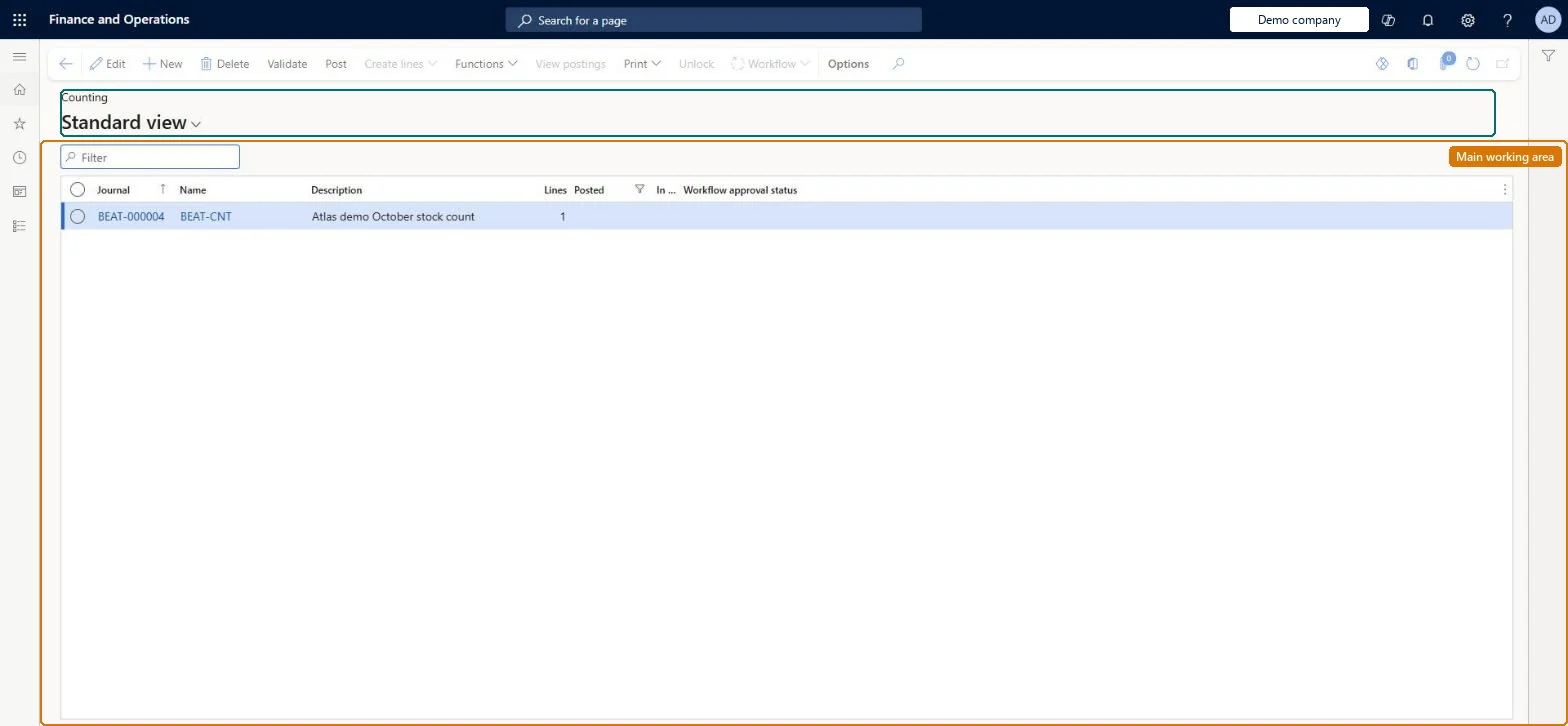
A page that lists the counting journals Commerce headquarters creates for scheduled store stock counts; each journal is linked to a store's warehouse and specifies the items to count.
Materials manager, Quality control clerk, Quality control manager and 9 more roles
Business process
Maintain inventory levels
Menu item
RetailInventJournalTableCount
Main table
InventJournalTable
Data entity
InventInventoryAdjustmentJournalHeaderEntity
Show what matters for
PAGE GUIDEWhat the page does and how to use it7 sections. Choose a role to highlight what matters to you.
Everyone
1What it is and why
What it is
A page that lists the counting journals Commerce headquarters creates for scheduled store stock counts; each journal is linked to a store's warehouse and specifies the items to count.
What you do here
Use this page to create scheduled stock counts that store staff complete with the Stock count operation in POS, and to validate and post the counts that stores send back to headquarters.
Example
For example, create a counting journal for a store's warehouse listing the items to count; the store then opens it in POS, counts, and commits the result back for posting.
The page in Dynamics 365. page title tab to open what to set or check
About the examples: Examples and screenshots in this guide use BEAT, a demo company in a Dynamics 365 test environment. Use your own company's codes and values instead of copying them.
How to use it
Go to Retail and Commerce > Inventory management > Stock counts.
Use the Filter box to find a journal.
Select New, pick the journal Name and enter a Description.
Open the journal to enter the counted lines, then select Validate and Post.
Use Functions and Print for the journal's other actions.
Source: Checked in Dynamics 365
Test checklist
Create a scheduled stock count journal for a store warehouse with a few items.
In POS, open the Stock count operation, count the items and commit.
In headquarters, check the counts arrived, validate them and post.
Check the store's on-hand matches the counted quantities.
Hard to reverse: Once a store completes a count in POS it is committed and sent to headquarters, where it must be validated and posted as a separate step; check the counted quantities at validation, before posting. Microsoft Learn
Technical architect
5Technical
Menu item
RetailInventJournalTableCountChecked in Dynamics 365
Form
InventJournalCountChecked in Dynamics 365
Table
InventJournalTableShown as “INVENTORY JOURNAL TABLE” in Record infoChecked in Dynamics 365
Data entities
InventInventoryAdjustmentJournalHeaderEntityInventory adjustment headers Microsoft data model InventInventoryCountingJournalHeaderEntityInventory counting journal headers Microsoft data model InventInventoryMovementJournalHeaderEntityInventory movement headers Microsoft data model ProjectItemJournalTableEntityProject item journal header Microsoft data model
Who can open it
PrivilegesMaintain counting journals InventJournalTableCountMaintainView counting journals InventJournalTableCountViewMaintain retail stock counts RetailStockCountsMaintainDutiesApprove physical inventory counting InventPhysicalInventoryCountingApproveMaintain physical inventory counting InventPhysicalInventoryCountingMaintainMaintain retail counting RetailCountingMaintainMaintain retail store inventory worksheets RetailStoreInventoryWorksheetsMaintainInquire into warehouse operation progress WMSWarehouseOperationProgressInquire12 security rolesMaterials manager InventMaterialsManagerQuality control clerk InventQualityControlClerkQuality control manager InventQualityControlManagerReceiving clerk InventReceivingClerkShipping clerk InventShippingClerkRetail operations manager RetailOperationsManagerRetail service RetailServiceRetail store manager RetailStoreManagerRetail warehouse clerk RetailWarehouseClerkRetail warehouse manager RetailWarehouseManagerWarehouse manager WMSWarehouseManagerWarehouse worker WMSWarehouseWorkerChecked in Dynamics 365
Roles to set it up and use it
To set it up or change itRetail service RetailServiceRetail operations manager RetailOperationsManagerRetail store manager RetailStoreManagerRetail warehouse clerk RetailWarehouseClerkRetail warehouse manager RetailWarehouseManagerTo use itMaterials manager InventMaterialsManagerWarehouse manager WMSWarehouseManagerQuality control manager InventQualityControlManagerQuality control clerk InventQualityControlClerkReceiving clerk InventReceivingClerkGive people one of these roles. On this system, 12 roles can open this page.Checked in Dynamics 365
Actions on the page
(Action Pane without tabs): Validate, Post, Create lines, Functions, View postings, Print, Unlock, WorkflowChecked in Dynamics 365