A setup page where you group existing info codes and give each a priority, so the same info codes can be reused in several groups and shown in a chosen order at the POS.
Product designer, Retail operations manager, Retail service
Business process
Manage sales channels
Menu item
RetailInfocodeGroup
Main table
RetailInfocode
Data entity
RetailInfocodeEntity
Setup steps
1 on this page
Show what matters for
PAGE GUIDEWhat the page does and how to use it8 sections. Choose a role to highlight what matters to you.
Everyone
1What it is and why
What it is
A setup page where you group existing info codes and give each a priority, so the same info codes can be reused in several groups and shown in a chosen order at the POS.
What you do here
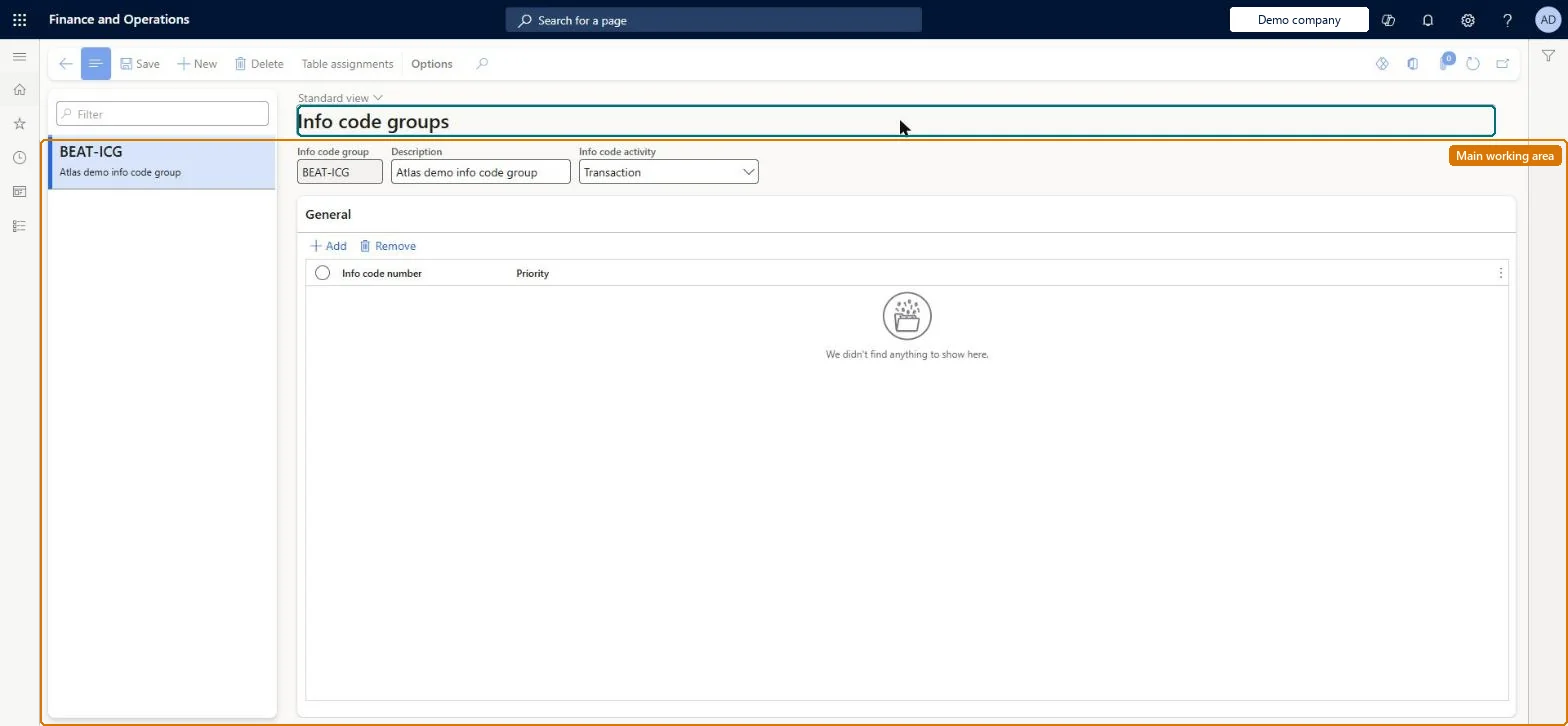
Use this page to create an info code group, add info codes to it and set the priority that controls the order of the prompts; the group can then be linked to an info code so one trigger prompts for a whole set of data.
Example
For example, a 'batteries' prompt can be set up once and reused in several groups instead of creating a separate linked info code for every product scenario.
The page in Dynamics 365. page title tab to open what to set or check
About the examples: Examples and screenshots in this guide use BEAT, a demo company in a Dynamics 365 test environment. Use your own company's codes and values instead of copying them.
Setup steps on this page
Set up Info code groups
Use this page to create an info code group, add info codes to it and set the priority that controls the order of the prompts; the group can then be linked to an info code so one trigger prompts for a whole set of data.
Steps from Microsoft
Go to Retail and Commerce > Channel setup > Info code groups.
Create a new group and enter a name for the info code group.
Select Add to pick the info codes to include in the group.
For each info code, enter a Priority number (0 is shown first, 1 second, and so on).
One group per data-capture scenario (for example mobile device sale), containing shared info codes ordered by Priority, linked to the triggering info codeGroups let common prompts such as batteries or serial number be set up once and reused, with priority controlling the order in which they appear.
Leaving priorities unset or duplicated, so prompts appear in an order that does not fit the sales conversation.
Solution architect
5Design impact
Can it be undone
Reversible: Groups can be edited or rebuilt at any time. Info codes in a group have no dependencies on each other, so removing one from a group does not affect other groups that use it. Microsoft Learn
Technical architect
6Technical
Menu item
RetailInfocodeGroupChecked in Dynamics 365
Form
RetailInfocodeGroupChecked in Dynamics 365
Table
RetailInfocodeShown as “INFO CODES” in Record infoKey field: infocodeIdChecked in Dynamics 365
PrivilegesMaintain retail infocodes RetailInfocodesMaintainDutiesMaintain retail infocodes RetailInfocodesMaintain3 security rolesProduct designer BOMProductDesignerRetail operations manager RetailOperationsManagerRetail service RetailServiceChecked in Dynamics 365
Roles to set it up and use it
To set it up or change itRetail service RetailServiceRetail operations manager RetailOperationsManagerProduct designer BOMProductDesignerGive people one of these roles. On this system, 3 roles can open this page.Checked in Dynamics 365
Actions on the page
(Action Pane without tabs): Table assignmentsChecked in Dynamics 365
RetailInfocodeEntity (Info codes): loaded for each company, in Microsoft's default template 500 - Retail.Load order: Microsoft's default template 500 - Retail loads Info codes at execution unit 1, level 30, sequence 10. Lower levels load first, and entities at the same level load in sequence order.Load first: the default templates at lower levels (System setup to General ledger)Microsoft Learn