About the examples: Examples and screenshots in this guide use BEAT, a demo company in a Dynamics 365 test environment. Use your own company's codes and values instead of copying them.
Step by step, with screenshots
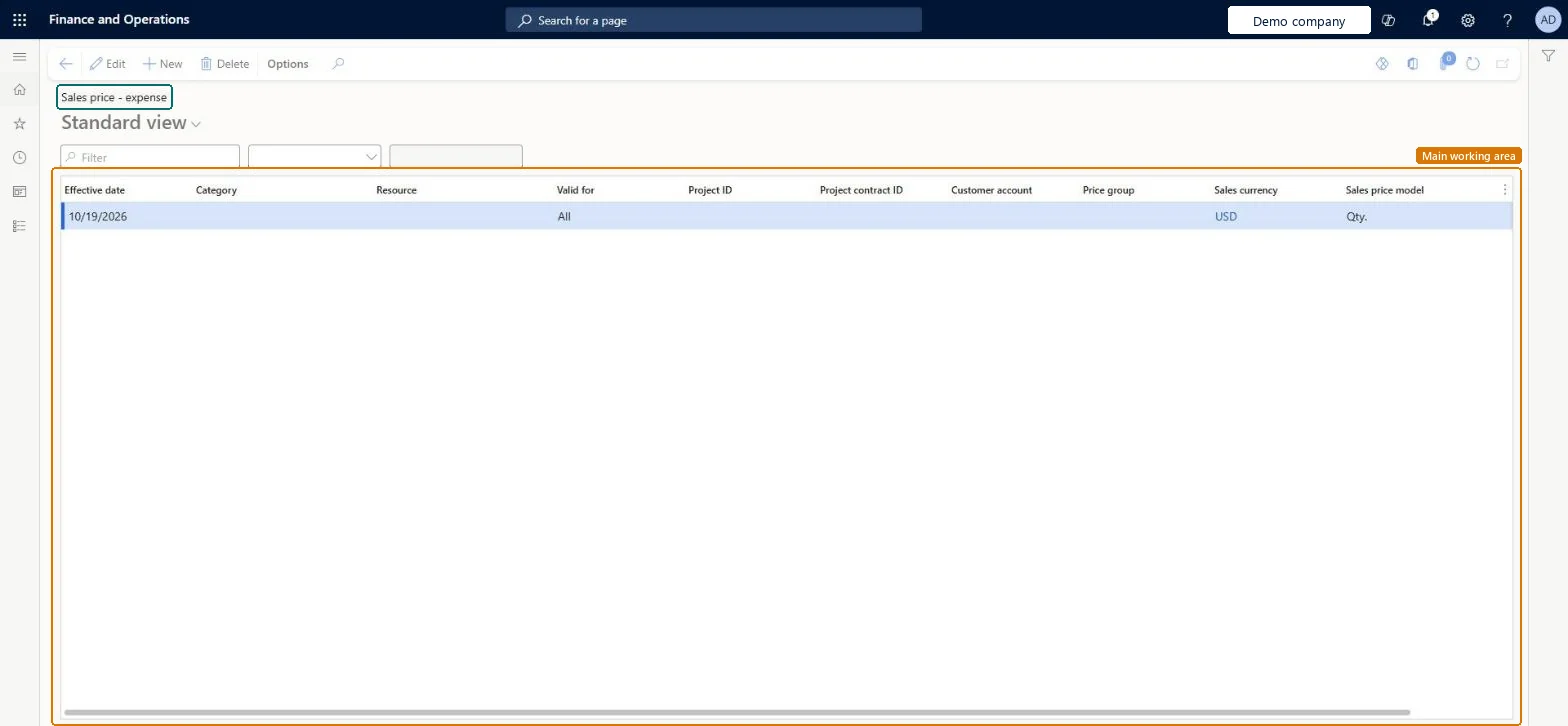
Set up Sales price (expense)1 screen
Use this page to set how the sales price of a project expense is worked out, such as a markup on its cost.
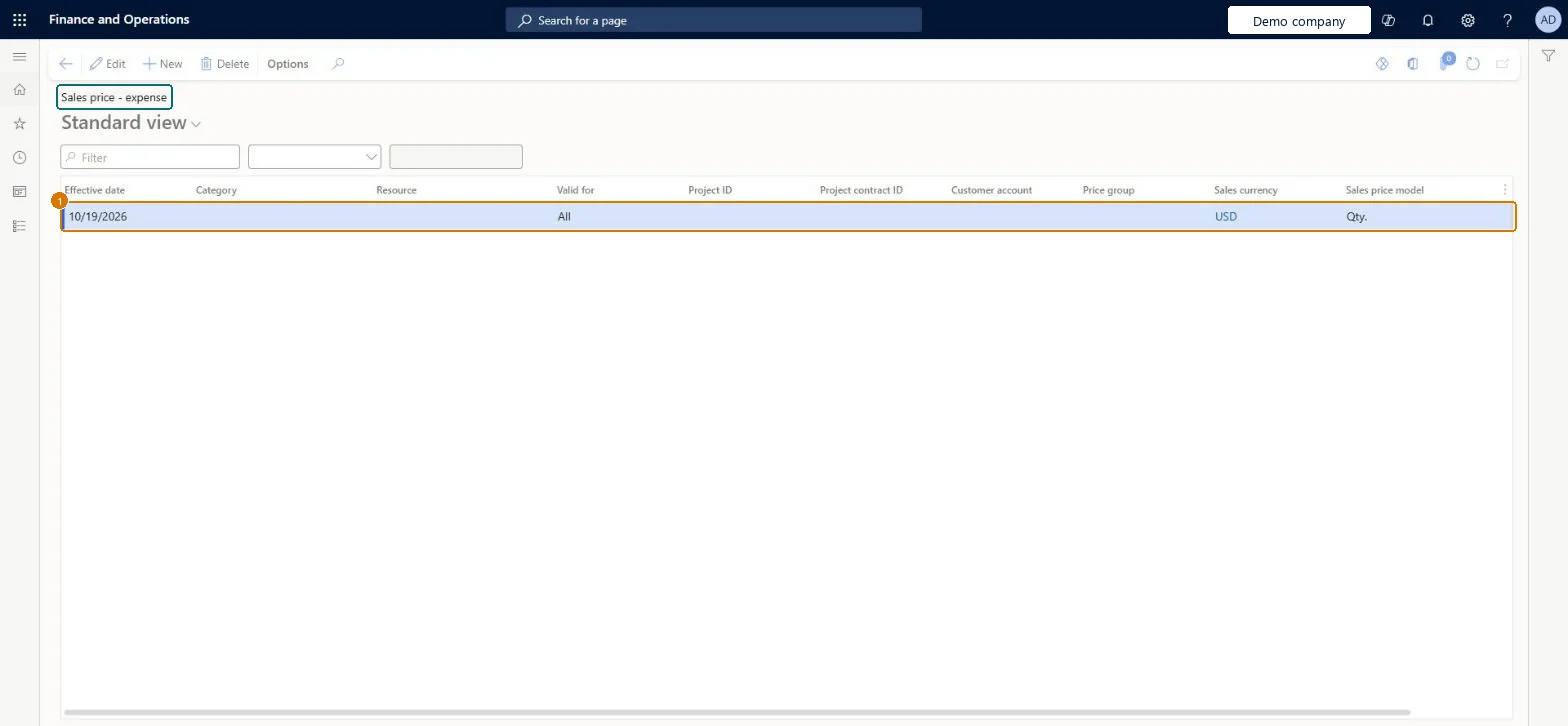
Screen 1
Set a sales price for expenses
Go to Project management and accounting > Setup > Prices > Sales price (expense)
Select New
Enter the effective date
Leave the category blank for every expense category, or select one
Set Valid for to All, or to Table or Group for a narrower price
Check the sales currency and the sales price model, then enter the price under Pricing
Select Save
1Effective date
10/19/2026
Valid for
All
Sales price model
Qty.
Pricing
12.00
Show the full screen page title tab to open what to set or check
Steps from Microsoft
Go to Project management and accounting > Setup > Prices > Sales price (expense).
Select New, enter the Effective date and set Valid for to All, Group or Table.
Select the Sales price model, such as a charges percentage on cost.
Enter the percentage or amount in Pricing and save.
Post a test expense and check its sales price in Posted project transactions.
A charge percentage markup on costLearn describes the charge percentage markup as a commonly used method: a 5 percent markup makes a 1,000 expense invoiceable at 1,050.
How should expenses be priced to customers?Not checking tax. With Apply sales taxation rules on, the posted sales price includes the markup on tax as well, so 1,000 with 5 percent markup and 5 percent tax posts at 1,102.50.Test: Expense markup
Feature management and licence
Feature to turn on
Streamline cost price and sales price calculations (Optional)
Licence or add-in
On the live system, Project accountant and Service delivery manager maintain this page; Project manager, Resource manager and sales roles can open it. The optional Streamline cost price and sales price calculations feature changes how prices are calculated.
PrivilegesDelete sales prices for project expense transactions ProjSalesPriceCostMaintainView sales prices for project expense transactions ProjSalesPriceCostViewMaintain service agreement details SMAAgreementDetailsMaintainView service agreement details SMAAgreementDetailsViewDutiesInquire into project sales pricing master ProjProjectSalesPricingMasterInquireMaintain project sales pricing master ProjProjectSalesPricingMasterMaintainResource manager ProjResourceManagerInquire into service agreement master SMAServiceAgreementMasterInquireMaintain service agreement master SMAServiceAgreementMasterMaintainEnable service agreement process SMAServiceAgreementProcessEnable7 security rolesProject accountant ProjProjectAccountantProject manager ProjProjectManagerResource manager ProjResourceManagerService dispatcher SMADispatcherService delivery manager SMAServiceDeliveryManagerSales manager TradeSalesManagerSales representative TradeSalesRepresentativeChecked in Dynamics 365
Roles to set it up and use it
To set it up or change itProject accountant ProjProjectAccountantService delivery manager SMAServiceDeliveryManagerTo use itProject manager ProjProjectManagerSales representative TradeSalesRepresentativeSales manager TradeSalesManagerResource manager ProjResourceManagerService dispatcher SMADispatcherGive people one of these roles. On this system, 7 roles can open this page.Checked in Dynamics 365
Actions on the page
Options: Personalize, Page options, ShareChecked in Dynamics 365
ProjCostSalesPriceEntity Project - expense sales price, loaded for each company.Load order: Load expense sales prices after project categories and projects, because a price row refers to them.Load first: Project categories, ProjectsMicrosoft Learn
Checked in a working Dynamics 365 system, version 10.0.49: the menu item, form, table and security, the page, the demo records and the values in the screenshots.