About the examples: Examples and screenshots in this guide use BEAT, a demo company in a Dynamics 365 test environment. Use your own company's codes and values instead of copying them.
When to run it
When to run it
After workers' employment ends, so their information is left out of time and attendance calculations and approvals.
How often
Regularly as a batch job, or after a group of terminations.
Batch settings
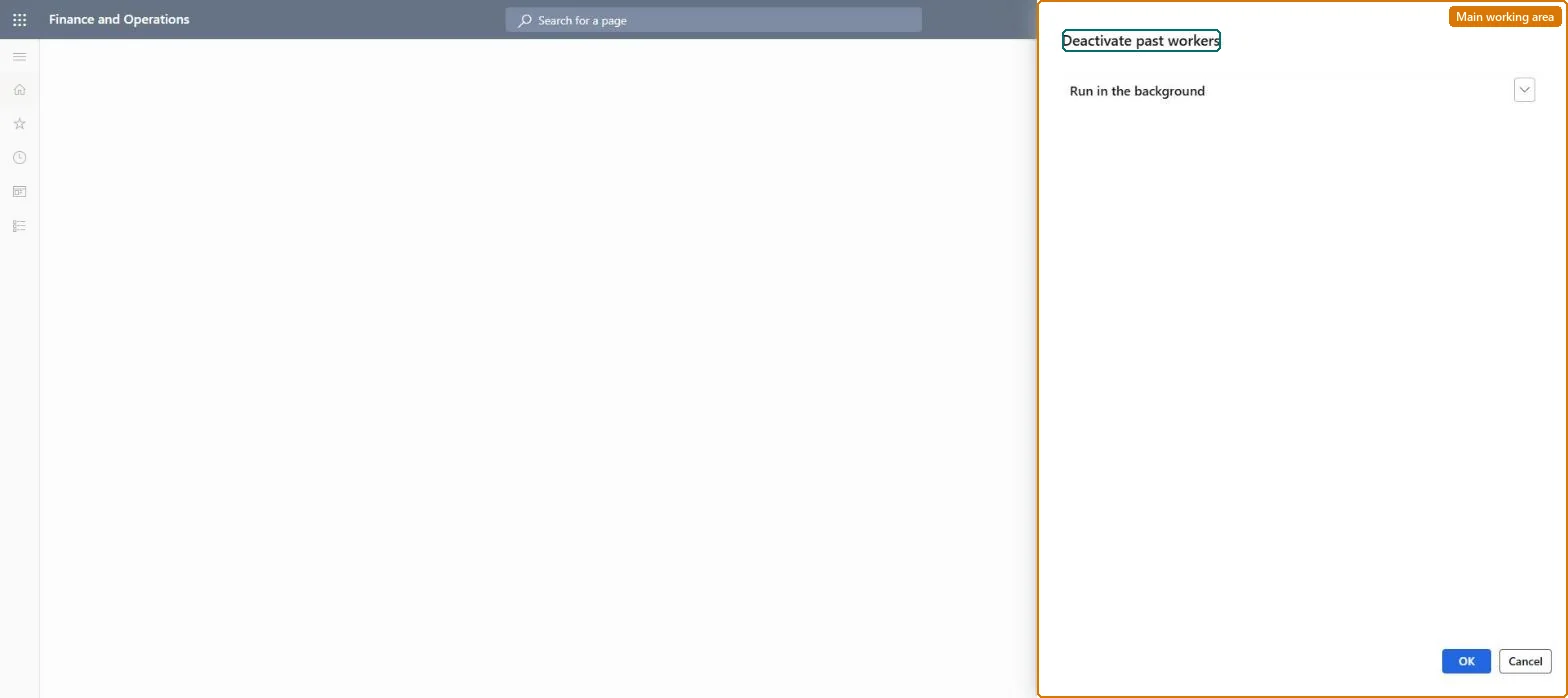
Set it up as a recurring batch job so workers whose employment ended are deactivated automatically.
What the output shows
Former workers marked as inactive in time and attendance. A former worker still shown in calculation or approval usually has employment that hasn't ended yet.
No: The job has no reverse step. Check employment end dates before you run it. Microsoft Learn
If you change it later
Deactivated workers are excluded from time and attendance calculations and approvals from then on. Microsoft Learn
Technical architect
5Technical
Menu item
action:JmgDeactivatePastWorkersChecked in Dynamics 365
Form
DialogChecked in Dynamics 365
Roles to set it up and use it
To use itProduction supervisor ProdProductionSupervisorGive people one of these roles. On this system, 1 role can run this page.Checked in Dynamics 365